
In This Article
Who can use this feature?
- Pike13 Plans: ✅Premium, ✅Advanced, ✅Essential
- User Roles: ✅Primary Owner, ✅Owner, ✅Manager, ✅Staff, ❌Limited Staff
Client Menu
- At the top of any Pike13 page, click on Clients.
- Search for and select the client you wish to view.
- Go to the menu on the right.
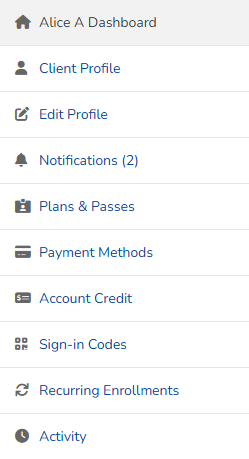
- Staff may view:
- Dashboard to see important notices, purchase requests, notes, active plans and passes, upcoming bills and scheduled events
- Client Profile to see contact and personal details, including guardian info, address, assigned staff member and custom field info
- Edit Profile to update their information
- Notifications allows seeing a read-only view of New and Archived notifications, and notification settings for the client
- Plans & Passes that are Active, Upcoming or Inactive (expired/used up)
- Payment Methods to see saved payment methods on file
- Account Credit to add/remove account credit and see the current balance
- Sign-in Codes to manage sign-in codes for the Kiosk app
- Recurring Enrollments to see classes and appointments where a client is bulk enrolled. For class enrollments only, staff can remove a client from every class in that series by clicking on the X and confirming cancellation.
- Only Managers and Owners will be able to see Recurring Enrollments. Staff and Limited staff will not see this.
- Activity to see the client's actions in Pike13
- History
- Managed clients
- Advanced Actions