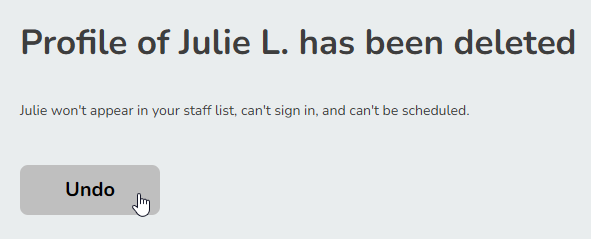
Owners and Managers can edit any staff member’s profile as well as their staff privileges. Staff members can edit their own profiles.
In This Article
Who can use this feature?
- Pike13 Plans: ✅Premium, ✅Advanced, ✅Essential
- User Roles: ✅Primary Owner, ✅Owner, ✅Manager, ❌Staff, ❌Limited Staff
Adding Staff Members
- At the top of any Pike13 page, click Staff.
- Click on + New Staff Member.
- Add the following details:
- Home location: Only applies to businesses with multiple locations.
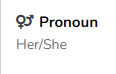
- Pronoun: Shown on the Staff (or client) dashboard, but nowhere else.

- First name: Required and displayed throughout schedules.
- Middle name
- Last name: Required and displayed throughout schedules. Pro tip - Use a last initial if you want to preserve anonymity online.
- Email address: Required and used for all communication from Pike13.
- Phone
- Birthday
- Country
- Street Address
- City
- State/Province
- Postal code
- Any configured custom fields
- Issue complimentary pass
- Bio: Used when showing this staff person on your Pike13 website.
- Role: Determines the staff permissions this person will have
- Make this person a Client: Staff members may also be clients which allows them to have memberships or enroll in services offered at the business.
- Show this person on your Pike13 website: You may choose to show of hide staff profiles online. For a more personal touch, show their profile. However, for privacy concerns or system accounts, you may choose to hide their profiles from the website.
- Send invitation email: Send this so that the new staff person may setup their Pike13 login account and security credentials.
- Click + Create.
TIP: Reordering Staff
From the Staff list, click Reorder. Drag and drop items into the order you'd like them to appear, then click Done. Changes save automatically.
NOTE
Need to give a team member extra access? Learn how to configure Additional Staff Permissions to grant reporting access, pay rate management, and more.
Converting Clients to Staff
- At the top of any Pike13 page, click Clients.
- Choose the client you wish to make a staff member.
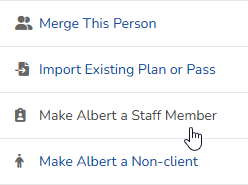
- In the right hand menu under Advanced Actions, click Make [First Name] a Staff Member.
- On the Are you sure? prompt, click Yes.
- You will now be taken to the person's staff profile. You can edit their staff profile if needed.
Editing Staff Profiles
- At the top of any Pike13 page, click Staff.
- Select the staff member you wish to update.
- On the right side menu, click Edit Profile.
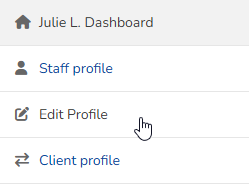
- Update their information as needed.
- Click Save.
Revoking Staff Privileges
Staff privileges of staff members who are not also clients cannot be revoked. If they are also a client, revoking their staff privileges makes them only a client.
- At the top of any Pike13 page, click Staff.
- Select the staff member you wish to update.
- On the right sidebar select Revoke Staff Privileges.
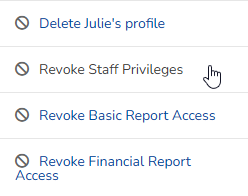
- When prompted Are you sure? click OK if you wish to proceed.
- If the staff member is assigned to a scheduled service, you will be prompted to reassign their scheduled services to another staff member.
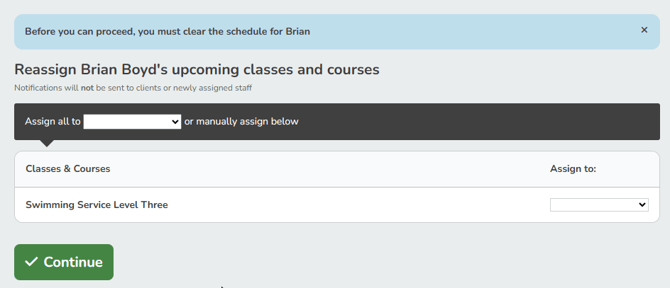
- Click Continue to revoke staff privileges.
- The former staff member will only appear in the client list.
Note
Impact on Payroll
If you manage Payroll in Pike13, all historical completed payroll will still be in reports for revoked staff members.
Revoking Staff access will remove them from any service pay rates.
Any pending payroll items should be run before revoking staff privileges.
Deleting Staff Members
- At the top of any Pike13 page, click Staff.
- Select the staff member you wish to update.
- On the right sidebar select Delete [First Name]'s profile.
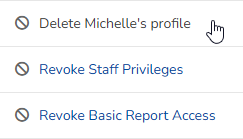
- When prompted Are you sure? click OK if you wish to proceed.
- If the staff member is assigned to a scheduled service, you will be prompted to reassign their scheduled services to another staff member.
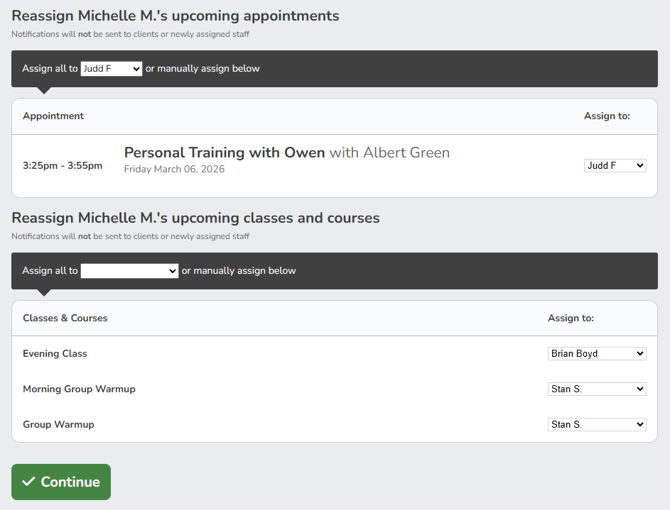
- Click Continue to finish deleting the profile.
- The profile will now be deleted. You may still run reports with this person.
Note
Deleted Staff Visibility
The deleted staff member will not be able to see your staff website, nor will their name appear or be searchable in the staff list. Their past history will be preserved in reporting.
After deleting a staff member, you may un-delete them by finding them in Reporting.
Run the Staff Members report and set a filter to Staff Status is Deleted. Click the Staff Name field, then click Undo.