
Learn how to create discount codes, manage active promotions, and track coupon usage through financial reports.
In This Article
- Who can use this feature?
- Coupon Overview
- How Coupons work in Pike13
- Creating Coupons
- Editing Coupons
- Deleting Coupon
- Coupon Usage Reporting
- Further Reading
Who can use this feature?
- Pike13 Plans: ✅Premium, ✅Advanced, ✅Essential
- User Roles: ✅Primary Owner, ✅Owner, ✅Manager, ❌Staff, ❌Limited Staff
Coupon Overview
Coupons are a powerful marketing tool within Pike13 that you can use to strategically grow your business and revenue. Pike13 provides flexible tools to create, manage, and track these promotions to ensure you meet your business goals. Coupons help you:
-
Attract New Clients: Use targeted discounts to incentivize first-time visits and service purchases.
-
Reward Loyalty: Show appreciation to your existing client base by offering special pricing for repeat business or high-value services.
-
Boost Sales: Promote specific services, courses, or merchandise that you want to highlight or move quickly.
How Pike13 Coupons Work
Coupon codes can be applied to a wide range of your offerings, including:
-
Single-Visit and Prepaid Passes
-
Course Registration Fees
Key Functionality:
-
Coupons are applied to eligible items on an invoice, not the invoice total.
-
The coupon discount is applied to the item’s original or manually adjusted price before any other discounts, credits, proration, and taxes are calculated.
-
You control the usage—each coupon code can be set to be redeemed a specific number of times.
Creating Coupons
-
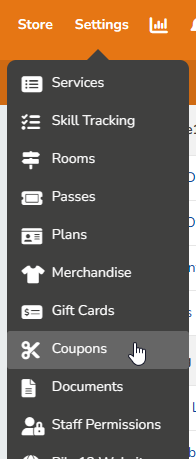
At the top of any Pike13 page, click Settings, then click Coupons.
-
Click + New Coupon.

-
Enter the following details:
-
What is the name of the coupon? This name is shown on bills and must be unique.
-
What is the coupon code? This code is used to apply the discount to the purchase price in the shopping cart, is shown on bills, and must be unique. Use all capital letters and/or numbers without spaces or special characters.
-
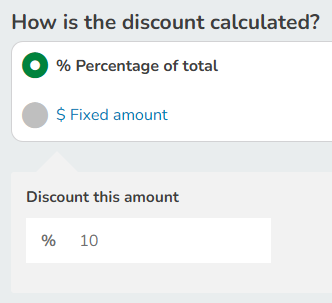
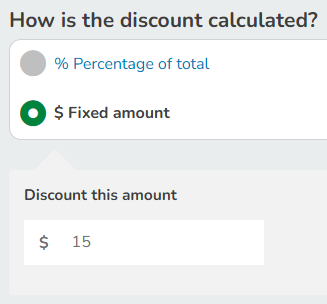
How is the discount calculated? Select the type and enter the percentage or dollar amount that will be discounted.
-
% Percentage of total
-
$ Fixed amount
-
-
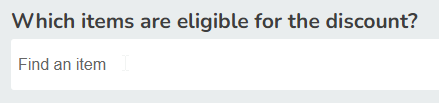
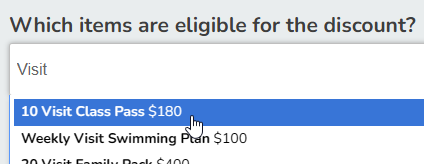
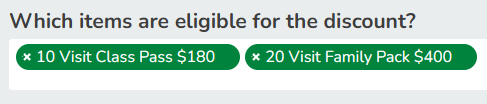
Which items are eligible for the discount? Click Find an item and enter search text to select the items eligible for the discount. Add as many items as needed.
-
Schedule and usage
-
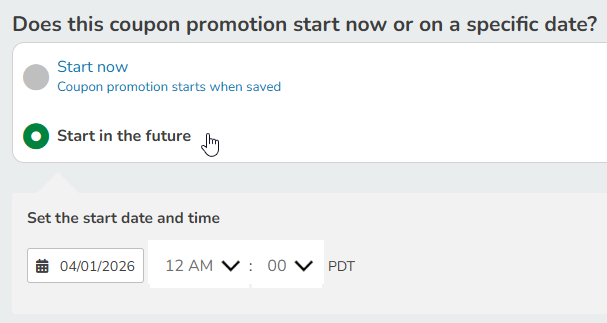
Does this coupon promotion start now or on a specific date? Select between starting the promotion as soon as the coupon is created (Start now)or schedule it to Start in the future.
-
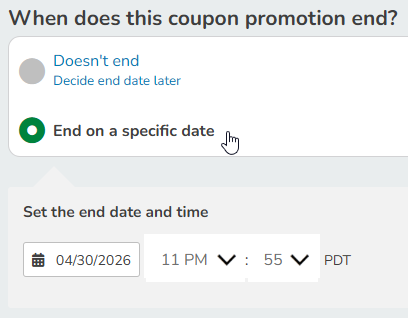
When does this coupon promotion end? Select between never ending (Doesn't end) the promotion or having it End on a specific date. This may be edited later.
-
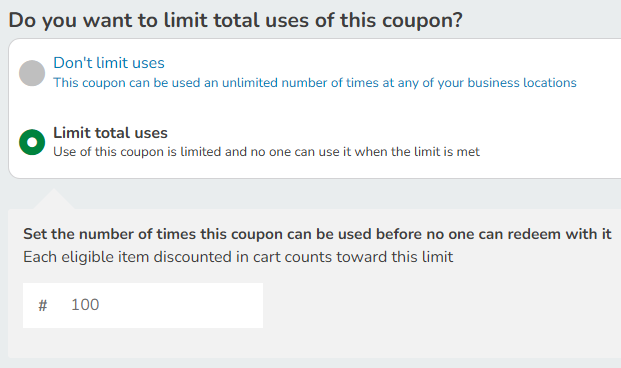
Do you want to limit total uses of this coupon? Select between Don't limit uses and Limit total uses for this coupon. This can be used to encourage customers to sign up now. E.g. The first 100 purchases are eligible for a discount.
-
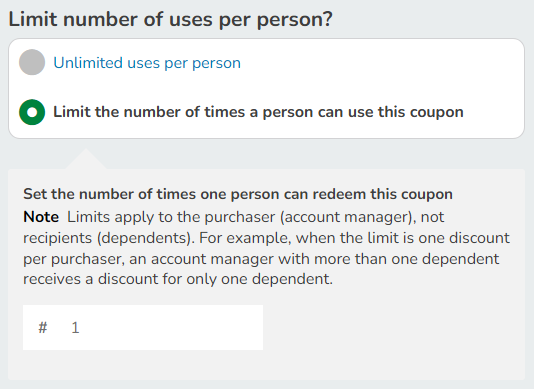
Limit number of uses per person? Select between Unlimited uses per person or Limit the number of times a person can use this coupon. Limits apply to the purchaser (account manager), not service/product recipients (dependents). When the limit is one (1) discount per purchaser, an account manager with multiple dependents will receive a discount for only one (1) dependent.
-
-
-
Click Save.
Best Practice
Creating Coupon Codes
To differentiate each coupon code, you may wish to use an attribute like the date of the promotion. Example: MYCODEMAY2026
Warning
Coupon Support
Coupon codes are only supported via mobile or desktop browsers and the Staff App. They cannot be applied when making a purchase via the Client or Branded App.
Editing Coupons
-
At the top of any Pike13 page, click Settings, then click Coupons.
-
Navigate to one of the following tabs:
-
Active: Lists coupons that are currently running.
-
Upcoming: Shows coupons that start in the future.
-
Ended: Shows coupons with end dates in the past.
-
-
Select the coupon that you wish to review or change.
-
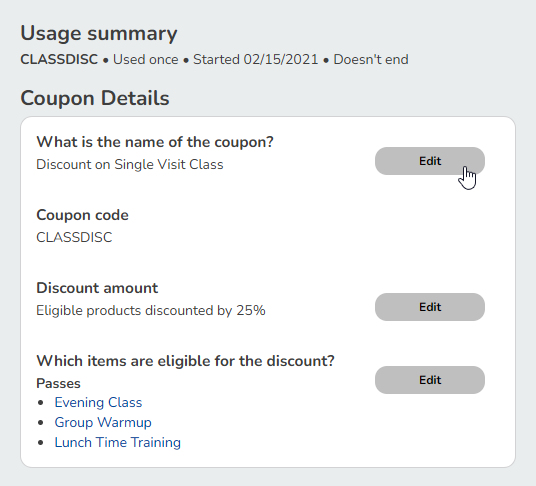
Click Edit next to the item that you wish to change:
-
Click Update when you as satisfied with the changes.
Note
Updating Usage Limits
Pike13 will not let you set a usage limit lower than the total number of times a code has already been used. When reducing usage limits be sure to take into account uses that have occurred prior to making the change.
Warning
Editing the Coupon Code
Once you have created a coupon, Pike13 stores this unique code in our database. The coupon code cannot be edited. You will need to create a new coupon if you wish to change the code itself.
Deleting Coupons
Deleting a coupon will remove it from your list of coupons and from reporting. The coupon code will remain on any invoices that have been processed with the code.
-
At the top of any Pike13 page, click Settings, then click Coupons.
-
Select the coupon you wish to delete.
-
If the promotion is currently running, click End Coupon Promotion., then click Yes when asked Are you sure?
-
Click Delete.
Coupon Usage Reporting
-
At the top of any Pike13 page, click Reporting.

-
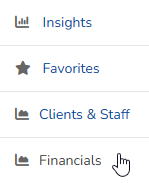
In the right menu, click Financials.
-
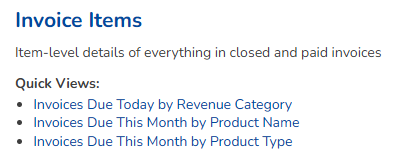
Click the Invoice Items report.
-
Do any of the following:
-
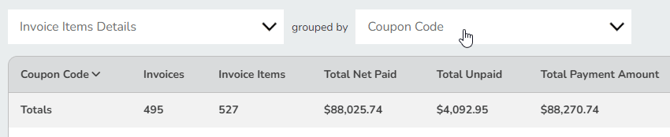
To see invoice items by coupon code, in the Invoice items summary report choose Invoice items grouped by Coupon code.
-
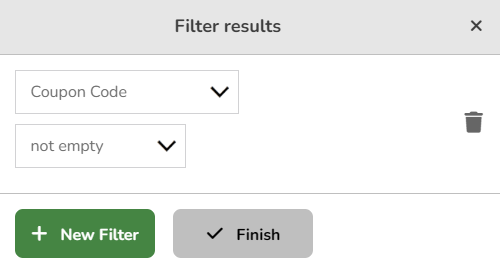
To see the sale history of all of your coupon promotions, click the Details button, add a filter for Coupon code not empty, and then click Finish.

-
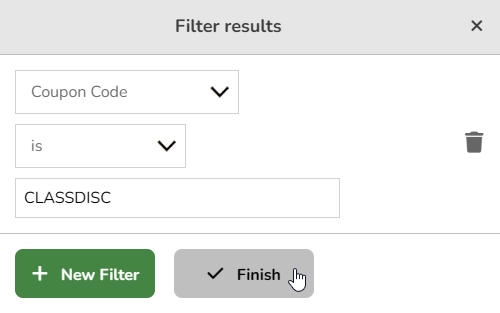
To see the sale history of a specific coupon promotion, click the Details button, add a filter for Coupon code is enter the coupon code you want to filter by, and then click Finish.

-
-
Tip: The Coupons column shows the amount the coupon discounted from the gross price of the invoice item.