Clients can purchase a recurring plan to pay for their visits to your business, making it easier to manage access and billing. With Pike13, plans can bill on a weekly, monthly, or yearly basis. Define what services it covers, whether clients can purchase it directly from your Pike13 site, and any visit limitations—such as one visit per week, one per month, or unlimited visits.
In This Article
Who can use this feature?
- Pike13 Plans: ✅Premium, ✅Advanced, ✅Essential
- User Roles: ✅Primary Owner, ✅Owner, ✅Manager, ❌Staff, ❌Limited Staff
Creating Recurring Plans
-
At the top of any Pike13 page click Settings, then click Plans.
-
Click + New Plan, then click + New Recurring Plan.
-
Fill in the following details:
-
Name: Name of the plan, e.g. Gold Plan, Unlimited Membership
-
Short Description: Shown to clients on your Pike13 website in the list of all your plans and passes
-
Long Description: Shown to clients on your Pike13 website on the details page for this plan
-
Terms and conditions: Shown to clients when they purchase this product
-
Are clients required to accept the terms and conditions?
Note: If required and the terms are changed, clients who previously signed them will be required to sign them again.
-
-
Click Next Step.
-
Fill in the following details:
-
Price per payment: The amount a customer will pay for this plan upfront and on subsequent invoices.
-
Applicable taxes: Sales taxes applied at time of sale and on future invoices.
-
Signup fee: A cost applied to the first invoice when a client signs up for this plan
-
Tax exempt: Taxes may only be applied to signup fees if the plan itself has taxes applied.
-
Billing cycle and frequency: The frequency with which a customer will be billed for this plan. Billing can be in weekly (1-52), monthly (1-12) or yearly (1) increments.
-
When are payments due? This can be on a set day of the week, day of the month or day of the year. Alternatively, it can be on the same day/date of purchase.
-
E.g. Weekly plans may be purchased any day of the week, but always bill on Fridays. Monthly plans may be purchased on the 12th, but are billed on the 1st.
-
-
Revenue category: Used in financial reporting
-
-
Click Next Step.
-
Fill in the following details:
-
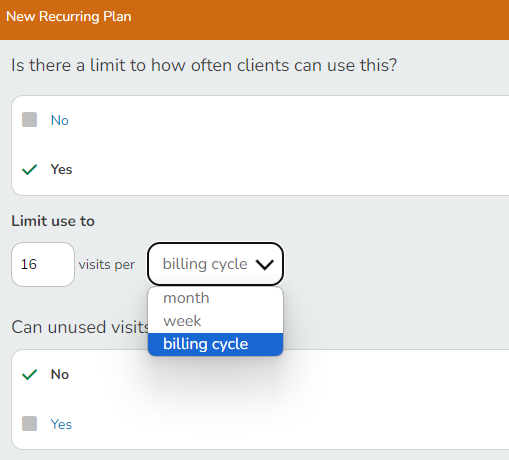
Is there a limit to how often clients can use this?
-
No: Select for an unlimited number of visits while the plan is active.
-
Yes: Select to limit the number of visits per month, week, day or billing cycle.
-
Can unused visits roll over?
-
No: Select if the visits expire as soon as the visit cycle ends
-
Yes: Select if unused visits may be used in the next visit cycle. E.g. With 5 visits per week, 1 visit may be used during that week and 4 extra ones can be used the following week along with an additional 5 new visits.
-
-
-
-
Who can buy this on your Pike13 website? Select between clients and members, only members, or no one (only staff).
-
Are clients who buy this considered members? Select Yes or No.
-
At which location can this be used? If your business has multiple locations, you may pick between them or select Any location.
-
Plan holds: Toggle on to allow holds to be placed on plans.
-
One-time hold fee: Set an amount if there is a fee that should be applied at the time of creating the hold.
-
Maximum length of hold: Choose between None or At most X months, weeks or days.
-
-
Does this plan have a required number of payments?
-
Toggle off if clients may pay for any number of billing periods.
-
Toggle on if clients must pay for a certain number billing periods.
-
How many payments are required? Enter the number of required payments.
-
End plan after the last required payment?
-
Yes: When purchased, the plan's end date will be automatically set and billing will end after the number of required payments have been made.
-
No: Select the auto-renewal type
-
Term Renewal Type
-
Standard: Billing will continue on the regular billing cycle until it's canceled.
-
Full term: The plan terms will be extended by the same number of required payments set above.
-
Custom: Set a different number of required payments after the initial required payments have been made. E.g. A plan may have 6 payments to begin, but it renews for 2 payments at a time.
-
-
-
Early cancellation fee: Set a fee to charge the client if they cancel their plan before making all required payments.
Note: Clients cannot early-cancel their own plans. Staff must do this on their behalf.
-
Is this fee tax-exempt? Taxes may only be applied to cancellation fees if the plan itself has taxes applied.
-
-
-
-
Can clients cancel their plan online? Toggle ON to allow clients to cancel their own recurring plan directly from their account on a mobile browser. When enabled, clients will see a Cancel button on their plan (instead of only a "Set End Date" option) and will be guided through choosing an end date — either immediately or a future date — before confirming. Clients will receive an automatic cancellation confirmation email once complete.
Toggle OFF if you always want clients to contact staff to cancel.
-
-
Click Save.
-
Select the services where this plan can be used.
-
-
Click Save.
Note
Send Receipts for Recurring Automatic Payments
Receipts for recurring automatic payments can be sent through Pike13.
-
At the top of any Pike13 page click Settings, then click Advanced Settings.
-
In the Client Management section, click Recurring Billing.
-
Set Send clients email receipt for recurring plans? to Yes.
- Click Save.
Caution
If the plan has required payments, clients can only cancel online after all required payments have been made. For plans with an early cancellation fee, cancellations before required payments are complete must be handled by staff.
Additional Settings for Recurring Plans
-
Go to Settings > Plans and select the plan you want to modify.
-
Along with the settings initially configured, there are more settings you may want to adjust:
-
You can also preview the email notifications that will be sent to your clients when they purchase this plan.
Learn more about modifying plans.
Note
Billing and Visit Refresh Cycles
Our new feature allows you to select to refresh visits on the billing cycle. If you offer 3 visits/week and bill every 4 weeks, setting the visits to renew on the billing cycle will allow your clients to have a total of 12 visits in 4 weeks.