A Course in Pike13 is a specific type of group service designed for all-or-nothing attendance like a camp, workshop or learning series.
-
Payment: Clients pay one full fee upfront to enroll in the entire series. (e.g., $250 to enroll in all 5 days). They cannot pay for a single day or session.
-
No Makeups: If a client misses a day, there is no functionality to reschedule a single visit.
⚠️ Crucial Limitations
-
Client App: Clients cannot enroll in Courses via the Pike13 Client App. They must use a web browser (desktop or mobile) to sign up.
-
Flexibility: If you want to allow drop-ins, makeups, or flexible dates, do not use a Course. Instead, create a Class and use the Bulk Enrollment feature.
In This Article
Who can use this feature?
- Pike13 Plans: ✅Premium, ✅Advanced, ✅Essential
- User Roles: ✅Primary Owner, ✅Owner, ✅Manager, ❌Staff, ❌Limited Staff
Creating a New Course Service
-
Go to Settings > Services.
-
Click + New Service > + New Course Service.
-
Enter the following information:
-
Name of service: This will be seen by staff and clients (e.g., Level 2 Workshop, Summer Camp 5-12)
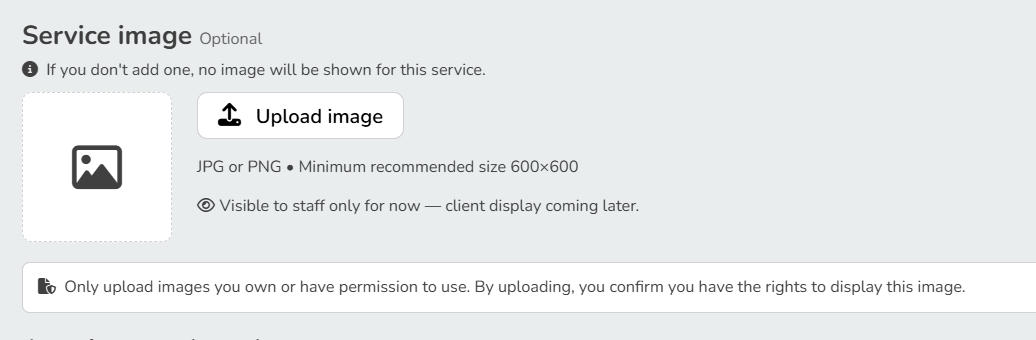
- Service Image
-
Course Price: The total cost for the entire series (e.g., $250)
- Choose applicable taxes: Select any sales tax that should be applied to the price of the course
- Revenue Category: Used in reporting to track revenue
- Service Category: Grouping for reports and filtering for clients via the website
-
-
Click Finish and begin scheduling a course occurrence.
- Enter the following information:
- Name: name of this specific offering (e.g., Spring 2027 Level 2 Workshop, Summer Camp 2027 Week 1)
- Location: applicable when there are multiple locations in a business
- Start date: the date that the course will begin
- Start time: the time the course will begin on the first day it's offered
- End time: the end time of the course on the first day it's offered
- Repeats: determine if this offering will not repeat (it's a single session) or whether it will repeat weekly or daily for a predetermined number of sessions
- Course offerings must have an end date.
- Instructed by: choose the instructors for this course offering
- Capacity for this course
- Enter a room if needed
- Special instructions for enrolled clients: emailed in the confirmation to clients after they are enrolled in the course
- Click Finish.
Duplicate Existing Course Services
If you are running "Summer Camp 2025" and it looks just like "Summer Camp 2024," save time by duplicating the service.
- Go to Settings > Services.
- Click + New Service.
- Select + Duplicate Existing Service.
- Choose the course you wish to copy.
- Enter a New Name and click + Create.
- You will be prompted to define the new dates.