
For additional security, Pike13 has multi-factor authentication (MFA) that can be used for logging in to your profile. Every login account is required to have a password, but only Staff Members, Managers and Owners are required to use MFA. Limited Staff Members and Clients may add it if they prefer extra security, but it is not required.
- Once you've created a username and password, log in to your account.
- See this article if you are experiencing issues logging in.
- If MFA is required, you will see the prompt below:
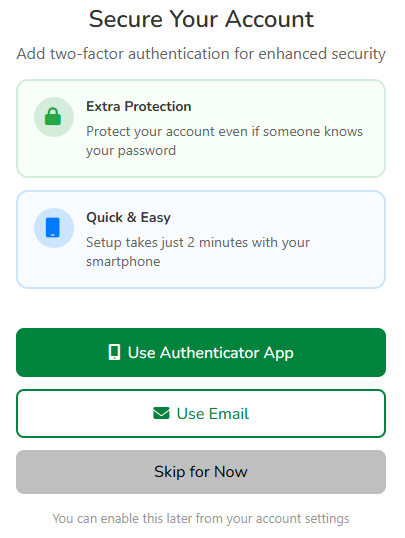
- If you do not see the prompt, MFA is not required, but it can be setup for your account anyway. Go to My Account and follow the instructions below.
- Click Use Email or Use Authenticator App.
- Use Email:
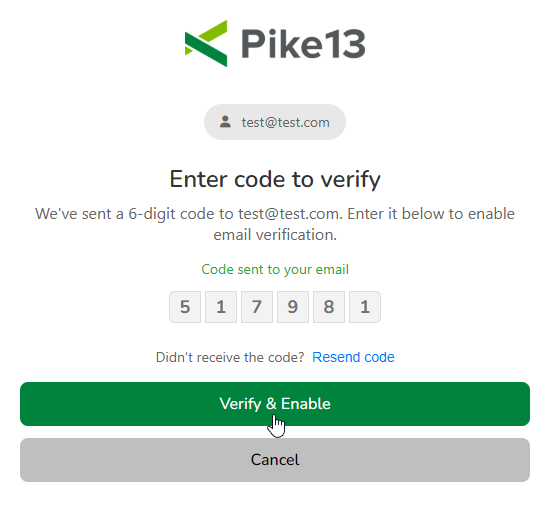
- After clicking Use Email, you will receive an email with a 6 digit code.
- Enter the code, then click Verify & Enable.
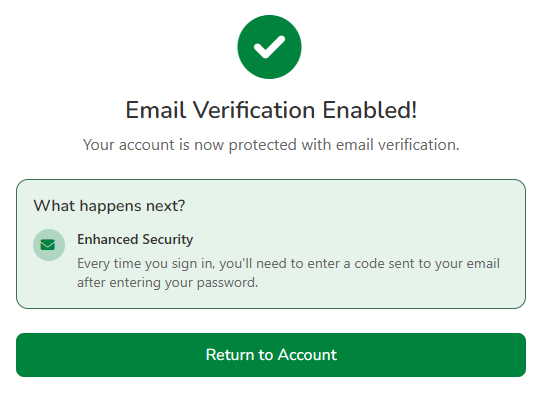
- The next time you sign in to Pike13, you will need to enter a 6 digit code once your username and password have been successfully submitted.
- Use Authenticator App:
- After clicking Use Authenticator App, you will see a QR code that can be scanned with apps like:
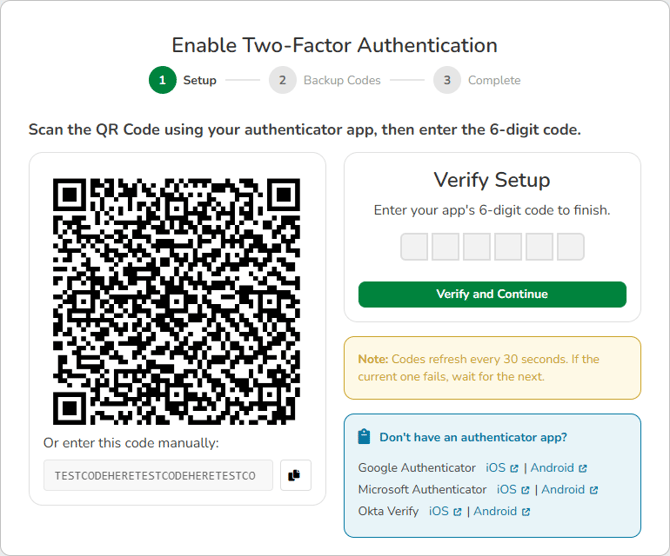
- Scan the QR code and ensure Pike13 has been added to your app.
- Enter a new code in the Verify Setup box, then click Verify and Continue.
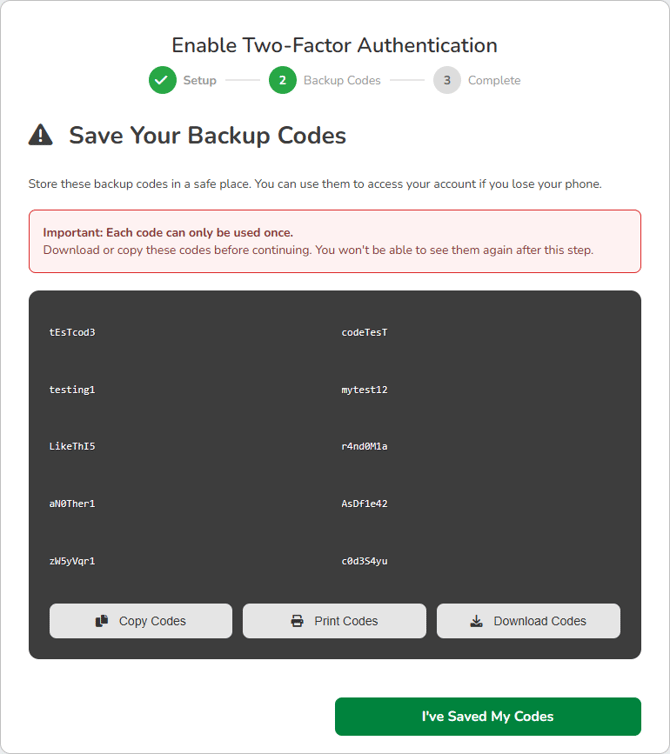
- On the next screen, you will see 10 backups codes. You may copy, print or download them to keep in a safe place. Do not share these codes with anyone else. Once you have stored them securely, click I've Saved My Codes.
- The next time you sign in to Pike13, you will need to enter a 6 digit code once your username and password have been successfully submitted.
- Use Email:
- Now that MFA is setup, your login session may persist for 30 days on a given device if you check Keep me signed in on this device.
- When MFA is required, but not setup, you will be required to log in every day that you use Pike13 regardless of the checkbox selection.