
Before you can book appointments, enroll in classes and courses, or buy passes and plans in a Pike13 business, you will first need to create your client profile.
In This Article
Who can use this feature?
- Pike13 Plans: ✅Premium, ✅Advanced, ✅Essential
- User Roles: ✅Primary Owner, ✅Owner, ✅Manager, ✅Staff, ❌Limited Staff, ✅Client
Note
How to Access Your Pike13 Account
-
If the business already created a profile for you: Check your inbox for a "Welcome" email. Click the link inside to claim your profile, set your password, and finish your setup.
-
If you are new to the business: Simply visit their Pike13 site and select Sign Up. You’ll be guided through creating a new account and profile from scratch.
Creating Your Account/Profile
- In the top right corner of your business's Pike13 website, click Sign Up.
- Enter your email address then click Next.
- Depending on the business, you may be asked who is signing up.
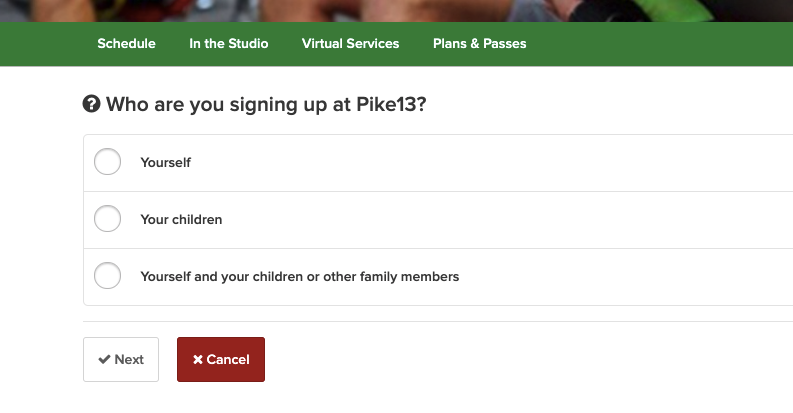
If you signing up your child or yourself and your child, select Your children or Yourself and your children, click Next and see our article on sign up yourself and dependent. - If not signing up a child, select Yourself and click Next.
- Add your required information including creating a password and select Sign Up.
- If you are redirected to the Check your email page after step two, you likely have an account with another Pike13 business.
- Check your email inbox for the “Please confirm your email address” email and click on Confirm your email address.
- Sign In using the same email and password that you set for your first Pike13 business. If you cannot remember your password, select Forgot Password? to reset your password.
- After you sign in, complete the profile information for the new business.
Note
Account vs. Profile
Your Account is your universal login (email and password) for all businesses using Pike13 where you are a customer. Within that account, you have a unique Profile for each business you join. This allows you to manage your schedules at multiple businesses using a single sign-in.
Signing a Waiver
Many businesses require a signed waiver before they can provide you services. Pike13 requires you to sign the waiver when you first sign up as a client with a business using Pike13. If you have not yet signed the waiver, your next sign in will prompt you to complete the waiver(s).
- Sign in to the Pike13 website, and you will be taken directly to a screen asking you to sign the waiver. Select the waiver you need to sign (more than one will appear if you are managing minors).
- If there are specific questions you need to answer, you will be prompted to do so before reviewing and signing the waiver.
Note
Dependents
If you are the guardian of a client under the age of majority (default 18 years old), you may be required to sign a guardian waiver. For more information on signing a waiver for a dependent, please see our article on Signing A Waiver / Misc. Document.
Security
For additional security, Pike13 has multi-factor authentication (MFA) that can be used for logging in to your profile. Every login account is required to have a password, but only Staff Members, Managers and Owners are required to use MFA. Limited Staff Members and Clients may add it if they prefer extra security, but it is not required.
Learn how to Setup Multi-Factor Authentication.