
Reviewing Student Skills
Review a student's progress outside of class, and see how your programs are doing overall.
Reviewing a student's progress
- At the top of any Pike13 page, click Settings, then click Skill Tracking.
- Select the program.
- Click the Students tab.
- Search for and select the student.
At the top, you'll see a summary of the student's progress: the number of skills, plus the sessions and hours they've completed in this program. Sessions and hours come from the student's enrollments.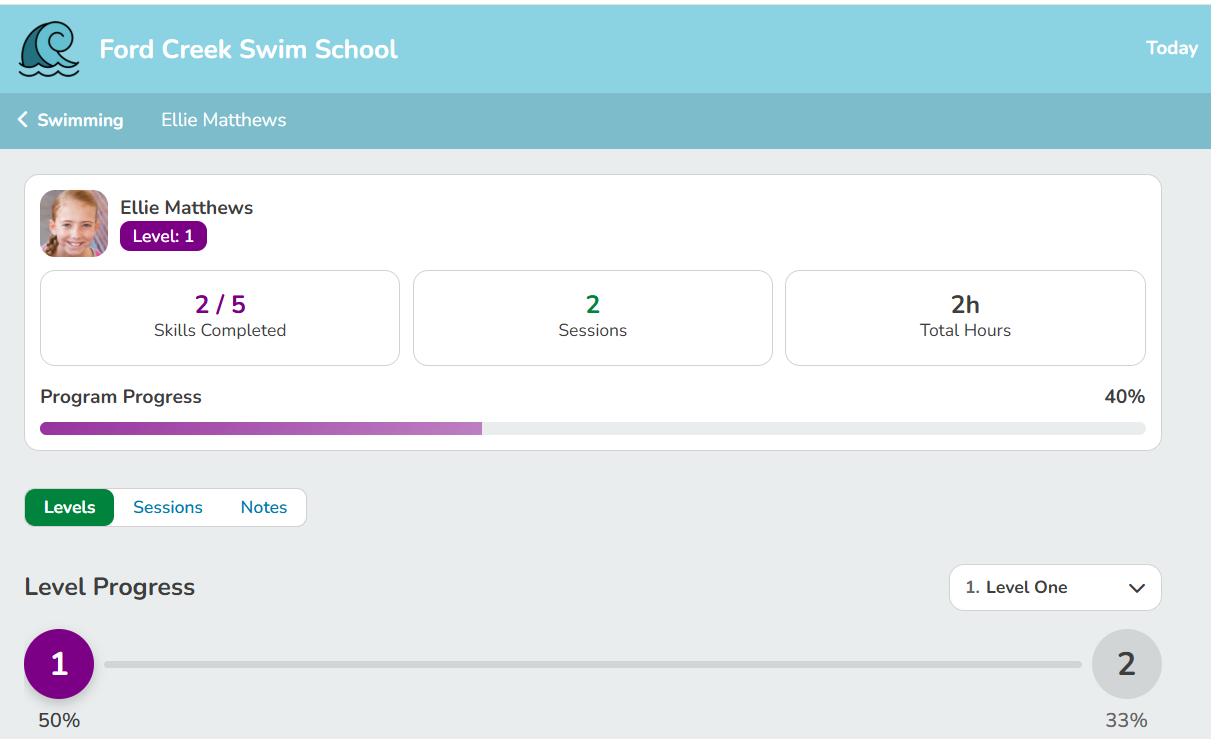
Below the summary are three tabs:
- Levels: every skill the student has been rated on, with rating history
- Sessions: the classes and appointments that count toward the program
- Notes: every skill note recorded for this student in the program, with the skill, rating, note, and date, newest first
Note: This page is read-only. To rate a student, use the Skills tab on the schedule. See Rating Student Skills.
Open any program to see its Highlights card: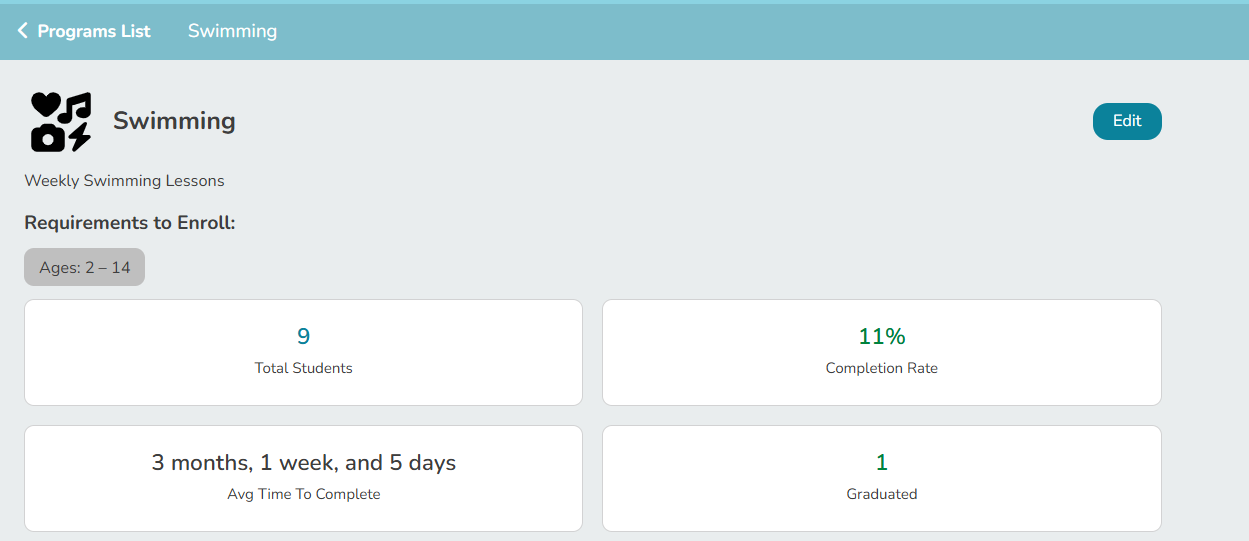
The main Skill Tracking page shows a Trending Programs card. It highlights up to three programs with the biggest month-over-month change in ratings, with the number of ratings and the percent change. A program needs at least 10 ratings in a month to appear.