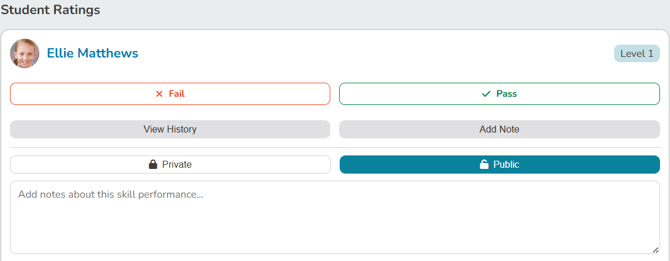
Instructors rate students' skills right from the class roster, using the same schedule they already work from.
Rating skills during a class
- At the top of any Pike13 page, click Schedule.
- Open the class, course, or appointment.
- Check in the students who are attending. Only checked-in students can be rated.
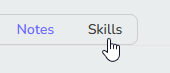
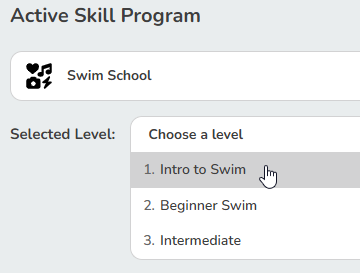
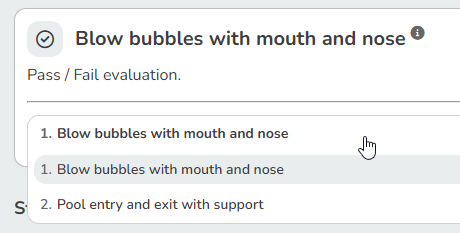
- Click the Skills tab. Each student's most recently trained level loads automatically. To change it, use the level dropdown at the top.
- Select the skill you want to rate. The first skill in the list is selected by default.
- Choose a rating for each student.
- Change the Skill dropdown to rate the next skill.
Rating all skills at once
For pass/fail evaluations, use Set All / Apply to All to give a pass or fail on every skill at once, instead of rating each skill individually.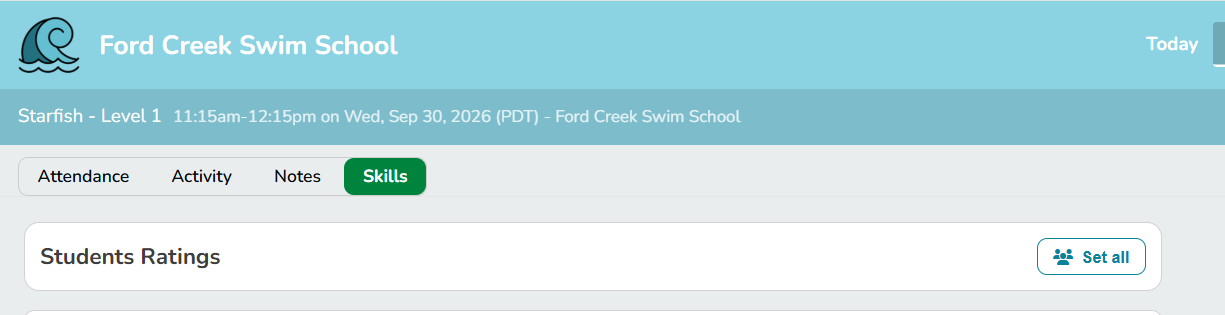
Students at different levels
When several students in the same event are at different levels, each student's level displays separately, so you can tell their progress apart at a glance.
Seeing earlier ratings
Students who have been rated before show a Recent rating. Ratings carry over from earlier classes and appointments, so you can see what other instructors have already rated.
Every rating records which instructor gave it. You'll see this in the student's rating history and activity log.
Adding notes
You can add a note when rating a skill. Choose who can see it:
- Public: visible to staff and to the client or family
- Private: visible to staff only
Each time you click Add Note, you get a fresh, blank note.
Tip: The Student Program page in Settings is read-only. Ratings are always entered from the Skills tab on the schedule.
Rating Student Skills
Once Programs, Levels and Skills have been setup and linked to a service, students who are checked in to the service may have their skills rated.
- At the top of any Pike13 page click Schedule.
- Navigate to the scheduled event of interest.
- Ensure any students who are attending the class are checked in.
- Click the Skills tab.
- Select the appropriate level for the class by clicking the dropdown.
- Select the skill you wish to rate. The first skill in the list will be selected by default.
- If students have been previously rated, they will have a Recent rating shown.
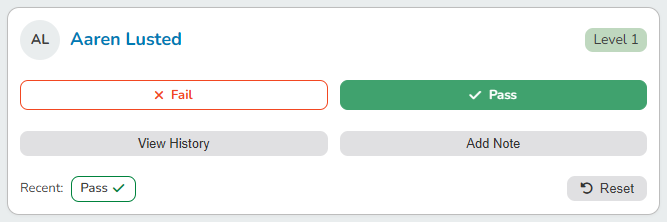
- Select the correct rating for each student in the list.
- Change the Skill dropdown to switch to another skill type to rate.
- If necessary, update the level for the roster at the top of the page.
TIP
Instructors can leave two types of notes when rating students: public notes visible to the student and private notes visible only to the instructor.