
Businesses can collect signatures for documents and waivers. While they can be requested individually, they can also be sent en masse.
In This Article
Who can use this feature?
- Pike13 Plans: ✅Premium, ✅Advanced, ❌Essential
- User Roles: ✅Primary Owner, ✅Owner, ✅Manager, ❌Staff, ❌Limited Staff
- Staff may request single signatures only.
Requesting Signatures En Masse
-
At the top of any Pike13 page click Settings, then Documents.
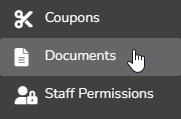
- Click View next to the document you wish to send. This can be a Miscellaneous Document or a Waiver.

- Click Send Waiver.

- Choose who will receive the signature request.
- Clicking All Staff, All Clients or All Members will populate the list below. Clicking these buttons will reset the list of selected people to only include the type clicked.
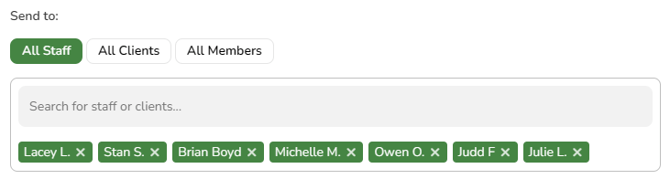
- Remove people from the list by clicking X by their name.

- Add specific clients or staff by typing in the search box and clicking their name.
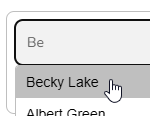
- Clicking All Staff, All Clients or All Members will populate the list below. Clicking these buttons will reset the list of selected people to only include the type clicked.
- When the list of people is ready, click Next.
- Choose how the signatures will be collected:
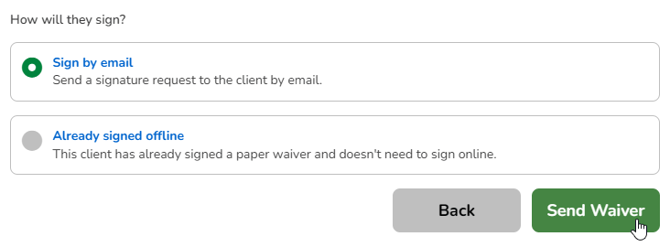
- Sign by email: Use this option to send the client an email with a link to the documents. They may sign it digitally on their own device.
- Already signed offline: Use this option if you have a paper copy of the document.
- Click Send Waiver.
- Once the person has signed the document, you may see a copy in their profile under History, Signed Documents.
Requesting Single Signatures
Note: Staff Members may request signatures from a person's profile, but not en masse.
-
At the top of any Pike13 page click Clients or Staff.
-
Select the person who needs to sign a document.
-
Under the profile picture, click the Sign a document icon.

-
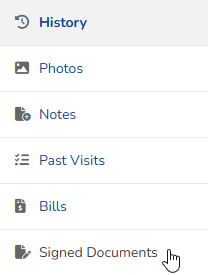
You may also click Signed Documents under History. Then click Sign a document.

-
-
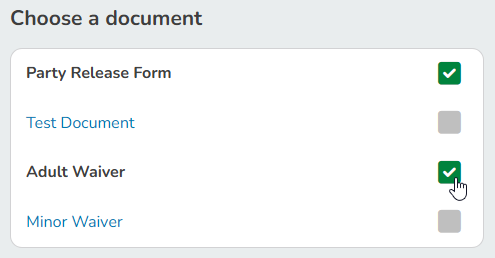
Choose which documents or waivers you wish to send to the person. You may select one or many.
-
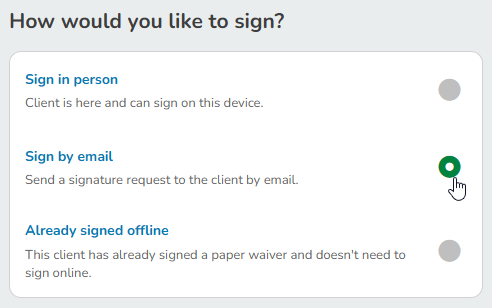
Select a method to sign the document:
-
Sign in person: Use this option to have the client sign the document on the device you are using. The document will come up for them to sign on that screen.
-
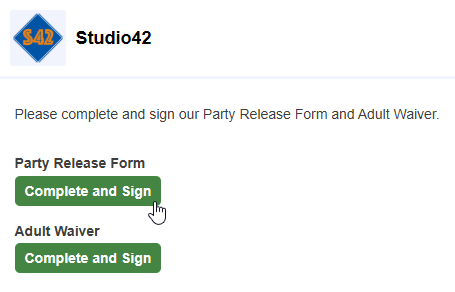
Sign by email: Use this option to send the client an email with a link to the documents. They may sign it digitally on their own device.
-
Already signed offline: Use this option if you have a paper copy of the document.
-
-
Once the person has signed the document, you may see a copy in their profile under History, Signed Documents.
Best Practice
Re-signing Updated Documents
To have people sign an updated document, you will need to send new signature requests. Previously-signed miscellaneous documents will still be visible in the client's profile under Signed Documents.