
Changing the Primary Owner is a critical administrative task within Pike13. A Primary Owner has ultimate legal authority and system permissions. Initiating this transfer will automatically reassign the current Primary Owner to a standard Owner.
In This Article
Who can use this feature?
- Pike13 Plans: ✅Premium, ✅Advanced, ✅Essential
- User Roles: ✅Primary Owner, ❌Owner, ❌Manager, ❌Staff, ❌Limited Staff
Adding a New Owner
Follow these steps if the new owner does not have a profile in Pike13.
-
At the top of any Pike13 page click Staff.
-
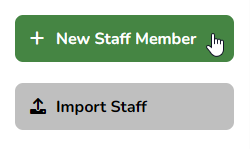
Click on + New Staff Member.
-
Fill out the profile details and set the Role to Owner.
- Click Save.
Replacing the Primary Owner
There can only be one Primary Owner. This action automatically demotes the current Primary Owner to a standard Owner role.
-
Ensure you are logged in as the current Primary Owner.
-
At the top of any Pike13 page click Settings, then click Advanced Settings.
-
In the Your Pike13 Business section, click Primary Owner.
-
Click Change Primary Owner.
-
Select the new Primary Owner from the dropdown.
-
Only current Owners will be in this list. If the new Primary Owner is not listed, ensure they have the correct Role assigned to their Staff Profile.
-
-
Click Save.