
When a client cancels an appointment or class, you can set up Pike13 to have make-up passes issued automatically. Once a client cancels their lesson online within the time frame you set, they will be marked as a cancellation and issued a make-up pass to reschedule their visit. If you wish to have this feature turned on for your site, please email help@pike13.com and our team will enable it for you.
In This Article
- Who can use this feature?
- Cancellation Policies
- Configuring Automatic Make-up Passes
- Further Reading
Who can use this feature?
- Pike13 Plans: ✅Premium, ✅Advanced, ✅Essential
- User Roles: ✅Primary Owner, ✅Owner, ✅Manager, ❌Staff, ❌Limited Staff
Cancellation Policies
- At the top of any Pike13 page, click Settings, and then click Services.
- Select the Class or Appointment for which you want to enable automatic makeup passes.
- Click the Cancellation tab.
- Click Edit for Deadline for free cancellation.
- Check Yes to enable charging for cancellations and choose how many hours beforehand you wish to have clients appear as late cancel and be issued a makeup pass.
- Click Save.
- Click Edit for Cancellation fee.
- Under Allow a fee to be charged? select No.
- Under Allow a visit to be deducted? select Yes.
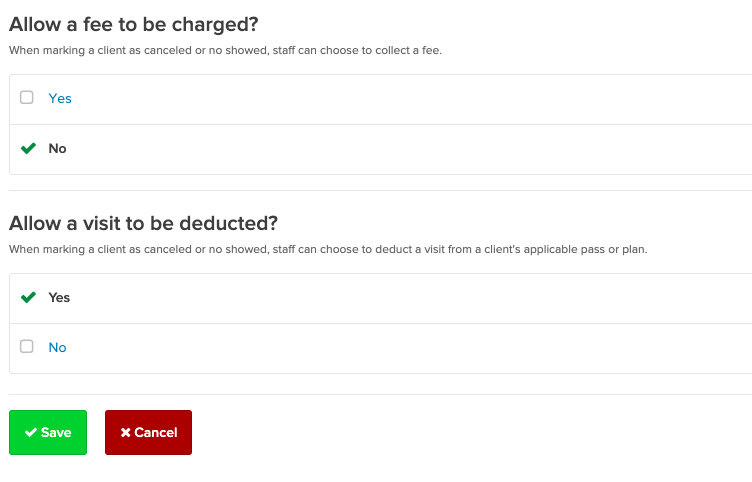
- Click Save.
Best Practice
Cancellation Policy Time
Makeup passes can be issued to clients who cancel within the deadline set in your cancellation policy. When they cancel within the deadline, they will remain on the roster and show as Late Cancel. These clients have makeup passes issued automatically. If you wish to have all clients who choose to cancel appear as Late Cancel, set a cancellation policy over 1000 hours.
- In the same Cancellation tab, click Edit the Make-up policy.
- Select Yes to Allow clients to issue themselves make-ups.
- Enter the hours before the class or appointment when makeup passes should not be automatically issued. Makeup passes will be automatically issued between your deadline for cancellation and your stop-issuing deadline.
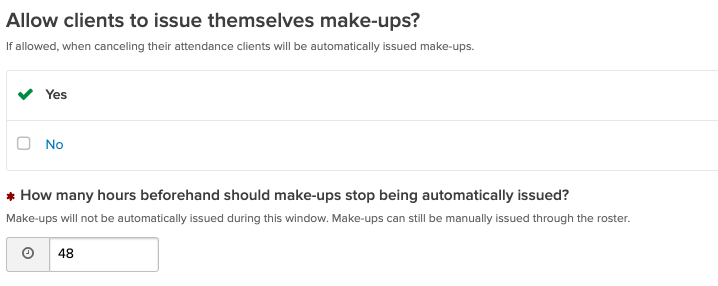
- Select the reason for when automatic makeup passes are issued.
- Select which single visit pass that will be issued automatically to the client.
- Set how long a client has to use their pass.
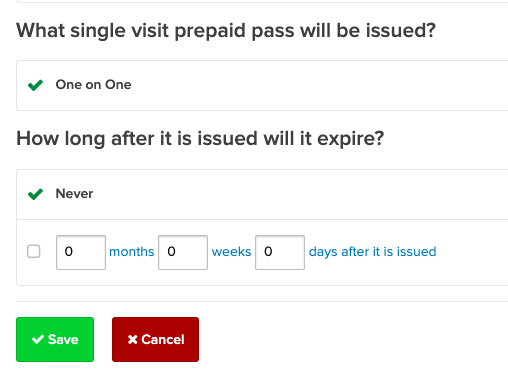
- Click Save.