
The Pike13 Kiosk App is a dedicated tablet app that streamlines your front desk. It acts as a self-service station where:
- New Clients can create accounts, take profile photos, and sign waivers.
-
Existing Clients can quickly check in for classes or appointments.
Note
The Kiosk is for attendance and registration only. Clients cannot use it to book new appointments or make purchases.
In This Article
- Who can use this feature?
- Kiosk Setup
- Signing Clients In
- Signing Up Clients and Dependents
- Signing Out of the Kiosk App
- Changing Kiosk App Settings
Who can use this feature?
- Pike13 Plans: ✅Premium, ✅Advanced, ✅Essential
- User Roles: ✅Primary Owner, ✅Owner, ✅Manager, ✅Staff, ✅Limited Staff
Kiosk Setup
Businesses can use the Kiosk app for both new client sign-up, class sign-in or only check in for services they already enrolled in. A sign-in code can be created for each client to sign in quickly.
See our article on Kiosk App setup here.
Signing Clients In
Clients can identify themselves using three methods:
-
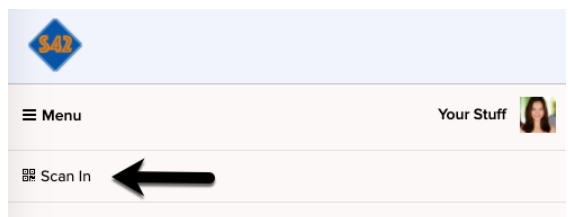
Scan QR Code: Clients can present the digital barcode found in their Pike13 Client App (or Apple Wallet) to the camera.
- From the client's mobile profile, select Your Stuff > Scan In.
- On an iPhone, clients can store their QR code in their Apple Wallet.
-
Phone Number: Enter the phone number associated with their profile.
-
Email Address: Enter their login email.
Check-In Logic
-
Pre-Enrolled: If the client is already on the roster for a class occurring soon, they are automatically marked as "Attended."
-
Drop-In: If they are not yet enrolled, the Kiosk will display a list of upcoming classes. The client taps the class they wish to join and selects Finish.
Signing Up Clients and Dependents
The Kiosk walks new visitors through the entire registration process.
-
Tap Sign Up.
-
Enter Email Address.
-
Who is signing up?
-
Myself: The adult is the student.
-
Myself + Dependent: Parent and child are both taking classes.
-
Dependent Only: Parent is signing up a child (but not taking classes themselves).
-
-
Profile Info: Enter Name, Birthday, Phone, etc.
-
Photo: The Kiosk prompts the client to snap a profile photo.
-
Note: Clients can retake the photo if they don't like it.
-
-
Waivers: The client reviews and signs the digital waiver on screen.
-
Minors: If signing up a dependent, the Guardian Waiver will appear for the parent to sign.
-
-
Tap Finish or Sign Up Another Dependent if adding siblings.
Signing Out of the Kiosk App
-
To sign out tap the upper left corner of the screen, then tap
 .
. -
Select Sign Out.
Changing Kiosk App Settings
- Tap the upper left corner of the screen, then tap .
- Make adjustments as necessary.