
Businesses can collect signatures for miscellaneous documents. Unlike waivers, miscellaneous documents are not required to be signed before a client can enroll or make purchases.
In This Article
- Who can use this feature?
- Creating Miscellaneous Documents
- Creating Placeholders
- Editing Miscellaneous Documents
Who can use this feature?
- Pike13 Plans: ✅Premium, ✅Advanced, ❌Essential
- User Roles: ✅Primary Owner, ✅Owner, ✅Manager, ❌Staff, ❌Limited Staff
Creating Miscellaneous Documents
-
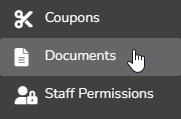
At the top of any Pike13 page click Settings, then click Documents.
-
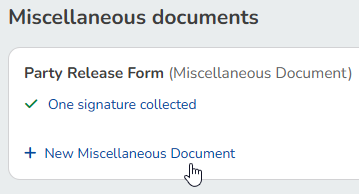
Under Miscellaneous Documents, click + New Miscellaneous Document.
-
Enter a name for the document.
-
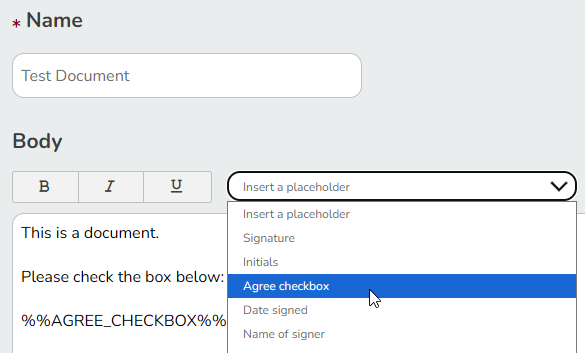
Enter the text of the document (and any placeholders) in the Body.
-
To insert a placeholder, place your cursor in the body text where you want to insert the placeholder, and then from the Insert a placeholder drop-down select the one that you want to insert.
-
-
Click Save.
-
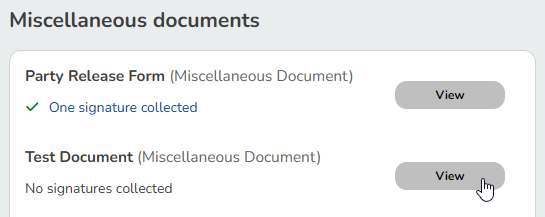
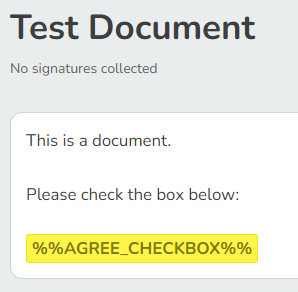
To see what clients see, click View.
Best Practice
Plain Text
If you create an online document using text from a word processing program, save it first as a text-only file in order to remove any formatting and extra spaces (or "carriage returns") between paragraphs before pasting into the body of your online document.
Creating Placeholders
You can create a new placeholder by creating custom client fields. Ensure you allow using this field in online documents. That field will be added to the list of available placeholders when creating documents. This information is fed into the document from the client profile.
Editing Miscellaneous Documents
-
At the top of any Pike13 page click Settings, then click Documents.
-
Click View next to the miscellaneous document you wish to edit.
-
Click Edit.
-
Make any necessary changes.
-
Click Save.
Learn how to request signatures from clients or staff. Best Practice