
The Bulk Cancel button has been renamed to Bulk Modify. It allows selecting a single date or date range and modifying multiple items/events during the selected time.
In This Article
Who can use this feature?
- Pike13 Plans: ✅Premium, ✅Advanced, ✅Essential
- User Roles: ✅Primary Owner, ✅Owner, ✅Manager, ❌Staff, ❌Limited Staff
Warning
Cancelations Are Permanent
Bulk Cancelation is permanent and canceled events cannot be restored. If you accidentally cancel an event, you will need to manually add it back to the schedule.
Bulk Modifying
Owners and Managers can make changes for one day across multiple events held on that day using the Bulk Modify tool. After setting your filters, you'll choose whether to cancel the matching events or update the instructor for them.
- From the Schedule page, click Bulk Modify above the calendar.
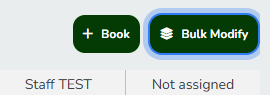
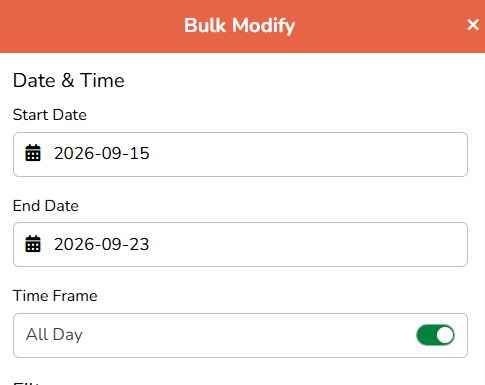
- Enter the Start Date and End Date that should be modified. The range can be up to 45 days.
- Set filters for the events you want to modify. You can filter by Services, Staff, Locations, Rooms, and Membership/Plan. Choose Not Assigned to find clients with no plan. Filters combine, so only events matching all of them are shown.
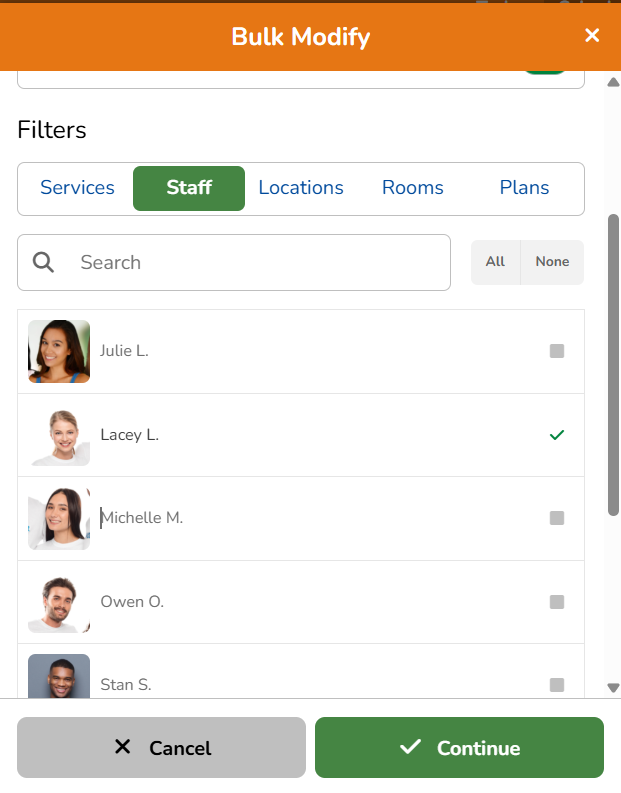
- Click Continue.
- Pike13 will now display the list of events that will be impacted. Choose whether you wish to update the instructor for the events or cancel these services.
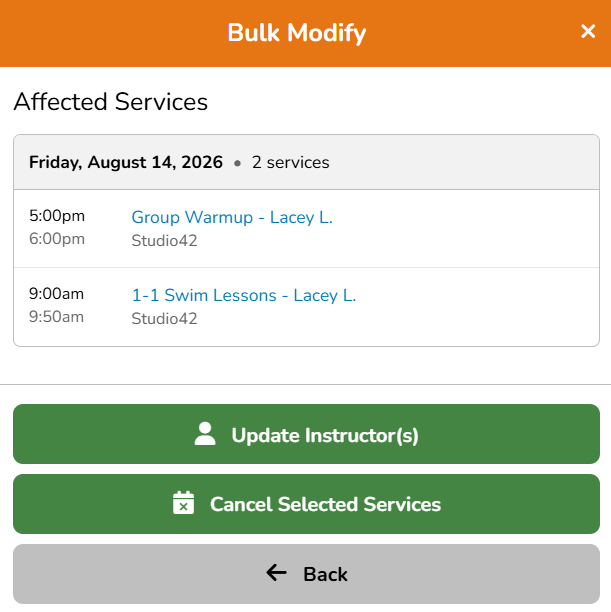
- If you choose to Cancel Selected Services, you will see the options below
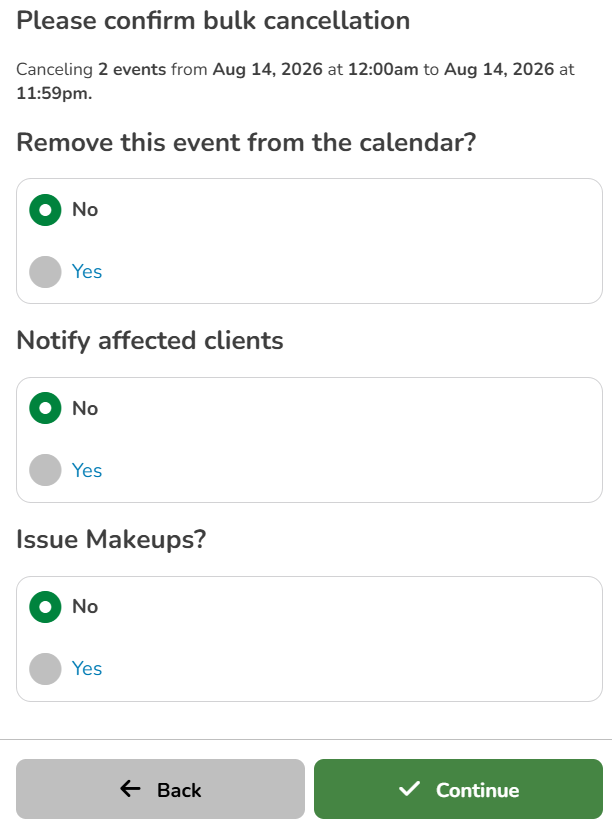
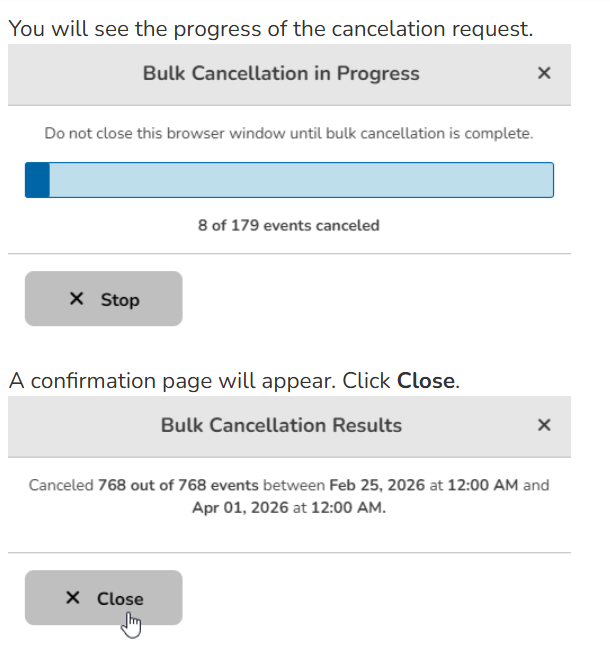
For bulk Cancellations Review the confirmation carefully. This change cannot be undone. Once satisfied with the changes, click Start Bulk Cancelation.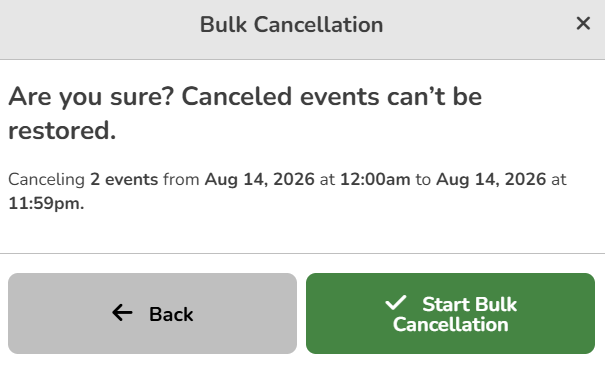
- If you select Update Instructors, you will have option to remove the current instructor and add a new instructor.
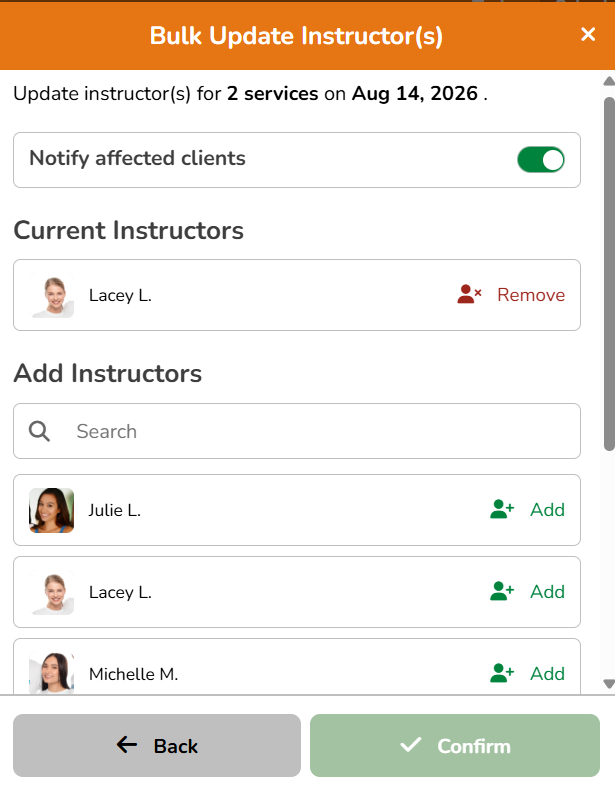
Click Confirm to Update Instructors. Once you have confirmed your changes will be processed.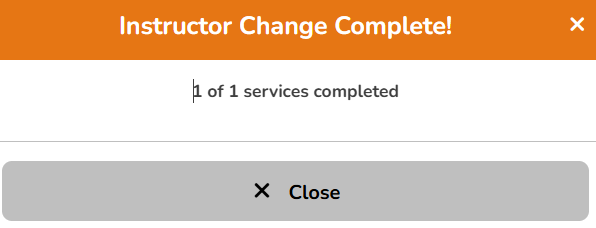
WARNING
In order to issue makeup passes, you must have them configured for your services. The events also need to stay on the calendar.
NOTE
If you select No to issuing makeups, the original visit/credit is returned to the client's account balance for them to use on a future booking. Select Yes only if you want to issue a restricted makeup pass instead.
Video: Bulk Updating Instructors