
Discounts Overview
You can deduct an amount from the usual cost of many things you sell in your Pike13 business in several ways. You can:
- Add a discount at the time of sale, whether as a calculated percentage or a specific amount.
- Apply a coupon discount as part of a promotion at the time of sale either in the Shopping Cart or in Checkout.
- Set a one-time discount to be applied to an upcoming payment.
- Override the price so that it doesn’t show up on your client’s invoice as a discount.
Impact on Staff Pay Rates
When staff pay rate is defined as a percent of the price that the client has paid and the client visit is paid for by a pass or plan that was sold at a discount, the discount is applied directly to the staff member’s pay rate. Because computing a per-visit price isn’t possible for an unlimited plan, staff pay is based on the single-visit price of the service paid by an unlimited plan.
Discount Types
Complimentary Items
-
At the top of any Pike13 page, click Store.
-
Add a plan, pass, course or merchandise item to the cart.
-
Click Secure Checkout.
-
Click Comp next to the item you wish to discount 100%.

-
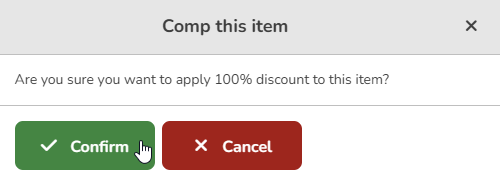
Click Confirm when prompted to Comp this item.
-
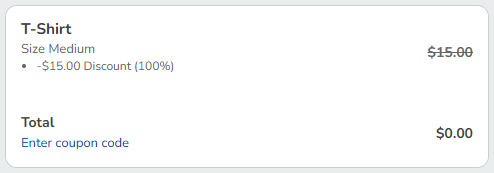
The item will show that a 100% discount has been applied.
-
Complete the transaction.
Discounts
-
At the top of any Pike13 page, click Store.
-
Add a plan, pass, course or merchandise item to the cart.
-
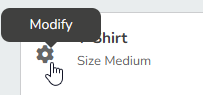
Click the gear/modify icon next to the item you wish to discount.
-
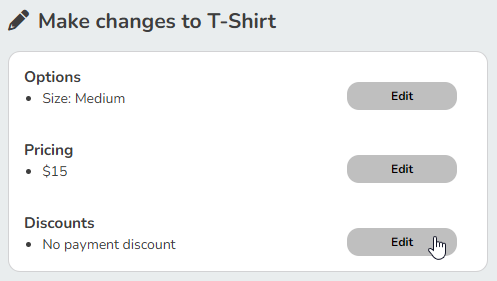
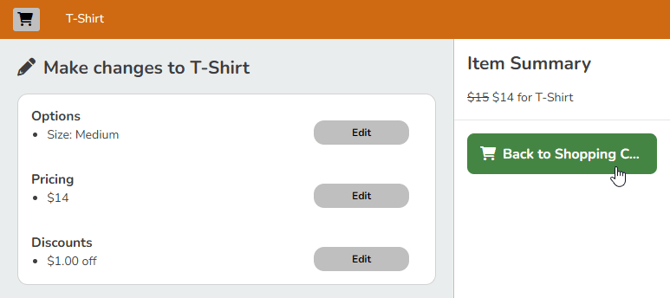
In the Discounts section click Edit.
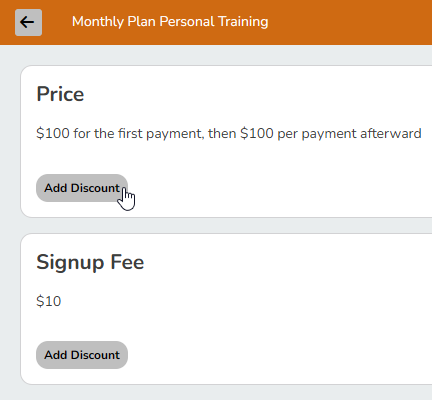
- If the plan has a Signup Fee, you may choose to discount the price of the plan or the signup fee itself. Click Add Discount for the correct item.
-
Choose between the following options:
-
Discount by %
-
Discount by $
-
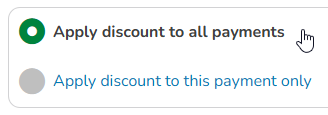
For recurring plans, choose between applying the discount to this payment only or to all payments.
-
- Click Finish, then click Back to Shopping Cart to complete the transaction.
Coupons
-
At the top of any Pike13 page, click Store.
-
Add a plan, pass, course or merchandise item to the cart.
-
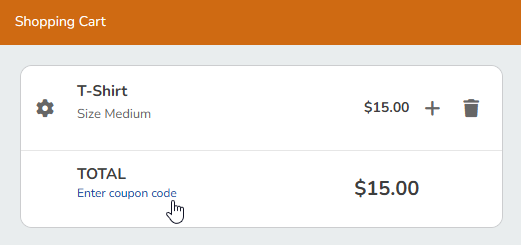
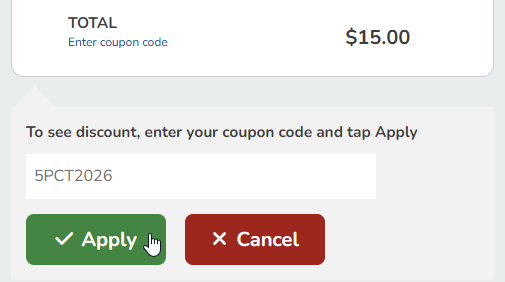
Under TOTAL, click Enter coupon code.
-
Enter a valid coupon code, then click Apply.
-
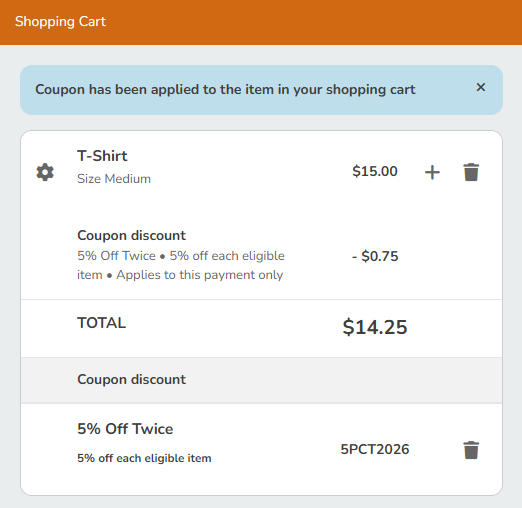
You will see eligible items with a discount applied.
-
Complete the transaction.
Discounting Upcoming Payments
-
At the top of any Pike13 page, click Clients.
-
Select the client of interest.
-
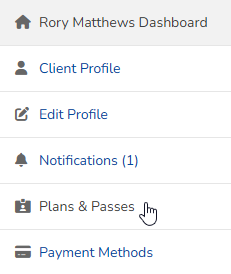
Click Plans & Passes, in the client's profile.
-
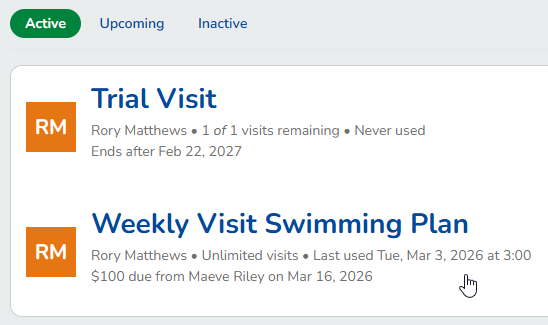
In the Active tab, click the appropriate plan or pass.
-
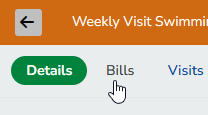
Click the Bills tab for the plan/pass.
-
Click on the Open invoice.

-
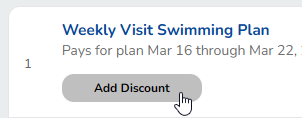
Click Add Discount.
-
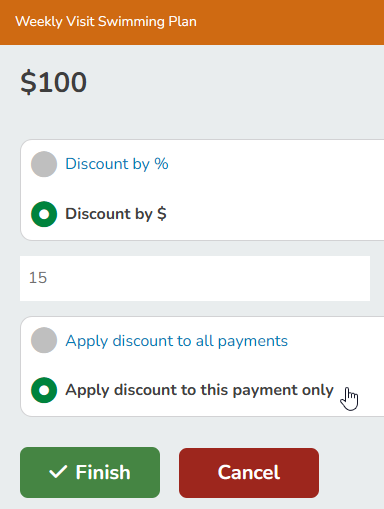
Discount the item by percentage or flat rate as long as it is less than or equal to the payment amount.
-
Choose whether to apply this discount to all payments or to this payment only.
-
Click Finish.
-
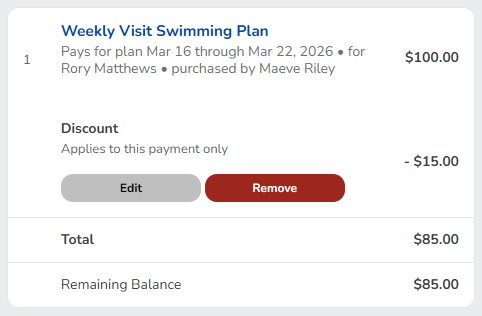
You will see the discount applied to the invoice item.
-
When the invoice is paid, either automatically or manually by the client or staff, the discounted rate will be charged.
Override Price During Checkout
-
At the top of any Pike13 page, click Store.
-
Add a plan, pass, course or merchandise item to the cart.
-
Click the gear/modify icon next to the item you wish to discount.
-
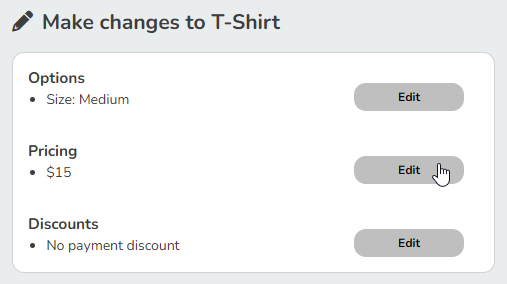
In the Pricing section click Edit.
- Adjust the Price and/or Signup Fee to the desired amount. For recurring plans, choose between applying the change to this payment only or this and all future payments.
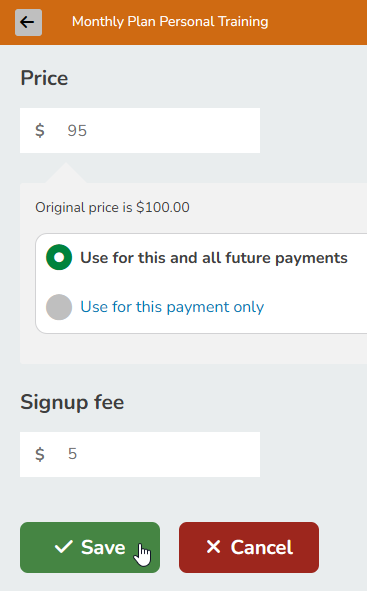
- Click Save or Update.

- Click Back to Shopping Cart to complete the transaction.