
In Pike13, you can choose which payment methods are available during checkout. Options range from fully integrated credit card processing to manual tracking for cash, checks, or third-party apps like Venmo. When selecting payment options, consider what’s most convenient for both your business and your clients, as well as how easily each method can be tracked through Pike13 reporting.
In This Article
- Who can use this feature?
- Enabling Cash and Check Payments
- Enabling Credit Card Payments
- Using Card Readers
- Enter Client Card Info Manually
- Enabling External Payments
- Boleto for Brazil
Who can use this feature?
- Pike13 Plans: ✅Premium, ✅Advanced, ✅Essential
- User Roles: ✅Primary Owner, ✅Owner, ✅Manager, ❌Staff, ❌Limited Staff
Enabling Cash and Check Payments
Staff can sell products/services to clients with any enabled payment method including cash or check.
Clients can make purchases online with a credit or debit card, ACH account with Pike13 integrated payment solutions or Account Credit if available.
-
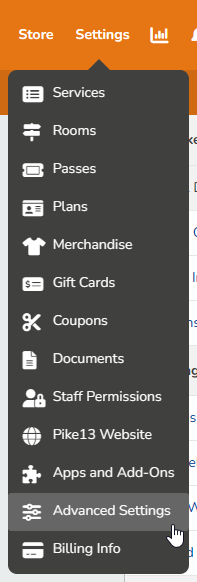
At the top of any Pike13 page click Settings, then click Advanced Settings.
-
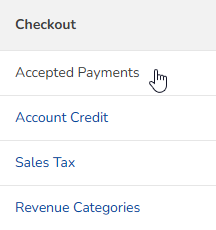
In the Checkout section, click Accepted Payments.
-
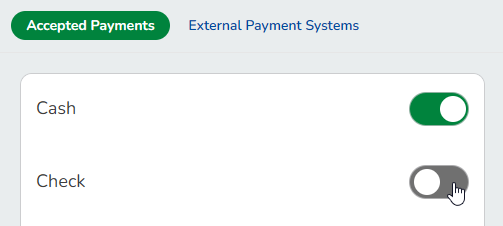
Enable or disable the following options:
-
Cash: On (green) or Off (gray)
-
Check: On (green) or Off (gray)
-
-
Click Save.
Enabling Credit Card Payments
To process credit card payments, you need a Celero or Stripe merchant account. When your account is activated and added to Pike13, you will be ready to process transactions for Visa, MasterCard, Discover and American Express.
-
New Customers: For the fastest setup, apply with Celero to use surcharging functionality to help offset credit card fees, or you may use a Stripe account. Our onboarding specialists can provide more details on the vendors we work with.
-
Existing Customers: Contact
help@pike13.comfor assistance with adding merchant processing.
Verifying Your Status:
-
At the top of any Pike13 page click Settings, then click Advanced Settings.
-
In the Checkout section click Accepted Payments.
-
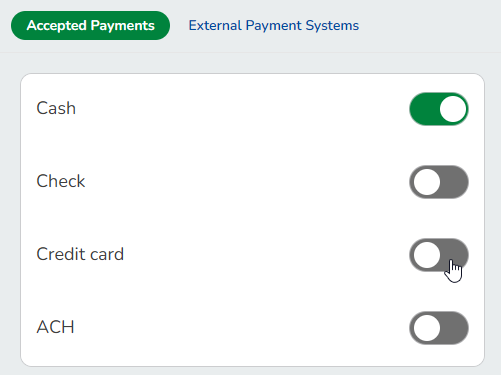
Look for the Credit Card option:
-
Change the toggle to be On (green) or Off (gray).
-
If you do not have this option, contact our support team
support@pike13.com.
-
Using Card Readers
You may use a compatible USB swiper to speed up checkout. Chip readers or card readers provided by other processors (like Square) do not integrate with the Pike13/NMI Gateway. Only the specific MagTek models listed below are supported:
-
MagTek (21040145)
-
MagTek (21073062) (PC primarily; may not work well on Mac)
Enable USB Card Swiper
-
At the top of any Pike13 page click Settings, then click Advanced Settings.
-
In the Checkout section click Accepted Payments.
-
Change the toggle to be On (green) or Off (gray) for Enable USB card swiper.

-
Click Save.
-
Plug the device into your computer's USB port.
- When swiping a card, your computer will ask you "What type of device is plugged in?". Click auto-detect.
Processing a Swiped Payment:
-
On the checkout screen, select Swipe card under Choose payment method.
-
Slide the card through the reader and information from the card will be auto-populated in the form.
Enter Client Card Info Manually
Learn more about Managing Client Payment Methods.
Enabling External Payments
If you collect funds outside of Pike13 (e.g., via Venmo, Apple Pay, or Groupon), you can create a custom payment method to record these transactions for reporting purposes. These methods may only be used by Staff on a Client's behalf.
-
At the top of any Pike13 page click Settings, then click Advanced Settings.
-
In the Checkout section click Accepted Payments.
-
Click External Payment Systems.
-
Click + Add Payment Method.

-
Enter the following details:
-
Name of external payment system: Enter the label (e.g., "Venmo" or "Groupon").
-
Show a field for manually entering the transaction number at checkout: Change the toggle to be On (green) or Off (gray).
-
-
Click + Create.
Boleto
Pike13 is able to accept payments with Boleto for our Brazilian locations in the checkout window to preform single use payments.
Note this is only for single use payments and cannot be used for recurring payments in Pike13
Please reach out to help@pike13.com if you believe you should have access to this functionality but do not see it.