
Saving Payment Methods
Staff and Clients may add saved cards to profiles at any time. ACH/bank accounts may only be added by Staff unless you are using Stripe payments for ACH. When using Stripe, the client must add and confirm their own bank account.
-
At the top of any Pike13 page, click Clients.
-
Search for and select the client you wish to view.
-
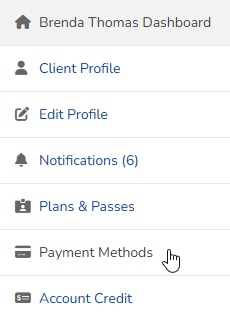
Click Payment Methods.
-
Select the type of payment to add:
-
Click + Add New Card:
-
Enter the following details:
-
Card number
-
CVV
-
Expiration month
-
Expiration year
-
Billing address
-
-
Click Save.
-
-
Click + Add New Bank Account:
-
Enter the following details:
-
Bank name
-
Routing number
-
Account number
-
Account type: Checking or Savings
-
Account holder type: Personal or Business
-
Billing address
-
-
Click Save.
-
-
Removing Payment Methods
Once a client has added a saved payment method to their profile, they may not delete it unless they have more than one payment method saved. Staff may delete any and all payment methods until zero remain.
-
At the top of any Pike13 page, click Clients.
-
Search for and select the client you wish to view.
-
Click Payment Methods.
-
Click Delete next to the payment method you wish to remove.

- Click Yes to confirm the deletion.
Adding Payment Methods During Checkout
-
Begin the sales process by adding items to the cart.
-
Click Secure Checkout.
-
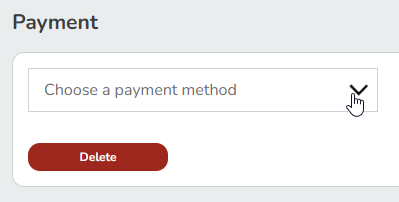
In the Payment section, click the dropdown and select Enter new payment method.
-
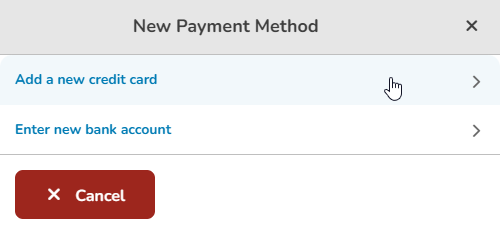
Select to use a new card or bank account.
-
Ensure the toggle for Save card/account for future payments is On (green) to save the card or bank account to the client's profile.


-
Click Save and complete the transaction.
-
The card will charged for the current sale and saved to their profile.