
Enabling Group Rates for a Pass allows a client to share visits with their dependents (e.g., a "Family 10-Pack" where the parent(s) and their children all draw from the same pool of 10 visits). This is a great way to encourage family sign-ups.
In This Article
Who can use this feature?
- Pike13 Plans: ✅Premium, ✅Advanced, ✅Essential
- User Roles: ✅Primary Owner, ✅Owner, ✅Manager, ❌Staff, ❌Limited Staff
Creating Group Rates
-
At the top of any Pike13 page click Settings, then click Passes.
-
Select the specific pass you wish to modify.
-
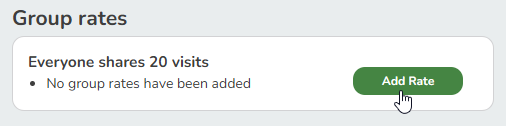
Scroll down to the Group Pricing section and click Add Rate.
-
Set the following:
-
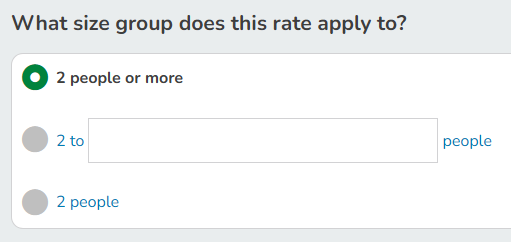
What size group does this rate apply to? Select the maximum number of people who can share this pass (e.g., Up to 4 clients).
-
How much do you want to charge? Set the price logic. You can charge per person, apply a discount per person or set a total price for the group (e.g., $100 flat).
-
-
Click + Create.
Best Practice
Pricing Strategy
Because group members share a single visit balance, many businesses keep the price the same for individuals and groups. The value is found in sharing flexibility rather than a bulk discount.
For more Group Rate pricing and visits options, you may consider offering them with a Prepaid or Recurring Plan.
Selling Shared Passes
To sell a pass with group rates, the buyer must be linked to their family members in a formal Account Manager/Dependent relationship in Pike13.
-
Select the Account Manager: Go to the Account Manager's profile.
-
Note: If the client does not manage anyone, the group option will not appear during the sales process.
-
-
Click the Cart Icon (Store) below the profile picture.
-
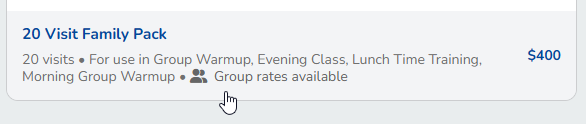
Select a pass with group rates.
-
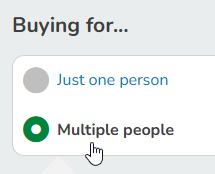
Under Buying for... select Multiple people.
-
Under Who is this for? you may click to See group rates and add the specific dependents who will share the pass.
-
Click Add Another Person until you have all desired people added to the pass. If there are multiple dependents and you want to switch them, click the arrow to find the correct person.
You may only add people from the same family to this list.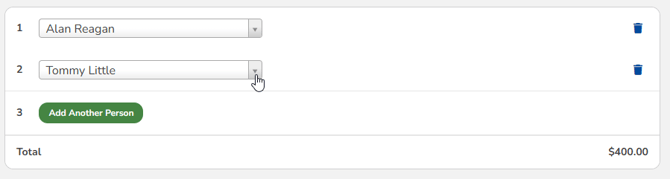
-
Click Add to Cart.
-
You will see the pass with all participants listed in the cart.

-
Proceed to Checkout to complete the sale.