
When your needs change, so can Pike13. Learn how to update or cancel scheduled courses below.
In This Article
Who can use this feature?
- Pike13 Plans: ✅Premium, ✅Advanced, ✅Essential
- User Roles: ✅Primary Owner, ✅Owner, ✅Manager, ❌Staff, ❌Limited Staff
Rescheduling Courses
- At the top of any Pike13 page, click Schedule.
- Find and click the next time of the course to change.
- Click Change Schedule.
- Choose either Change this instance only or Change this and all future instances.
- Click Continue.
- Modify any of the following:
- Location of the course
- Start Date or Time of the course
- End Time of the course
- Who the course is Instructed by
- You may add or remove staff as necessary. There may be multiple staff for the same course(s).
- Whether or not to send a client notification with a summary of the changes being made.
- Click Save.
Warning
Adding More Course Sessions
If you select the last day of the series, you will not have the option to select this and all future instances and change how often a course repeats. To change how often course sessions are repeated, you will need to select a prior date in the series where attendance has not been confirmed.
Deleting Scheduled Courses
- At the top of any Pike13 page, click Schedule.
- Find and click the next time of the course to change.
- Click the Gear Icon to show Calendar Settings and filters.

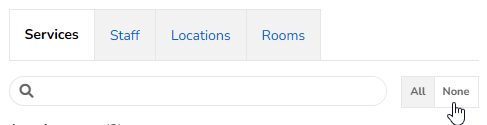
- Click Services, then click None.
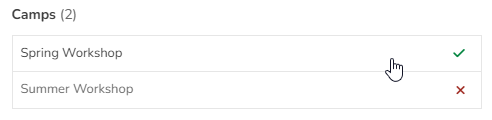
- Select the service you are trying to delete. Ensure it is the only one with a green checkmark.
- Close the Calendar Settings modal.
- Click the Gear Icon to show Calendar Settings and filters.
- Click on an upcoming scheduled course offering, then click Cancel Class.
- Select Cancel this and all future instances.
- Click Continue.
- Select Yes to Remove this event from the calendar.
- You may Remove from Calendar later on. However, once it's removed, it cannot be recovered.
- Choose whether to notify clients who are enrolled in the course offering about this change. Add custom text to the email they will receive if applicable.
- Click Finish.
If you are trying to delete the entire service, repeat the steps above until all future offerings are canceled. Then you may follow steps to delete the Course service.