
Pike13 allows you to set when a staff member is available to take appointments. You can set availability so clients can only book during certain hours or days.
In This Article
Who can use this feature?
- Pike13 Plans: ✅Premium, ✅Advanced, ✅Essential
- User Roles: ✅Primary Owner, ✅Owner, ✅Manager, ✅Staff, ❌Limited Staff
Adding Staff Appointment Availability
- At the top of any Pike13 page, click Staff.
- Select the staff member you wish to update.
- Click Appointment Availability.
- Click + Set Available Hours.
- Add the following details:
- Location
- If there are multiple locations, click the arrow and select the desired locations
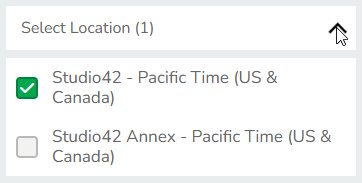
- If there are multiple locations, click the arrow and select the desired locations
- Starting: The first date that this availability will begin
- From: The start time of the availability
- To: The end time of the availability
- Repeats
- Does not repeat
- Select this if availability is for a single event or date.
- Daily
- Select this if the staff member is available every single day of the week.
- Weekly
- Select the days of the week when the staff member is available. E.g. Mondays, Wednesdays and Fridays.
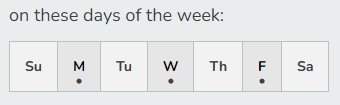
- Select the days of the week when the staff member is available. E.g. Mondays, Wednesdays and Fridays.
- For Daily or Weekly options, select when the recurrence should Stop Repeating.
- Never: This availability will recur forever.
- After this date: Enter an end date for the recurrence.
- After a number of occurrences: Enter a number of occurrences after which availability will end.
- Does not repeat
- Which services does this apply to?
- By default, all appointment types will be added to the list. To remove them, click the name of the service. To add any that were removed, click Choose Services and click the name of the service to add back.
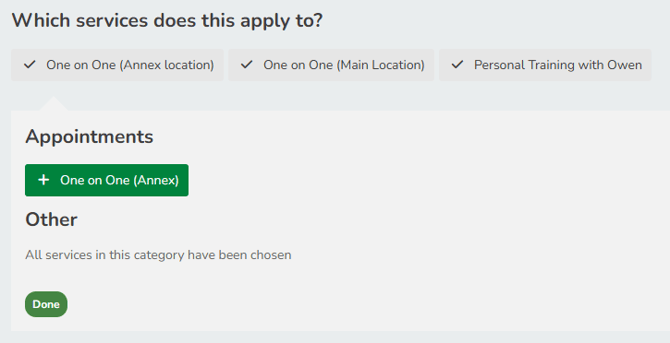
- By default, all appointment types will be added to the list. To remove them, click the name of the service. To add any that were removed, click Choose Services and click the name of the service to add back.
- Location
- Click Save.
Permissions for Limited Staff
Limited Staff Members cannot set their own availability and will need it set by a Manager, Owner or Primary Owner.
Staff Availability Examples
| For This Schedule | Use These Settings |
|---|---|
| Available Monday through Friday 9 AM–5 PM |
|
| Available every other Saturday 9 AM–5 PM |
|
| Available 9 AM–5 PM on Monday, Wednesday, Friday and noon–7 PM on Tuesdays and Thursday |
First rule:
Second rule:
|
Blocking Staff Appointment Availability
- At the top of any Pike13 page, click Staff.
- Select the staff member you wish to update.
- Click Appointment Availability.
- Click Set Unavailable Hours.
- Add the following details:
- Location
- If there are multiple locations, click the arrow and select the desired locations
- If there are multiple locations, click the arrow and select the desired locations
- Starting: The first date that this block will begin
- From: The start time of the block
- To: The end time of the block
- Repeats
- Does not repeat
- Select this if the block is for a single event or date, especially useful for holidays.
- Daily
- Select this if the staff member is unavailable every single day of the week.
- Weekly
- Select the days of the week when the staff member is not available. E.g. Sundays and Mondays
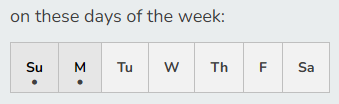
- Select the days of the week when the staff member is not available. E.g. Sundays and Mondays
- For Daily or Weekly options, select when the recurrence should Stop Repeating.
- Never: This block will recur forever.
- After this date: Enter an end date for the recurrence.
- After a number of occurrences: Enter a number of occurrences after which the block will end.
- Does not repeat
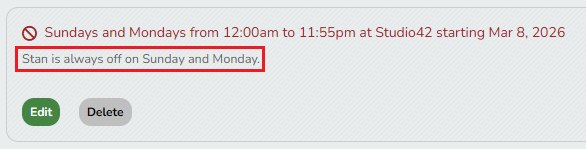
- Note: This optional note will appear in the staff member's Appointment Availability summary page.
- Location
- Click Save.
Viewing Staff Availability History
Pike13 keeps a history of changes made to staff availability, including blocked-off (unavailable) time and any notes entered for it. Use it to review when availability changed and why, such as tracking staff time off, without keeping a separate spreadsheet.
- At the top of any Pike13 page, click Staff.
- Click Availability History.
- Use the Time Period filter to choose the date range you want to review.
- Review the list of changes.
- To download the history, click Export