
Staff can mark an entire level complete for a student without rating every skill in it. This is helpful when a student joins mid-season, already has the skills from somewhere else, or needs to be moved to a different level.
Who can use this feature?
- Pike13 Plans: ✅Premium, ✅Advanced, ✅Essential
- User Roles: ✅Primary Owner, ✅Owner, ✅Manager, ❌Staff, ❌Limited Staff, ❌Client
Marking a level complete
- Go to Schedule and click on the Class.
- Select Skills
- Click on the arrow next to the student you wish to mark Complete.
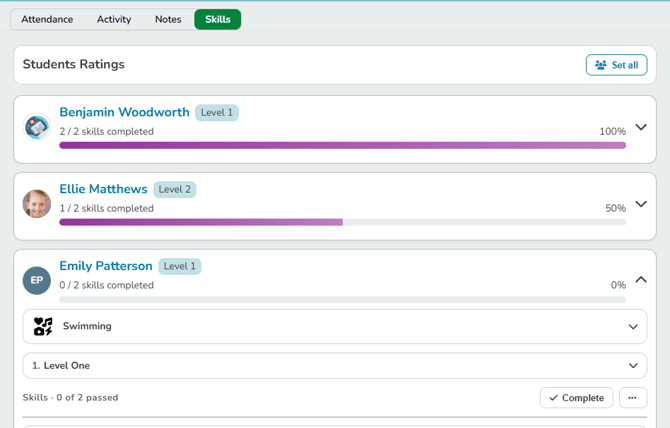
- Click Complete on the level.
- Level marked complete
Marking a level complete also completes every level below it. It never adds or changes the student's individual skill ratings, and it works with every tracking method.
Undo a level Marked Completed
- Find the level you marked complete.
- Click Undo.
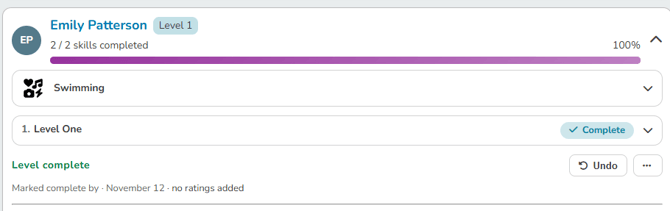
Undo removes the manual completion from that level and any levels above it. Levels below it stay complete, and existing ratings and notes are kept. A level where the student has passed every skill stays complete.
What staff and clients see
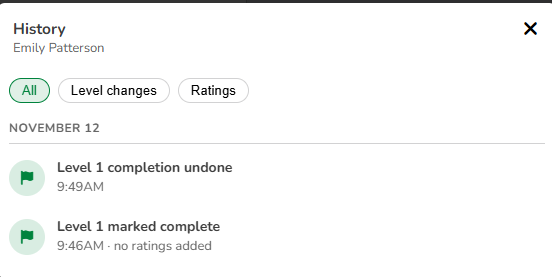
The student's history shows each completion and undo, with the date and time.
On the client side, levels completed by an instructor are labeled that way.