
Learn how to add, update, or remove credit cards and set a default payment method for your recurring plans.
In This Article
Who can use this feature?
- Pike13 Plans: ✅Premium, ✅Advanced, ✅Essential
- User Roles: ❌Primary Owner, ❌Owner, ❌Manager, ❌Staff, ❌Limited Staff, ✅Client
Adding New Payment Methods
-
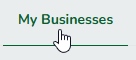
Log in to your Pike13 account, click My Businesses, and select the business of interest.
-
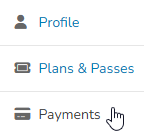
From the dashboard, click Payments.
-
In the Saved Payment Methods section, click + Add New Card.

-
Enter your card details (Number, Expiration, and CVC)
-
Click Save.
Updating Credit Cards
-
Log in to your Pike13 account, click My Businesses, and select the business of interest.
-
From the dashboard, click Payments.
-
In the Saved Payment Methods section, click Edit.

-
From here edit the expiration date/ CVV.
-
Click Save.
Warning
After clicking Save, Pike13 will immediately perform a validity check on the card information. If any details are incorrect (such as a typo in the card number or an incorrect CVV), you will see a Declined message. This is a security measure to prevent the addition of fraudulent or inactive cards to your profile.
Deleting Credit Cards
If your only card is attached to an active recurring plan, you must add a new default card before the old one can be deleted. If you need all saved payment methods deleted, contact the business so that staff may help.
-
Log in to your Pike13 account, click My Businesses, and select the business of interest.
-
From the dashboard, click Payments.
-
In the Saved Payment Methods section, click Delete.

Setting a Default Card
If you have multiple cards on file, ensure the correct one is used for your monthly memberships:
-
Log in to your Pike13 account, click My Businesses, and select the business of interest.
-
From the dashboard, click Payments.
-
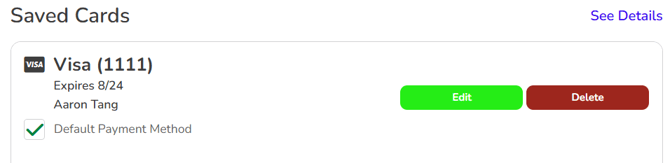
In the Saved Payment Methods section, enable the checkbox for Default Payment Method.
-
This business will automatically charge this card for all future recurring bills.