
Once one or many students have completed the necessary skills for one level, staff and admins can move them to the next level in bulk or one at a time.
In this article
Leveling up one student
- Click on students from the left side menu.
- Find the student you wish to move to the next level.
- Click on the box next to their name.
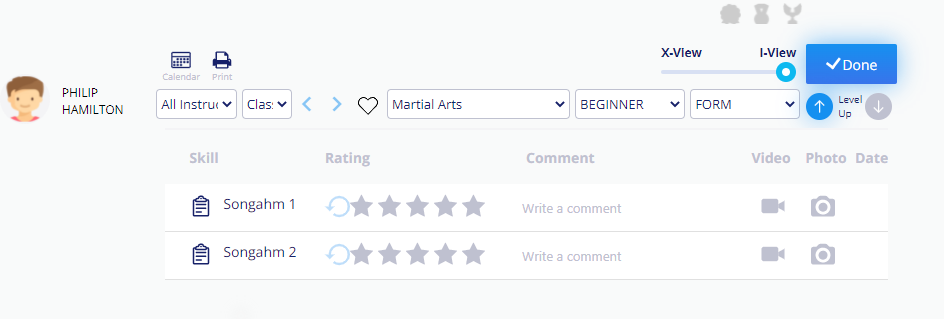
- Choose the star icon.
- From here choose the up arrow under Done.
-
Click Confirm.
Leveling up a class of students
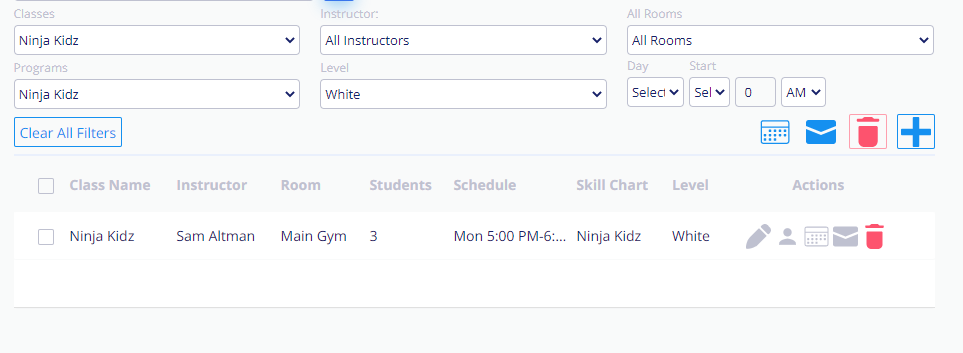
- Select Classes from the menu on the left side.
- Choose from the filtered menu the Class, Program and Level.
-
Open the roster by clicking on the Person icon.
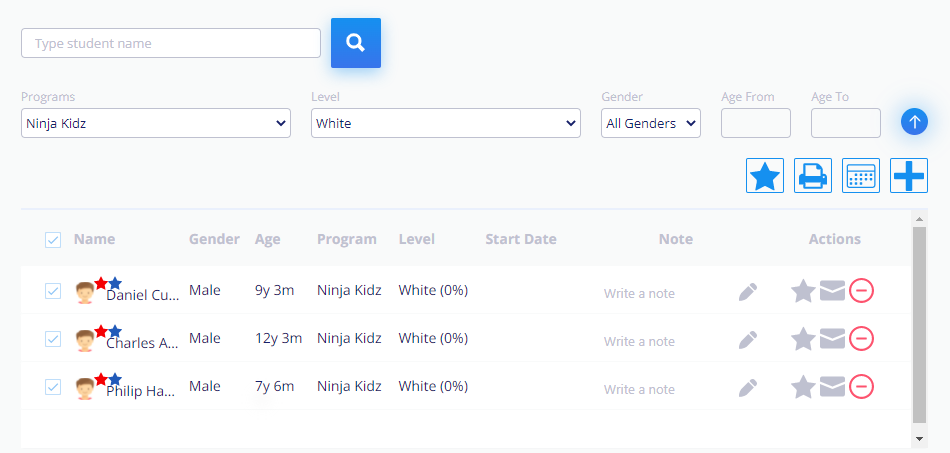
- From here, choose the program and level in the filter.
- Click the top box to select all students in the roster.
-
Choose the up arrow next to the age filter to level up the selected students.
- Click Confirm to complete leveling up.
Warning
Automatic notification sent
Every time a star is clicked or a student levels up, the family is notified via email.