
Managing your profile is a quick and easy way to keep your and your family's information such as address or credit card up-to-date and accurate.
In this article
Who can use this feature?
- Pike13 Plans: ✅Premium, ✅Advanced, ✅Essential
- User Roles: ❌Primary Owner, ❌Owner, ❌Manager, ❌Staff, ❌Limited Staff, ✅Client
Editing Your Profile
- Log in to your Pike13 account.
- In the dashboard menu on the right-hand side of the screen, select the Edit Profile button.
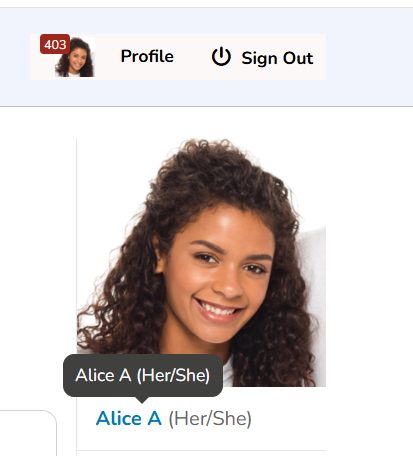
- Update all your profile information as needed.
- Click Save.
Adding a Dependent
-
Log in and go to your Client Profile in Pike13.
-
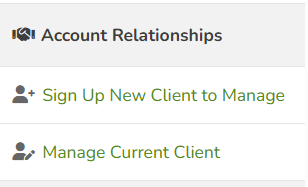
On the right hand side bar scroll down to Account Relationships.
-
To link an existing user: Select Manage Current Client and search for their profile.
-
To create a new user: Select Sign up New Client to Manage to create a new profile for your dependent.
Removing a Dependent
-
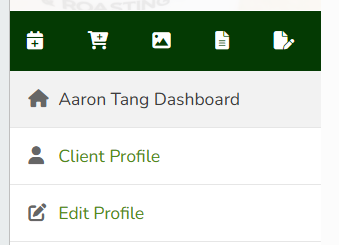
Go to your Client Profile in Pike13.
-
Select Edit Profile from the right hand menu.
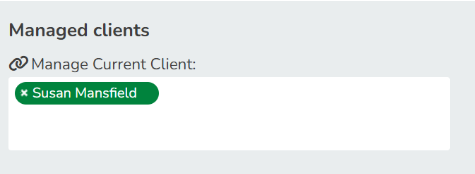
- Scroll down to Manage Current Client and click on the x next to person you wish to remove.
- Select Save.
Warning
Removing a Dependent
Removing a dependent does not delete their profile. They will still have an active profile with this business and recurring plans will remain on autopayment.