
Depending on your cancellation policy, staff will have the option to be able to deduct a visit and/or charge a cancellation fee when a client is marked as a late cancel.
In This Article
Who can use this feature?
- Pike13 Plans: ✅Premium, ✅Advanced, ✅Essential
- User Roles: ✅Primary Owner, ✅Owner, ✅Manager, ✅Staff, ❌Limited Staff
Charging a Cancellation Fee
If your appointment or class service is setup to allow staff to charge a cancellation fee, they will see this option when a client is marked as a late cancel. Charging a cancellation fee is not automatic and will need to be processed manually by a staff member.
- Click Schedule.
- Navigate to the Class or Appointment roster.
- Click on the gear icon next to the client and mark them as late canceled.
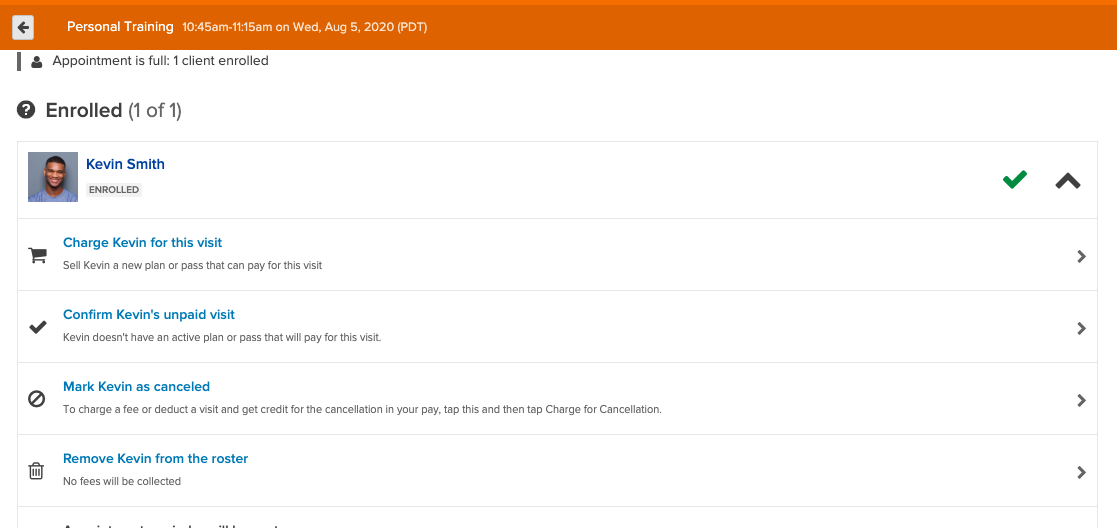
- Once the client has been marked canceled, click Charge for Cancellation.
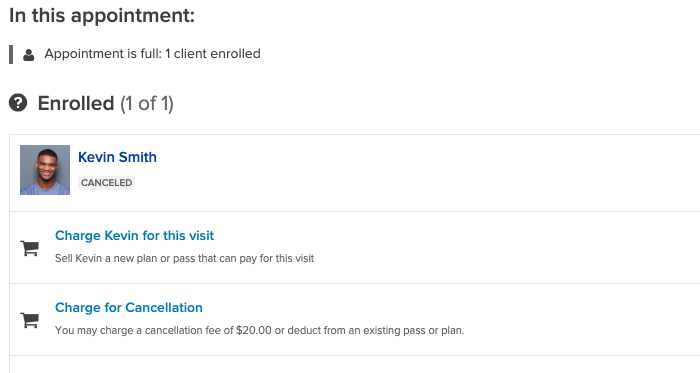
- From the shopping cart, process the cancellation fee.
- This will take you to the Shopping Cart. Process the payment for the fee to finalize the cancellation.
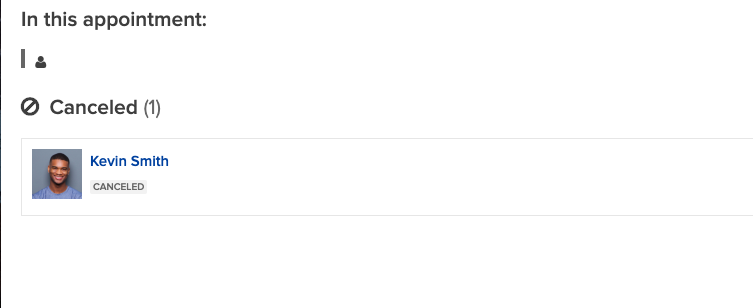
- Once the fee has been paid, the client will be marked as Canceled in the roster.
Deducting a Visit
When a client late cancels, a visit will be automatically deducted if the cancellation policy only allows a visit to be deducted and the client has a pass or plan to pay for this visit. If your cancellation policy is set to deduct a visit or charge a fee, a staff member will need to manually select to deduct a visit.
- Click Schedule.
- Navigate to the Class or Appointment roster.
- Click on the gear icon next to the client and mark them as late canceled.
- Once the client has been marked as Canceled, click Charge for Cancellation.
- Choose to deduct a visit from the client's active pass or plan.
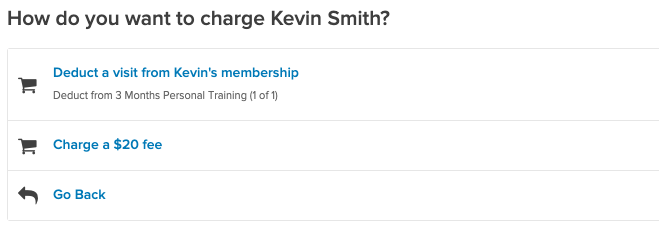
- After the visit is deducted, the client will be Canceled on the roster.
Warning
Unpaid Client Visits
If the client has no pass or plan on their account, the option to Deduct a Visit will be unavailable. First sell the client a pass, then deduct the visit.
If the client has a pass or plan but the visit falls outside its active date range (for example, the pass started after the class date), you can still manually select that pass to deduct the visit. The system will warn you, but will allow staff to override and proceed.
Note
Configuring Cancelation Policies
For questions on how to set up your cancelation policy to allow these options, please see Cancelation Policy for Appointments/Classes.