
In This Article
- Who can use this feature?
- Change a Single Class, Course, or Appointment
- Change a Recurring Class, Course, or Appointment
- Quick Update - Single Session Only
Who can use this feature?
- Pike13 Plans: ✅Premium, ✅Advanced, ✅Essential
- User Roles: ✅Primary Owner, ✅Owner, ✅Manager, ✅Staff, ❌Limited Staff
Change a Single Class, Course, or Appointment
- At the top of any Pike13 page, click Schedule.
- On the Schedule, click the class, course, or appointment you want to change.
- From the roster page, click Change Schedule.
- Select Change this instance only, then click Continue.
- Under Instructed by click the X after the current instructor's name to remove them, enter the new instructor's name.
- Click Update to save the new instructor to the event.
Change a Recurring Class, Course, or Appointment
- At the top of any Pike13 page, click Schedule.
- Click on the first event in the series you wish to change.
- In the right had menu, click Change Schedule.
- Select Change this and all future instances, then click Continue.
- Under Instructed by click the X after the current instructor's name to remove them, enter the new instructor's name.
- Click Update to save the new instructor to the series of events.
Quick Update - Single Session Only
- At the top of any Pike13 page, click Schedule.
- On the Schedule, click the gear on the item you wish to change.
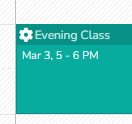
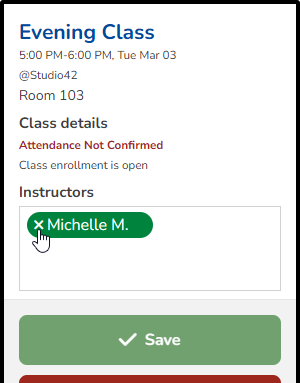
- Under Instructors, click the X next to the current instructor's name to remove them.
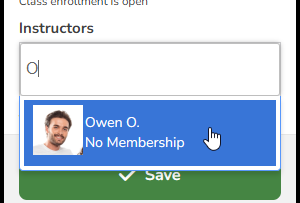
- In the box, type in the new instructor's name. When their name appears, click on it to add them as the instructor.
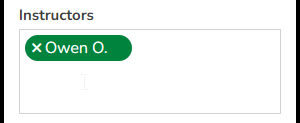
- Click Save.
Tip: Changing the instructor for many events at once. If a staff member is out and you need to reassign several classes or appointments, Managers and Owners can use Bulk Modify on the Schedule. You can filter by instructor, dates, services, locations, and rooms, then assign a new instructor to every matching event, and choose whether to notify affected clients.