
Depending on their usage and needs, clients may need to change their membership level (e.g., upgrading from "2x Week" to "Unlimited"). You can process this change immediately or schedule it for the future.
In This Article
Who can use this feature?
-
Pike13 Plans: ✅Premium, ✅Advanced, ✅Essential
- User Roles: ✅Primary Owner, ✅Owner, ✅Manager, ❌Staff, ❌Limited Staff
Replacing a Plan Immediately
The client's current plan must be current on payments. If the client has overdue bills, they must be paid off before changing the plan.
- At the top of any Pike13 page, click Clients and navigate to the desired profile.
- On the client’s dashboard, under Plans & Passes, click the current plan you wish to change.
- On the plan details page click Change to Different Plan.
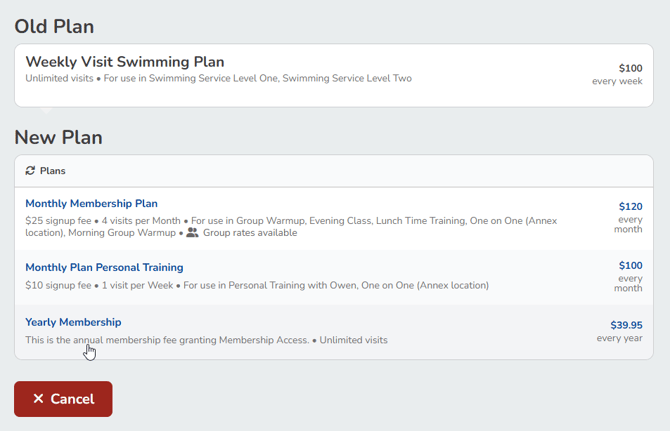
- On the Choose New Plan page, select the replacement plan.
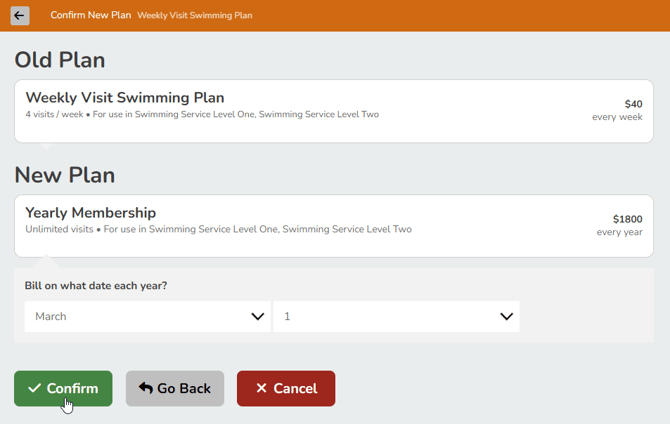
- On the Confirm New Plan page, choose the billing date for the new plan, and then click Confirm.
- To add a discount to the new plan:
- In the Shopping Cart, click Modify /⚙️to the left of the new plan name.
- Click Add Discount, choose the discount options you want, click Update, and then click Shopping Cart.
- In the Shopping Cart, click Secure Checkout and complete the sale.
Replacing a Plan in the Future
Use this method if a client wants to finish their current plan and start a new one immediately afterwards. This is a two-step process.
Set the Expiration Date
- At the top of any Pike13 page, click Clients and navigate to the desired profile.
- On the client’s dashboard, under Plans & Passes, click the current plan you wish to change.
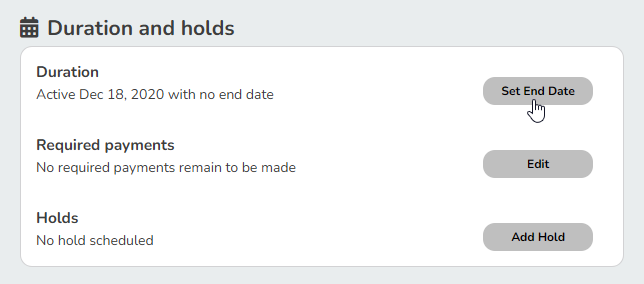
- On the Details page click Set End Date.
- Under Last day of use, enter the last day the client should have access to this plan (e.g., the last day of the current billing cycle).
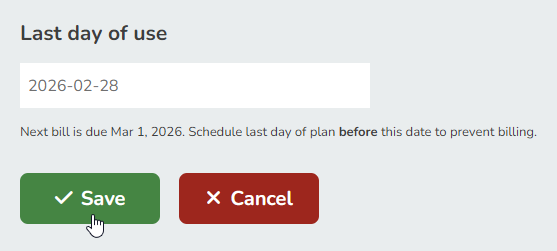
- Click Save.
Sell the New Plan
- Return to the Client's Profile, then click New Purchase.

- Select a new Plan, then click Add to Cart.
- In the Shopping Cart, click Modify /⚙️to the left of the new plan name.
- Click Edit next to Payment info.
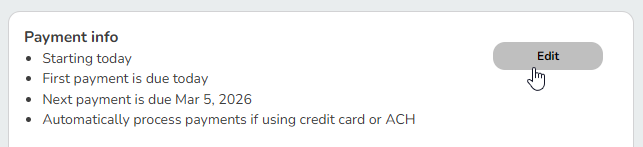
- Modify the following options:
- When does the plan start?
- Set this to the day after the old plan is scheduled to end.
- When is the first payment due?
- Select First payment is due on the plan’s start date.
- When is the second payment due?
- Set the regularly expected billing date for the next invoice.
- How should credit card or ACH payments be processed?
- Select Automatically-notify if a payment fails
- Click Save.
- When does the plan start?
- Once satisfied with the changes, click Back to Shopping Cart.
- In the Shopping Cart, click Secure Checkout and complete the sale.
The client will finish their current plan, and the new plan will start (and bill them) on the future date selected.
Pricing/Proration on Plan Change
When you swap plans mid-billing cycle, Pike13 calculates the unused value of the old plan and applies it to the new plan.
-
Upgrade (New Plan is more expensive): The client pays the difference.
-
Downgrade (New Plan is cheaper):
-
If the old plan has more value remaining than the cost of the new plan, the difference will appear as a credit/discount in the cart.
-
Note: To refund this extra money back to the client's credit card, you must complete a refund transaction on the original Plan's invoice.
-