
In Pike13, you can give your staff commission for completing sales. Once a commission rate is set up, the staff member will receive the rate when they are marked as having sold the product. Commission rates only apply to the initial sale of an item, not subsequent recurring bills. The staff member only receives commission once per item.
In This Article
Who can use this feature?
- Pike13 Plans: ✅Premium, ✅Advanced, ✅Essential
- User Roles: ✅Primary Owner, ✅Owner, ❌Manager, ❌Staff, ❌Limited Staff
Creating Commission Rates
-
At the top of any Pike13 page, click Staff.
-
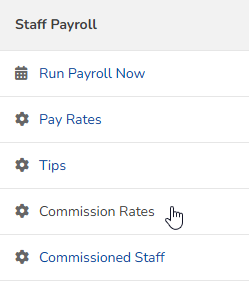
Click Commission Rates.
-
Click + New Commission Rate.

-
On the New Commission Rate page, fill out the following:
-
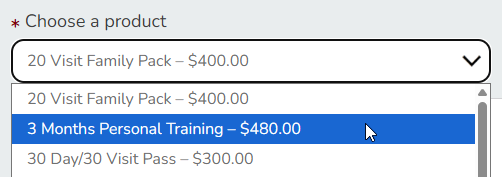
Choose a product from the dropdown menu.
-
Select between:
-
Commission rate is a fixed dollar amount
-
Enter a dollar amount.
-
-
Commission rate is a percentage of total sale
-
Enter a percentage.
-
-
-
-
Click Create.
Assigning Staff Commission Rates
-
At the top of any Pike13 page, click Staff.
-
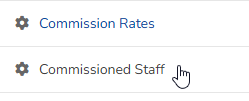
Click Commissioned Staff.
-
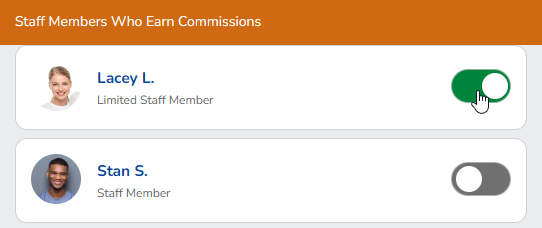
Click the toggle by each staff member who is eligible to earn commission.
-
Click Update.