
If your client is not receiving email notifications, there are several troubleshooting steps that can be taken.
In This Article
Valid Email Address
Check that your client has a valid email address in their client profile. If their account is unclaimed, you can send them the welcome email to verify emails are being sent.
Email History
On the client's profile, click Sent Emails to see all notifications sent from Pike13 to this client. If you see the email there, the client may have a filter set up, or it may be going to their spam folder. Occasionally, email providers will reject Pike13 emails, and they bounce back. If you are seeing that, ask your client to add do-not-reply@pike13.com to their contacts.
Email Suppression
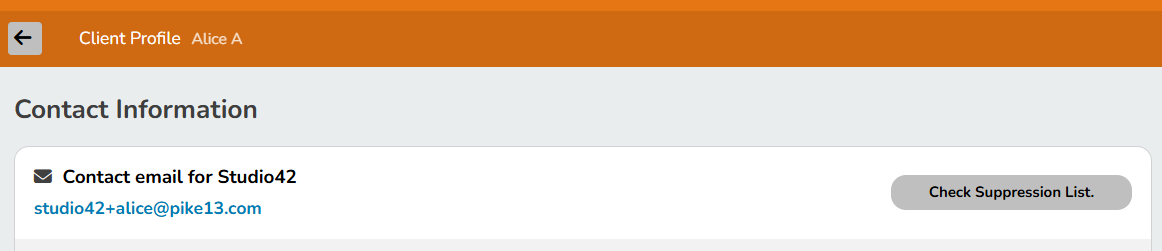
To check if a client has been added to the email suppression list, Owners and Managers can click on Clients at the top of the page. Select the client's name then choose Client Profile. From here, Owners and Managers can check if the client is on the list. If the client is on the list, they will have an option to remove from the email address from the suppression list.
Notification Settings
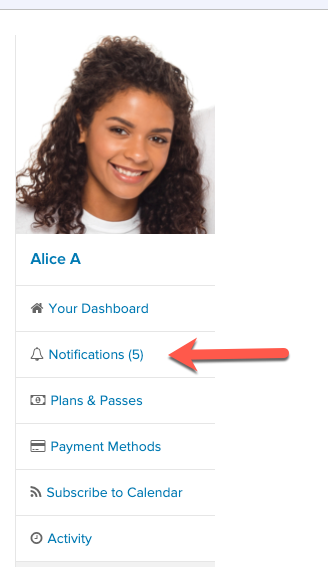
To check your client's notification settings, click on their profile, then select Notifications. From here choose Settings. (See more on how to manage client notifications.)
Blocked Email
In rare cases, email providers (especially corporate or institutional domains) may block Pike13 messages altogether. If the client isn’t receiving emails, and they are not in spam or junk folders, they may need to add do-not-reply@pike13.com to their contact list.