
There are a couple of possibilities why a payroll may not appear for a staff member. Pay rates may not be assigned to the service or staff member, attendance may not be confirmed or clients were not checked in for a class, appointment or course.
In This Article
- Who can use this feature?
- Verify Assigned Pay Rates
- Confirm Attendance
- Reset Roster Attendance
- Already Included in Payroll Report
Who can use this feature?
- Pike13 Plans: ✅Premium, ✅Advanced, ❌Essential
- User Roles: ✅Primary Owner, ✅Owner, ❌Manager, ❌Staff, ❌Limited Staff
Verify Assigned Pay Rates
Verify the staff member's assigned a pay rates.
- At the top of any Pike13 page, click Staff.
- Select the staff member who is missing a pay item.
- Click on Pay Rates. Review the staff member's assigned services, and services that do not have pay rates.
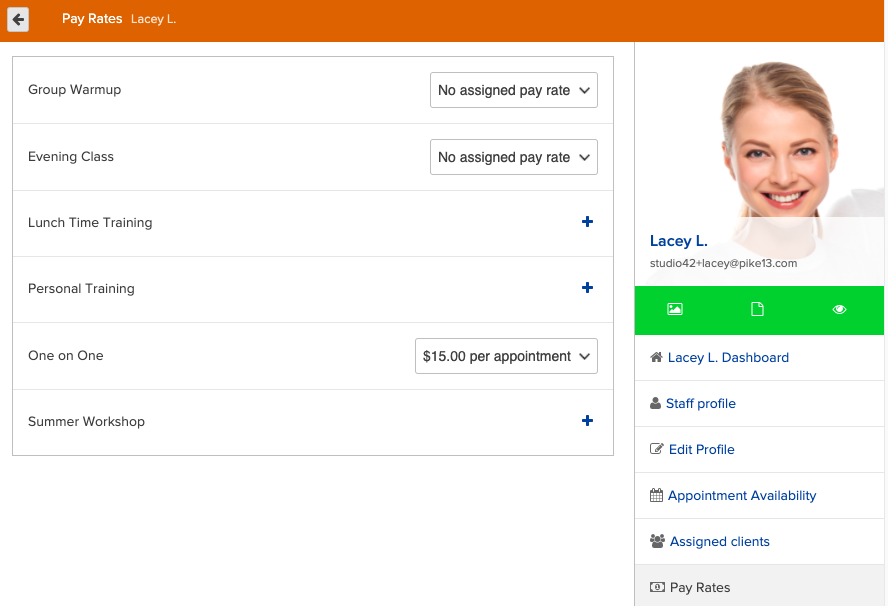
- To add a pay rate for the staff member, select:
- The + button to add a pay rate to the service.
- No assigned to pay rate dropdown to select a pay rate.
- After adding a pay rate for the staff member, return to Staff.
- Click Run Payroll Now.
- To update the pay items for a previous pay period, click the pay period, then click Delete.
- Click Recalculate Pending Pay to update pending pay items.
- Follow the steps to run payroll.
Confirm Attendance
Check if attendance for the instructor's assigned schedule has been confirmed.
- At the top of any Pike13 page, click Schedule.
- Navigate to the date(s) for the event you need to confirm.
- If the event is grayed out, attendance has been confirmed.
- Click the event to check if the roster has any unresolved items.
- Confirm attendance for the events that were not previously completed.
- After adding a pay rate for the staff member, return to Staff.
- Click Run Payroll Now.
- To update the pay items for a previous pay period, click the pay period, then click Delete.
- Click Recalculate Pending Pay.
- Follow the steps to run payroll.
Reset Roster Attendance
If the pay item is still not appearing after assigning a pay rate and confirming attendance, you may need to reset attendance.
- At the top of any Pike13 page, click Schedule.
- Go to the event that is missing a pay item.
- Click on the gear icon next to a client's name in the roster.
- Choose to reset attendance.
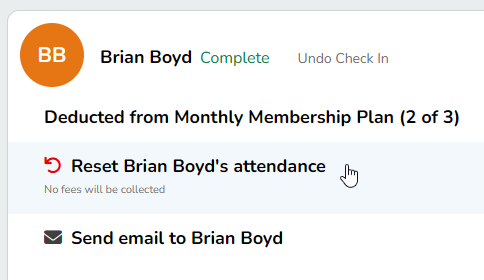
- Check the client back in to the event.
- Repeat steps 3-5 for every client on the roster.
- Once all clients have been checked back in, return to Staff and click Run Payroll Now.
- To update the pay items for a previous pay period, click the pay period, then click Delete.
- Click Recalculate Pending Pay.
- Follow the steps to run payroll.
Already Included in Payroll Report
- At the top of any Pike13 page, click the Reporting icon.
- Click Financials.
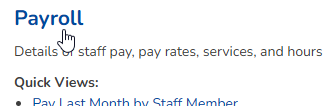
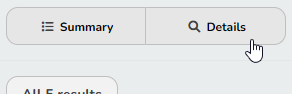
- Click on Payroll, then click Details.
- Add filters for Service Date and Staff
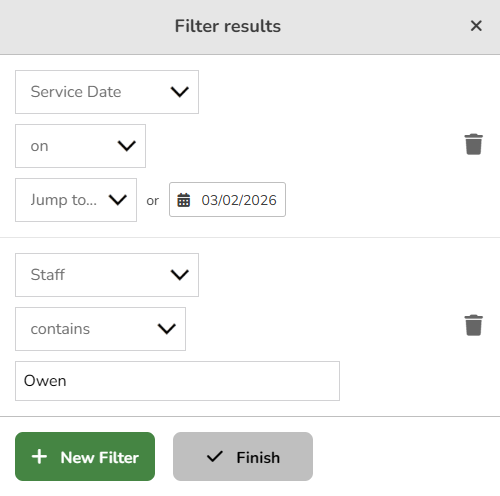
- Click Finish.
- The results will show if this event has already been included in a payroll report.