
Running a Groupon promotion is a fantastic way to bring new faces through your doors. Managing those vouchers can be simple with Pike13. By setting up a dedicated workflow, you can track Groupon sales accurately without cluttering your standard point-of-sale options.
In This Article
Who can use this feature?
- Pike13 Plans: ✅Premium, ✅Advanced, ✅Essential
- User Roles: ✅Primary Owner, ✅Owner, ✅Manager, ❌Staff, ❌Limited Staff
Creating a Groupon Payment Method
To accept Groupon vouchers in Pike13, set up an external payment method specifically for Groupon. This payment method will be used to process sales with Groupon vouchers.
- Follow instructions to create an External Payment Method.
- Give it a unique name like Groupon.
- Enable Show a field for manually entering the transaction number at checkout to keep track of any unique voucher codes in Pike13 reporting when processing a sale.
- Click + Create to save the new payment method.
Creating a Groupon Pass
- Follow instructions on Creating Prepaid Passes.
- Give it a unique name, like Groupon Pass.
- If you run multiple Groupon offers, you can create additional passes to match the type of offer, like Groupon Pass 10 Visits or 2026 Groupon Promo.
- Once the new pass is saved, ensure that only Staff can sell the pass.
- In the Policies section, edit Who can buy this on your Pike13 website?
- Set the pass to No one (only staff members can sell it).
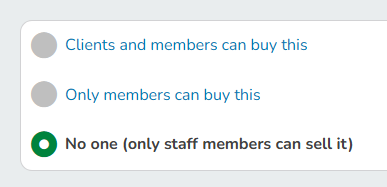
- Set the pass to No one (only staff members can sell it).
Redeeming a Groupon Voucher
When a client has a Groupon voucher, follow these steps at point of sale:
-
Go to the Client’s Profile and click New Purchase.
-
Select the Groupon Pass, and add it to the cart.
-
Click Secure Checkout.
- In the Choose a payment method dropdown, select Groupon (the external method previously created).
-
Do NOT select Cash or Credit Card.
-
-
Enter the client's Groupon Voucher Code in the Transaction ID text box, then click Finish to save the payment
- Click Finish to complete the transaction.