
Manage your Pike13 account notifications and notes from staff by selecting which updates you receive via email or text..
In this article
Who can use this feature?
- Pike13 Plans: ✅Premium, ✅Advanced, ✅Essential
- User Roles: ✅Primary Owner, ✅Owner, ✅Manager, ❌Staff, ❌Limited Staff, ✅Client
Control when and how you are notified
- Sign in to the Pike13 website.
- Click My Profile, select Notifications, and then choose Settings.
- To receive no notifications during certain hours (like when you sleep), under When don't you want to be disturbed? click Edit, and then select the checkbox and choose the times when you don't want to receive notifications.
- To receive any of the available notifications, click the Edit button so that notification is checked, check the boxes on the right to be notified on the Pike13 website, by text, or by email, and then select Save.
Note
Text Notification
If you choose to receive text notifications, you'll be prompted to enter the phone number where you want to receive text messages.
Review your notifications
You can view a history of all alerts sent to you directly on the website.
-
Go to My Profile > Notifications.
-
Select the New tab to see unread alerts.
-
To Clear: Click the Ignore (or Dismiss) button to remove an alert.
-
To View History: Click the Archived tab to see previously dismissed notifications.
Adding Additional Notification Recipients
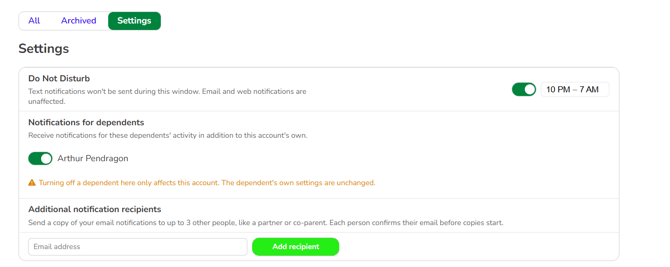
You can add up to three extra email addresses, such as a spouse, co-parent, or guardian, to receive copies of your notification emails. - Add recipients from your profile. Each address must be verified by email before it receives anything.
- Recipients only get the notifications you’ve turned on for email. Text and push notifications aren’t shared.
- Every email includes a Stop receiving these notifications link, and you can remove a recipient at any time.
- Add by going to your notifications and select Settings. From here you can add additional recipients.
Client Notifications

You can view a history of all alerts sent to your clients directly on the client dashboard under notifications.
-
Go to Clients > Select a Client > on the right side of the dashboard Notifications.
-
Select the New tab to see unread alerts.
- To View History: Click the Archived tab to see previously dismissed notifications.
To review settings; select the Settings tab to review the current settings
If your business uses Skill Tracking, you'll get a notification when you complete a skill level. For a dependent, such as a child, the notification goes to their Account Manager.
NOTE: Notifications for Skill Tracking appear on the Pike13 website and are sent by email. You will be notified only when a whole level is complete, not for each skill rating.