
Connect Mailchimp to your Pike13 business to automate email and SMS campaigns. Once integrated, Pike13 syncs client data directly to your chosen Mailchimp Audience.
In This Article
Who can use this feature?
- Pike13 Plans: ✅Premium, ✅Advanced, ❌Essential
- User Roles: ✅Primary Owner, ✅Owner, ✅Manager, ❌Staff, ❌Limited Staff
Prerequisites
-
Subscription: Ensure you have an active Mailchimp account (Free or Paid).
-
Audience: Create an Audience in Mailchimp. We recommend using Segments within that audience to group clients rather than creating multiple audiences.
-
Dependents: Only clients with unique email addresses will sync.
Navigating Mailchimp
Create a Mailchimp account if you do not have one. Create a new audience, import subscribers and create segments. If desired, you may also create automations.
Follow Mailchimp's instructions to create an API Key. This is required to use the integration. Copy the key to use in Pike13:
- In Pike13, click Settings, Apps & Add Ons, then click Mailchimp.
- Paste the API Key into the Mailchimp API key text box, and then click Save.
- Ensure you turn on at least one Mailchimp Audience. By default, all audiences are turned off.
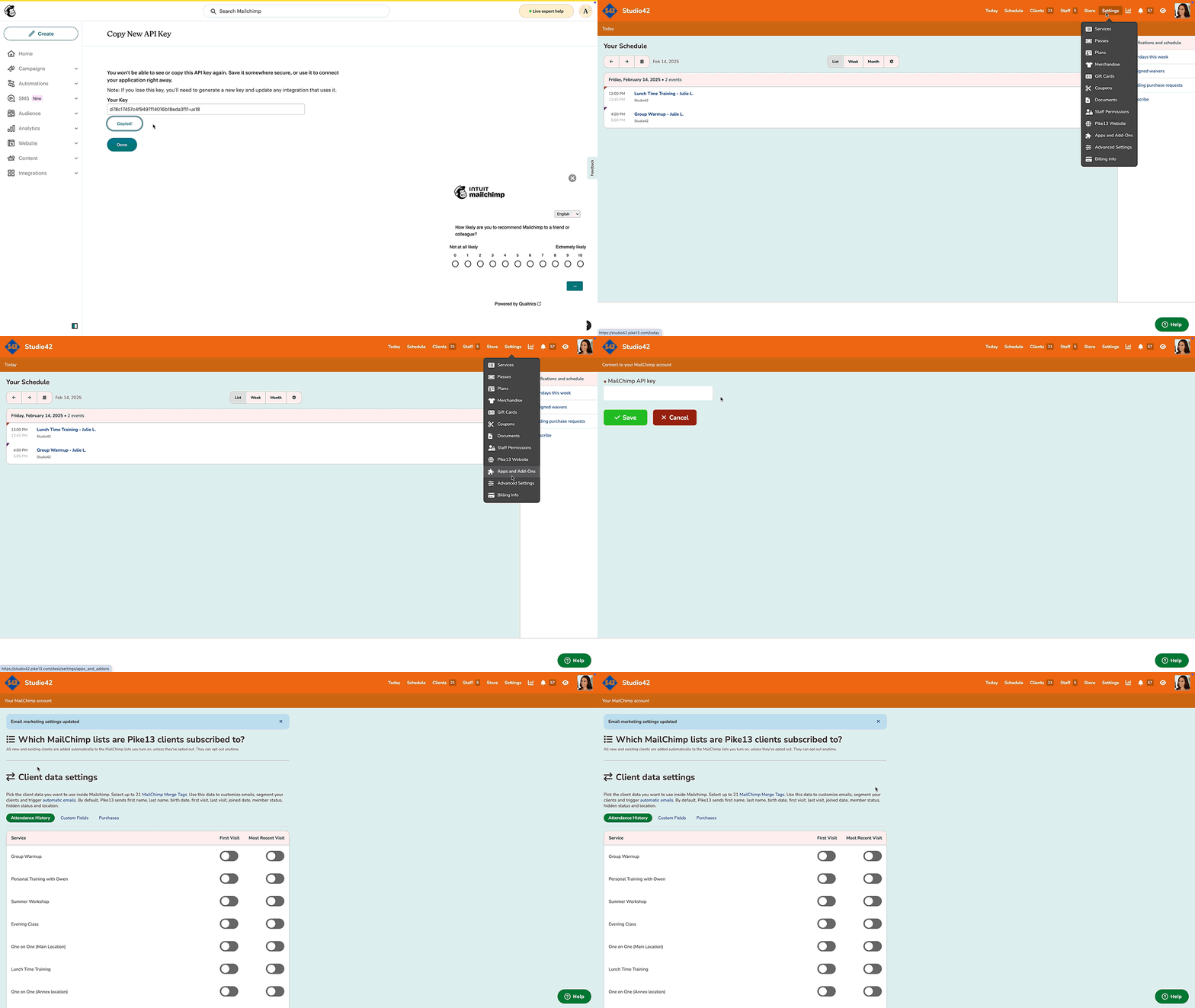
Within Pike13's Mailchimp settings, Mailchimp audiences appear above Client Data Settings. To see any Audiences that you've added subsequently, click Reload.
Client Data Field Limitations
Mailchimp lets you use up to 30 client data fields as triggers. Pike13 automatically syncs ten common Pike13 client data fields:
-
Email address (not counted towards limit)
-
First Name
-
Last Name
-
Date of Birth
-
Phone number
-
First Visit
-
Last Visit
-
Date Joined
-
Member
-
Hidden
-
Location
You can select 20 additional client data fields to sync with Mailchimp.
SMS Requirements
To communicate via SMS, you must follow these instructions from Mailchimp.
Once SMS has been setup, phone numbers can be added to the SMS Marketing field.
After SMS is enabled you may:
- Create and Promote an SMS Signup Form
Use an SMS signup form to add new subscribed contacts to your audience who want to receive SMS marketing from you. - Create and Send an SMS Marketing Message
Learn how to create and send marketing text messages to your subscribed SMS contacts.