Mobile Browser/Staff App
Selling a Course
- Click on the 3 bars
in the upper left hand corner - Select Clients.

- On the Clients page, select the client purchasing the Course.
- Click on the down arrow
in the upper right hand corner. - Choose the Shopping Cart icon at the top.
- Select the Course tab.
- Go to the course the client wishes to enroll and and select the course time.
- Choose the person who is purchasing the course then click Finish.
- If prompted Who is this for? select the client who will be taking the course.
- For example, if the account manager (parent) is enrolling a dependent (child) in the course, select the dependent who will be attending the course. Click Add to Cart.
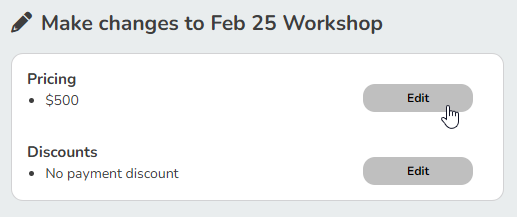
- Click the gear icon to the right to change the price of the course or add a discount.
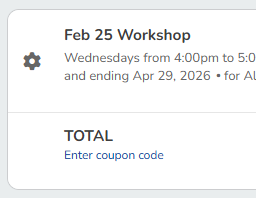
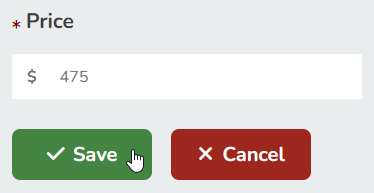
- To change the price, under Pricing select Edit, make changes, and then click Update.
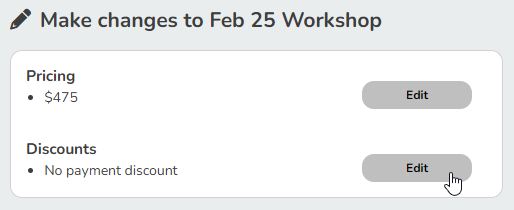
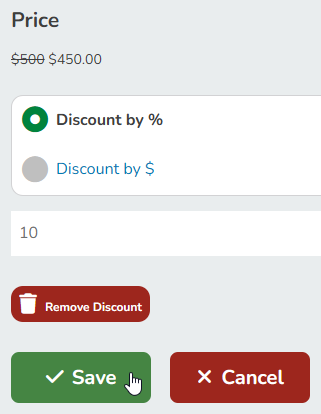
- To apply a discount, under Discounts click Edit, choose the type of discount that you want, enter a percentage or dollar amount, and then click Finish.
- When finished making modifications, click Back to Shopping Cart.
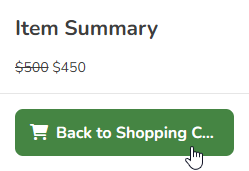
- Click Secure Checkout and select a payment method. Once the course is purchased, the client will be automatically enrolled into the entire series.
Warnings
Making a Partial Payment
When staff sell a course, they can choose to collect part of the balance due. Partial payments will not enroll the client into the course. The client will only be enrolled after the course has been paid in full.
Clients Cannot Enroll in a Course in the Client or Branded App
The Client App supports Classes and Appointments only. Courses need to be purchased through a web browser.
Desktop Browser
Selling a Course
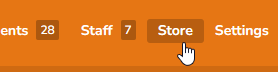
- Go to Store at the top of any page.
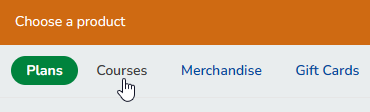
- Select the Course tab.
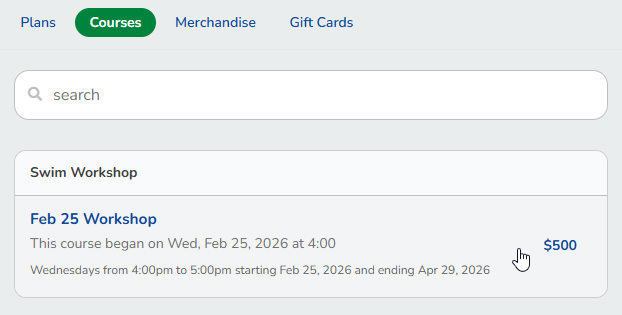
- Go to the course the client wishes to enroll and and select the course time.
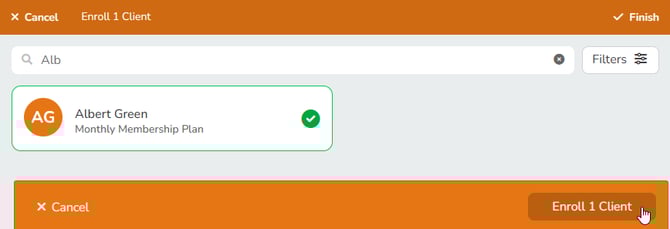
- Choose the person who is purchasing the course then click Finish.
- If prompted Who is this for? select the client who will be taking the course. For example, if the account manager (parent) is enrolling a dependent (child) in the course, select the dependent who will be attending the course. Click Add to Cart.
- Click the gear icon to the right to change the price of the course or add a discount.
- To change the price, under Pricing select Edit, make the changes you want, and then choose Update.
- To apply a discount, under Discounts click Edit, choose the type of discount that you want, enter a percentage or dollar amount, and then click Finish.
- When finished making modifications, click Back to Shopping Cart.
- Click Secure Checkout and select a payment method. Once the course is purchased, the clients will be automatically enrolled into the entire series.
Warnings
Making a Partial Payment
When staff sell a course, they can choose to collect part of the balance due. Partial payments will not enroll the client into the course. The client will only be enrolled after the course has been paid in full.
Clients Cannot Enroll in a Course in the Client or Branded App
The Client App supports Classes and Appointments only. Courses need to be purchased through a web browser.