
Differences Between Voids and Refunds
- Void (Same Day): Available only before the transaction settles (usually the same day).
- Effect: The charge is canceled entirely. The funds are never withdrawn from the client's payment method.
- Note: Voiding is not an option if your merchant processor does not support voids or if the funds have already been settled.
- Refund (Next Day or Later): Required once a transaction has settled (outside the voiding window).
- Effect: The funds were withdrawn and must be sent back.
- Note: Funds can be returned to the client's original payment method, cash, or account credit.
Note
Canceling Service When Voiding or Refunding
Pike13 asks Want to cancel any plans or passes associated with this refund? Check the item(s) that you want to cancel
-
Unchecked (No): The client keeps the pass/plan active.
-
Checked (Yes): The pass/plan is removed from the client profile. If you do this by mistake, you will need to resell the item to them.
Processing Voids
-
At the top of any Pike13 page click Clients.

-
Select the client who needs a payment voided.
-
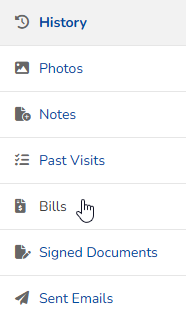
In the History section, click Bills.
-
Select the invoice with a payment to void.
-
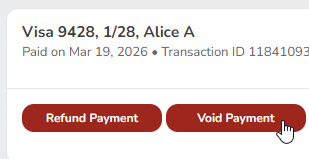
Click Void Payment.
-
Note: If the Void Payment button is missing, the transaction has settled, and you must process a refund instead.
-
-
If applicable, check or uncheck the box for any plans or passes associated with this void that need to be canceled.
-
Click Void Payment.
Processing Refunds
-
At the top of any Pike13 page click Clients.
-
Select the client who needs a refund.
-
In the History section, click Bills.
-
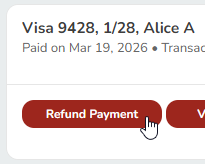
Select the invoice to refund, and click Refund Payment.
-
Set the Refund amount if different from total payment.
-
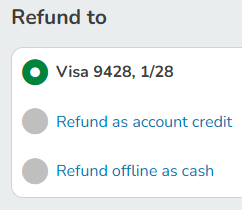
Select the refund type:
-
Original Payment Method: Returns funds to the payment method used.
-
Account Credit: Adds the balance to their Pike13 account for future use.
-
Cash: Records that you handed them cash.
-
-
If applicable, check or uncheck the box for any plans or passes associated with this refund that need to be canceled.
-
Choose whether to email a refund receipt to the client. The default is Yes. Update the email address if necessary.
-
Click Process Refund.