
ACH (Automated Clearing House) (auto-drafts, bank drafts, or e-checks) allows you to take electronic payments directly from a client's bank account. This is often preferred for recurring monthly memberships due to lower transaction fees compared to credit cards.
In This Article
- Who can use this feature?
- Enable ACH Processing
- Entering Client Bank Info
- Regional Differences
- ACH Transaction Statuses
Who can use this feature?
- Pike13 Plans: ✅Premium, ✅Advanced, ✅Essential
- User Roles: ✅Primary Owner, ❌Owner, ❌Manager, ❌Staff, ❌Limited Staff
Enable ACH Processing
Before you can accept bank drafts, the feature must be active on your account.
-
Contact your Merchant Processor:
-
You must first apply for ACH processing directly with your payment provider (e.g., NMI, Stripe, etc.). They will advise you on rates and activate the service on their end.
-
-
Verify settings in Pike13:
-
At the top of any Pike13 page, click Settings, then click Advanced Settings.
-
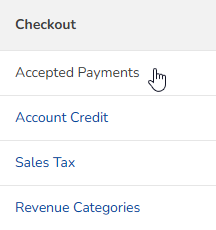
In the Checkout section, click Accepted Payments.
-
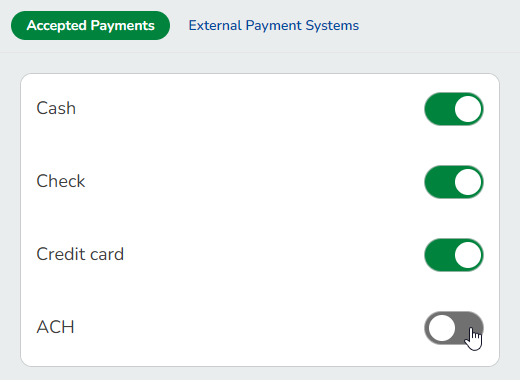
Find ACH in the list.
-
If you have already been approved to use ACH by your processor but do not see this option, please contact
help@pike13.com.
-
-
Toggle the switch On (green) to enable ACH or Off (gray) to disable ACH.
-
Click Save.
-
Entering Client Bank Info
Once enabled, staff can add bank details to a client's profile.
-
At the top of any Pike13 page, click on Clients.
-
Search for and select the client you wish to view.
-
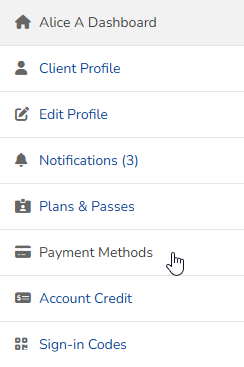
Click Payment Methods.
-
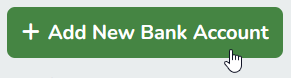
Click Add New Bank Account.
-
Enter the following details:
-
Bank name
-
Routing number
-
Account number
-
Account type: Checking or Savings
-
Account holder type: Personal or Business
-
Billing address
-
-
Click Save.
Important: Staff-Only Entry
For security reasons, clients cannot add or edit their own bank account info in their online profile unless your business has a Stripe integration. Bank details must always be collected and entered manually by a staff member through the Pike13 interface.
Regional Differences
Canadian Customers
Canadian account numbers require a specific format to match the 9-digit US Routing Number standard.
-
Format:
0+Institution Number (3 digits)+Branch Number (5 digits) -
Note: These fields appear in reverse order on physical Canadian checks. You may need to add a leading zero to reach the required 9 digits.

Australian Customers (IntegraPay/Payrix)
-
Status Sync: When an ACH invoice is processed, Pike13 immediately marks it as Closed/Paid.
-
Failures: If IntegraPay declines the transaction later, that failure data is not sent back to Pike13 automatically. You must monitor your IntegraPay dashboard to identify failed payments and manually reopen/adjust the invoice in Pike13.
ACH Transaction Statuses
Unlike credit cards, which approve or decline instantly, ACH takes time to clear.
-
Immediate Closure: When you process an ACH payment, Pike13 assumes success and immediately moves the invoice to Closed status.
-
Failures: If the bank rejects the draft (e.g., insufficient funds) days later, the invoice will typically reopen automatically to show an unpaid balance.
-
Warning: If the invoice was manually canceled before the failure notice came back, it will remain canceled and cannot be reopened.
-