
Learn how to update or delete scheduled appointments below.
In This Article
- Who can use this feature?
- Modifying Single or Recurring Appointments
- Canceling Single or Recurring Appointments
Who can use this feature?
- Pike13 Plans: ✅Premium, ✅Advanced, ✅Essential
- User Roles: ✅Primary Owner, ✅Owner, ✅Manager, ❌Staff, ❌Limited Staff
Modifying Single or Recurring Appointments
- At the top of any Pike13 page, click Schedule.
- Choose the existing appointment you wish to modify.
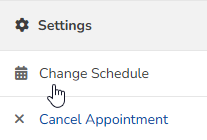
- Under Settings, click Change Schedule.
- Select between:
- Change this instance only
- Change this and all future instances
- Click Continue.
- Modify any of the following:
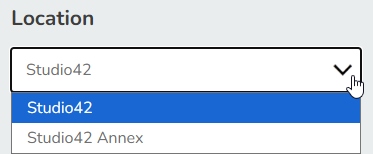
- Location of the appointment
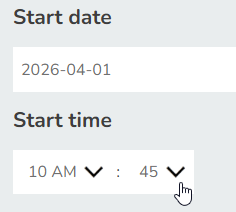
- Start date or time of the appointment
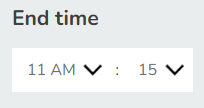
- End time of the appointment
- Who the appointment is Instructed by
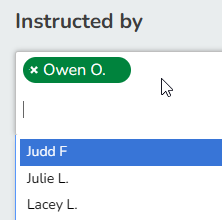
- You may add or remove staff as necessary. There may be multiple staff for the same appointment(s).
- Room of the appointment, filtered by the selected Location
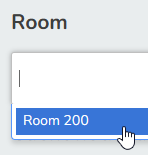
- Whether or not to send a client notification with a summary of the changes being made
- Location of the appointment
- Click Save.
Canceling Single or Recurring Appointments
- At the top of any Pike13 page, click Schedule.
- Find the upcoming Appointment you wish to modify.
- Click the Gear Icon to show Calendar Settings and filters.

- Click Services, then click None.
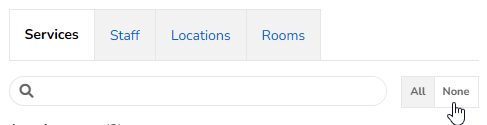
- Select the service type for the appointment you are trying to delete. Ensure it is the only one with a green checkmark.

- Close the Calendar Settings modal.
- Click the Gear Icon to show Calendar Settings and filters.
- Using the Month view for the calendar may be most helpful if you have trouble finding any remaining appointments.
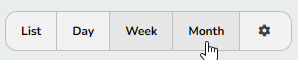
- Click the appointment you wish to modify.
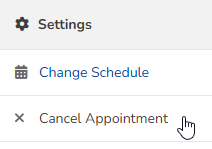
- Under Settings, click Cancel Appointment.
- Select between:
- Change this instance only
- Select Change this and all future instances to clear the entire series at once, especially if you need to delete the entire service.
- Click Continue.
- Choose to remove the appointment from the calendar or whether it should remain visible but marked as canceled.
- Choose Remove from Calendar if you need to delete the entire service.
- Choose whether or not to send a client notification with a summary of the changes being made. Add custom text to the email they will receive if applicable.
- Click Finish.
If you need to delete more upcoming appointments in order to Delete Appointment Services, repeat these steps until there are no further appointments. You may also use the Bulk Cancellation feature.
Learn how to Delete Appointment Services.