Purchase Requests are optional suggestions sent to clients. Use them to recommend products, passes, or plans without creating mandatory debt. Unlike standard invoices, these do not represent services already performed and may be declined by the client.
In This Article
Who can use this feature?
- Pike13 Plans: ✅Premium, ✅Advanced, ✅Essential
- User Roles: ✅Primary Owner, ✅Owner, ✅Manager, ✅Staff, ❌Limited Staff
How Purchase Requests Work
When you send a request, the item is placed in the client's cart. The client receives an email with a link to your Pike13 site where they can:
- Accept: Pay for the item(s) immediately.
- Decline: Reject the request (they will be asked to provide a reason).
- Ignore: The request remains open indefinitely until acted upon or canceled.
Note
When a client declines a purchase request, the bill is automatically closed and negated. The staff member who sent the request is notified of the client's decision.
Send a Purchase Request
- At the top of any Pike13 page, select Clients, and select the client of interest.
- Click the New Purchase button.
- Add items to the cart for your client to purchase.
-
Note
Proration Will Not Update
The amount for each item is set when you send the request. If a plan or pass is included and a client waits two weeks to pay, the price will not automatically adjust for the lost time.
-
-
On the Shopping Cart page, click New Purchase Request.
-
Confirm the client’s email address and add a personalized message.
-
Click Send.
Edit a Purchase Request
-
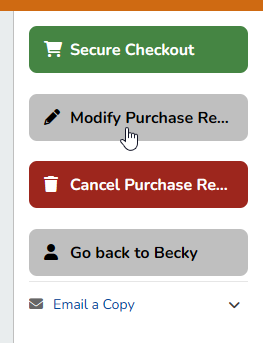
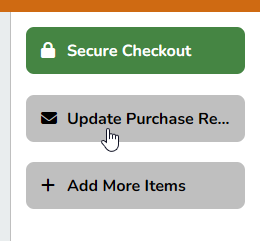
Open a purchase request, and click Modify Purchase Request.
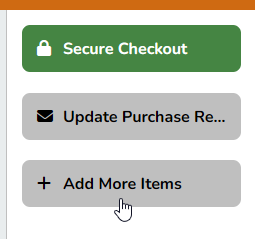
- Click + Add More Items and select any items that should be part of the purchase request.
- Remove any unnecessary items.
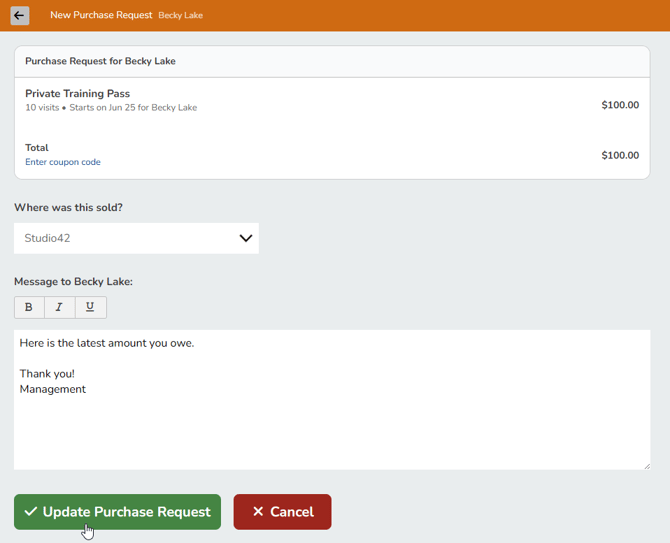
- Once the purchase request is ready, click Update Purchase Request.
- Update the message being sent to the client on this page. Then click Update Purchase Request.
- A new copy of the purchase request will be sent to the client.
Resend a Purchase Request
-
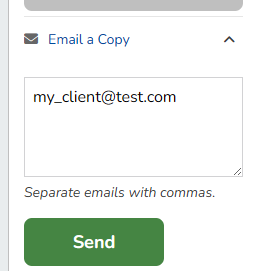
Open a purchase request, and click Email a Copy on the right side of the page.
-
Edit the email address or add more addresses by separating them with a comma.
-
Click Send.
- At the top of any Pike13 page, select Clients, and select the client of interest.
- Click on the Purchase Request displayed on the client's dashboard.
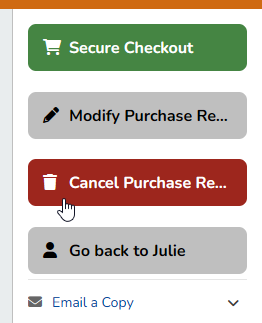
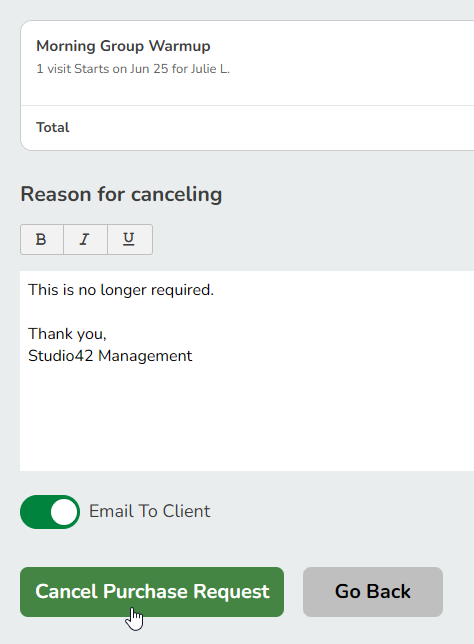
- Click Cancel Purchase Request.
- Choose whether or not you want to email the client the cancellation notice.
- If you select Yes, you will be required to add a comment to the email.
- Click Cancel Purchase Request.
Track Outstanding Requests
Because requests do not expire, use the Invoices report or the Pending Purchase Request page to monitor unpaid suggestions:
- At the top of any Pike13 page select Reporting, and click Financials.
- Select the Invoices or Invoice Items report.
- Select Details then Filters
- Create a filter for purchase requests by setting Invoice Status | is | Purchase Request.
-
Check the Purchase Request State column to see if they are Open, Purchased, Declined, or Canceled.
To use the Pending Purchase Request page:
- At the top of any Pike13 page select Today.
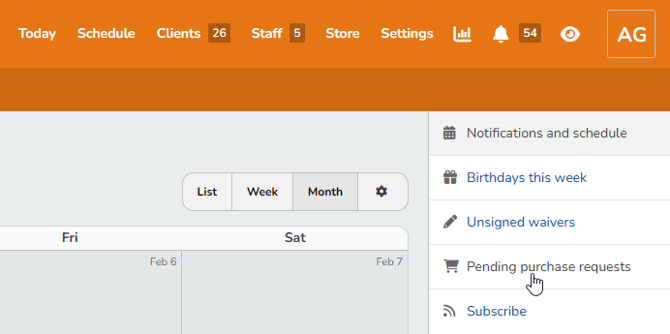
- On the right, click Pending purchase requests.
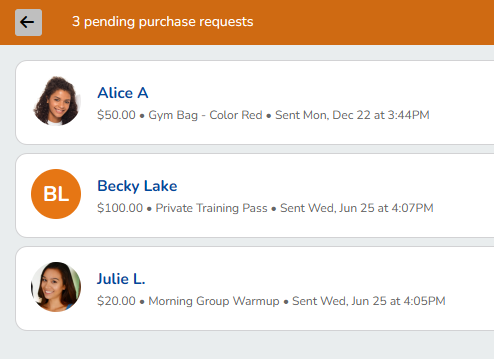
- You will see a list of the newest pending purchase requests first.