
Plans in Pike13 can be recurring or prepaid. Prepaid plans have an end date when they are purchased, but many recurring plans do not. Learn how to cancel plans and how to modify their end dates below.
In This Article
- Who can use this feature?
- Canceling Prepaid and Recurring Plans
- Changing Prepaid Plan End Dates
- Changing Recurring Plan End Dates
Who can use this feature?
- Pike13 Plans: ✅Premium, ✅Advanced, ✅Essential
- User Roles: ✅Primary Owner, ✅Owner, ✅Manager, ✅Staff, ❌Limited Staff
Canceling Prepaid and Recurring Plans
-
At the top of any Pike13 page click Clients, then select the client of interest.
-
In the right menu of the client's profile, click Plans & Passes.
-
Select the prepaid plan or recurring plan you wish to cancel.
-
Click Cancel.
-
If there are no payments due, this will immediately end the plan.
-
If there are payments due, you will need to set a new End Date first.
NOTE: Cancellation confirmation email.
When a plan is canceled, the client automatically gets an email confirming the cancellation and the plan's end date. This happens whether the client or a staff member canceled it.
Changing Prepaid Plan End Dates
-
At the top of any Pike13 page click Clients, then select the client of interest.
-
In the right menu of the client's profile, click Plans & Passes.
-
Select the prepaid plan you wish to modify.
-
In the Duration and Holds section, click Set End Date.
-
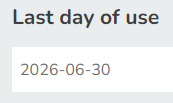
Click the Last day of use box to set a new End Date.
-
Click Save.
Changing Recurring Plan End Dates
-
At the top of any Pike13 page click Clients, then select the client of interest.
-
In the right menu of the client's profile, click Plans & Passes.
-
Select the recurring plan you wish to modify.
-
In the Duration and Holds section, click Set End Date.
-
Click the Last day of use box to set a new End Date.
-
Setting an earlier end date will make visits scheduled after the new end date unpaid unless the client has another applicable plan or pass to pay for them. Invoices due after the new end date will be cancelled. The end date cannot be backdated before today.
-
Setting a later end date will extend the amount of time that the plan visits may be used. Invoices due after the new end date will be cancelled.
-
Selecting Clear to remove an end date will reopen any invoices as if there had never been an end date.

-
-
Click Save.
-
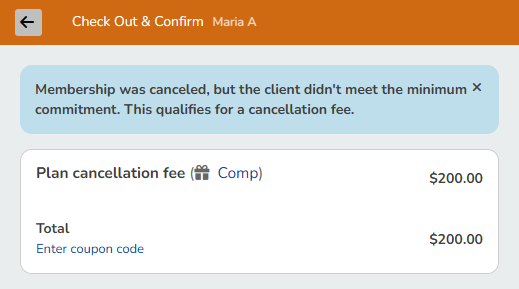
If the new End Date will occur before all required payments can be made, the client may owe an early cancellation fee. Staff will be directed to the shopping cart with the fee added.
-
Complete the transaction by adding a payment, then click Finish.
-
The recurring plan's cancellation fee will be paid and the new End Date will be saved to the plan.