
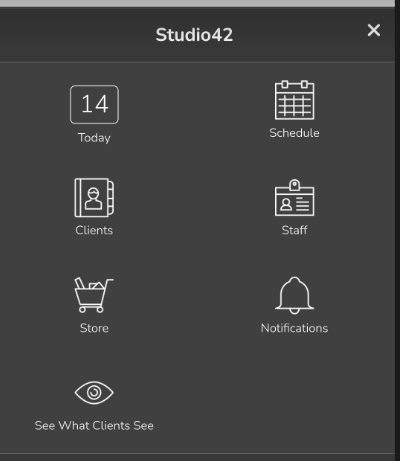
- Click on the 3 bars
 in the upper left hand corner
 - Select Clients.
- Search for and select the client’s name
- In the menu bar under the client's profile picture, click on the pencil icon.

- Select Sign a Document.
- Choose the document that needs a signature.
- Do one of the following:
-
To open the online document for signing on a mobile device, click Sign in person
-
To email the client a reminder that includes a link to the online document, click Sign by email
-
To confirm that the client has signed on paper, click Already signed offline, then select OK
-
View Signed Documents
- Choose Clients at the top of any page.
- Select the appropriate client profile.
- In the right hand menu under History, click on Signed Documents.
- Click on the document you wish to view.
- Click View as a PDF to see the signed document.
Download Signed Documents
- Choose Clients at the top of any page.
- Select the appropriate client profile.
- In the right hand menu under History, click on Signed Documents.
- Click on the document you wish to view.
- Click View as a PDF to see the signed document.
- In the upper right hand corner, click on the down arrow to download the pdf.
Note
Downloading All Documents
Documents can only be downloaded through the Pike13 interface one at a time. To download all signed documents, contact help@pike13.com. Pike13 offers bulk downloading as a professional service and can provide you with a quote to perform the export on your behalf.
Collecting Document Signatures
- Go to Clients
- Search for and select the client’s name
- In the menu bar under the client's profile picture, click on the pencil icon.
- Select Sign a Document.
- Choose the document that needs a signature.
- Do one of the following:
-
To open the online document for signing on a mobile device, click Sign in person
-
To email the client a reminder that includes a link to the online document, click Sign by email
-
To confirm that the client has signed on paper, click Already signed offline, then select OK
-
View Signed Documents
- Choose Clients at the top of any page.
- Select the appropriate client profile.
- In the right hand menu under History, click on Signed Documents.
- Click on the document you wish to view.
- Click View as a PDF to see the signed document.
Download Signed Documents
- Choose Clients at the top of any page.
- Select the appropriate client profile.
- In the right hand menu under History, click on Signed Documents.
- Click on the document you wish to view.
- Click View as a PDF to see the signed document.
- In the upper right hand corner, click on the down arrow to download the pdf.
Note
Downloading All Documents
Documents can only be downloaded through the Pike13 interface one at a time. To download all signed documents, contact help@pike13.com. Pike13 offers bulk downloading as a professional service and can provide you with a quote to perform the export on your behalf.