
Pike13 utilizes two primary waivers based on the age of majority, typically 18: an Adult Waiver for clients and a Guardian Waiver for dependents. Before enrolling in services or making purchases, clients must sign the applicable waiver or have their Account Manager do it for them. While waivers are mandatory for all clients, they are not required for non-clients.
In This Article
Who can use this feature?
- Pike13 Plans: ✅Premium, ✅Advanced, ❌Essential
- User Roles: ✅Primary Owner, ✅Owner, ✅Manager, ❌Staff, ❌Limited Staff
Creating Waivers
-
At the top of any Pike13 page click Settings, then click Documents.
-
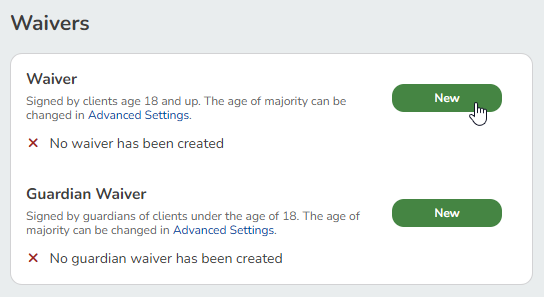
Click New next to Waiver or Guardian Waiver.
-
Fill in the following details:
-
Name of the waiver
-
Body of the waiver that needs to be signed
-
For best results, create the document within Pike13's interface or copy/paste it from a simple text editor rather than a rich text formatted document.
-
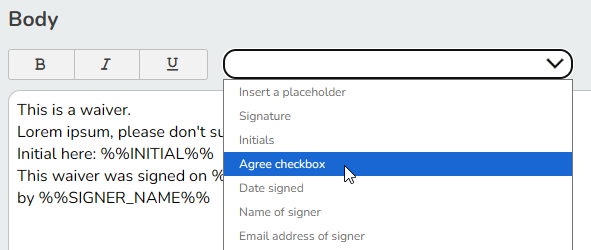
Click the dropdown to select any placeholders, such as initials, date of birth or custom fields.
Placeholders must be selected from the dropdown menu to be used successfully and cannot be copied/pasted from other documents/waivers.
-
-
-
Click Save.
-
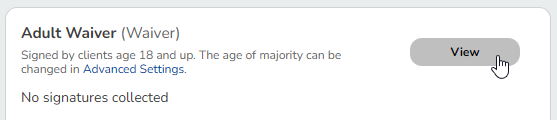
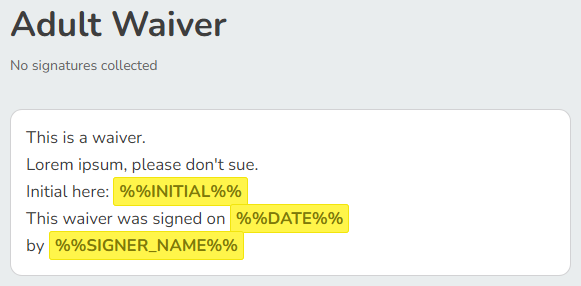
To see what clients see, click View.
Learn how to request signatures from clients or staff.
Best Practice
Require Dependent Birthdate
Without a birthdate, Pike13 assumes clients, particularly dependents, are over 18 and will treat them as such for client fields, like requiring an email address, signing waivers, or accepting terms & conditions.
Learn how to require fields for clients.
Warning
You can only create one (1) adult waiver and one (1) guardian waiver. You may create additional miscellaneous documents, but they are not automatically required. They may be sent by Owners or Managers en masse, or to individual clients by Owners, Managers or Staff Members.
Creating Placeholders
You can create a new placeholder (auto-populated field) by creating a custom client field. Ensure Can this field be used when creating documents? is set to Yes. This field will be added to the list of available placeholders when creating documents.
Client data is automatically displayed in documents with placeholders. If the custom field is only used for document and does not appear in their profile, clients will be prompted to complete the field prior to signing the document.
Editing Documents
-
At the top of any Pike13 page, click Settings, then click Documents.
-
Click View next to the document.
-
Click Edit.

-
Make any necessary changes, then click Save.
Best Practice
Re-signing an Updated Waiver
For all new and existing clients to sign an updated waiver, delete the existing waiver and create a new one. Editing a waiver will not prompt clients who have already signed the older version to sign it again.
Previously-signed documents and waivers are always saved to the client profile. Deleting the waiver will reset the status on all client profiles to not having signed a waiver. All clients will be prompted to sign a new one when it's created.
Learn how to request signatures from clients or staff.