
Before you can run a payroll report, you must define how your staff is compensated. You can set flat rates, percentage-based commissions, and attendance bonuses for classes and appointments.
- Who can use this feature?
- Adding Staff Pay Rates
- Adding Irregular Payroll Items
- Enabling Tips and Gratuities
Who can use this feature?
- Pike13 Plans: ✅Premium, ✅Advanced, ❌Essential
- User Roles: ✅Primary Owner, ✅Owner, ❌Manager, ❌Staff, ❌Limited Staff
Adding Staff Pay Rates
Pay rates are attached to Services. You create a rate rule (e.g., $20 per class) and then assign specific staff members to that rule.
-
At the top of any Pike13 page, click Staff.
-
Click Pay Rates from the right sidebar.
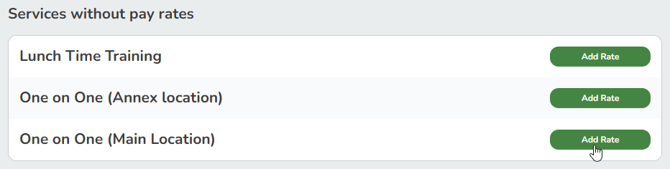
- If no rate exists, find the service in the Services without pay rates section and click Add Rate.
-
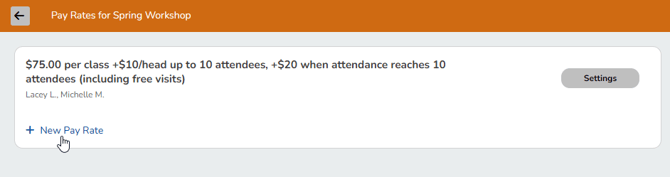
If a rate exists and you want to add another click the service name and then click + New Pay Rate.
-
Fill out the following fields:
- Base Pay
- Classes or Courses: Enter a Fixed dollar amount (e.g., $30 per class).
-
Appointments: Choose either Fixed dollar amount or Percentage of total sale (Commission).
-
Bonuses for attendance
-
Per-client bonuses: Pays an extra amount for every head in the room (e.g., "$1 extra per student").
-
Tiered bonuses: Pays a lump sum when attendance hits a specific number (e.g., "$10 bonus if 10+ students attend").
-
-
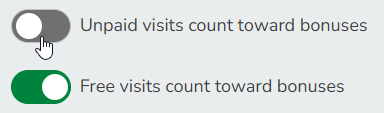
Allow unpaid or free visits to count towards bonuses.
- Base Pay
-
Click Create.
-
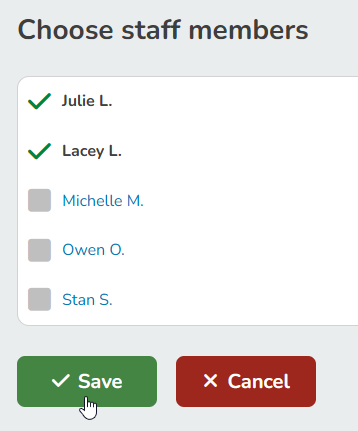
On the Pay Rate Details page, click Assign Staff Members.

- Check the boxes for the employees who should receive this specific rate and click Save.
NOTE:
Pay for No-Shows and Late Cancels
Base pay for appointments is tied to the scheduled appointment itself, not client attendance. If an appointment remains on the schedule and attendance is confirmed, the staff member earns base pay even if the client is marked as a no-show or late cancel. However, per-client bonuses only apply to clients who actually attend, so a missed visit will not trigger a bonus.
- To pay staff only when clients attend: Set base pay to $0 and enter the pay rate as a per-client bonus.
- To withhold pay for a specific missed appointment: Cancel the appointment instead of marking the client as a no-show. Canceling removes the appointment from the schedule, preventing a pay item from generating.
Warning
Percentage Pay & Unlimited Plans
If an unlimited plan is used for an appointment with a percentage pay rate, the staff pay is based on the single-visit price of the service. Pike13 does not calculate per visit costs on an unlimited plan.
Adding Irregular Payroll Items
Staff members can create one-time or irregular payroll items, commonly used to report hourly work or special work items. Irregular payroll items need to be approved by an owner or manager.
-
At the top of any Pike13 page, click Staff.
-
In the Staff list, click the staff member to modify.
-
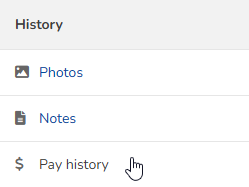
In the History section, click Pay History.
-
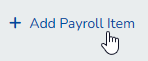
Under Pending Pay, click + Add Payroll Item.
-
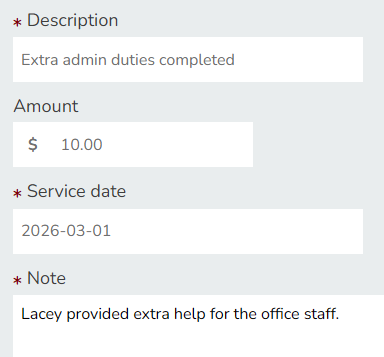
Add the following details:
-
Description to briefly describe the reason for pay
-
Amount due to the staff member
-
Service date when the work was performed
-
Note for Owners and Managers
-
-
Click Finish.
-
Under Pending Pay, you will see the new item.

- These items must be approved by an Owner or Manager before they appear in the final payroll export.
Enabling Tips and Gratuities
You can allow clients to add tips during checkout for specific services.
-
At the top of any Pike13 page, click Staff.
-
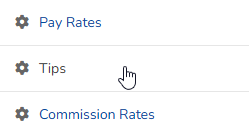
Click Tips.
-
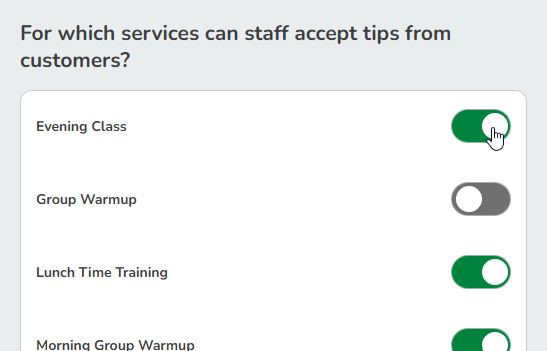
Select Services: Select the toggle next to every service where tipping should be allowed. This is more common for Appointments, but Pike13 allows tipping for Classes and Courses.
-
Click Update.
Warning
In-Person Tipping Only
Tipping is only available when Staff processes a payment in person via the Pike13 website or the Staff App. Clients cannot add a tip when purchasing items online or via the Client App from their own devices.