
Owners and Managers can submit assets and select colors for their branded app in Advanced Settings.
In This Article
Who can use this feature?
- Pike13 Plans: ✅Premium, ❌Advanced, ❌Essential
- User Roles: ✅Primary Owner, ✅Owner, ✅Manager, ❌Staff, ❌Limited Staff
Updating Assets
- Login to your Pike13 website.
- Click on Settings.
- Choose Advanced Settings.
- From the menu under Branding, select Branded Mobile App.
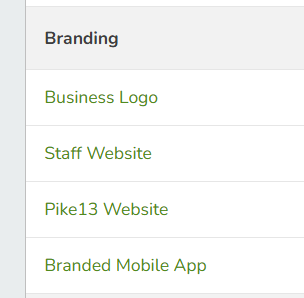
- If you do not see Branded Mobile App, please reach out to the support team at
help@pike13.comso it can be enabled for your business.
- If you do not see Branded Mobile App, please reach out to the support team at
- Click on Assets and Information.
- You may update the following fields:
- Assets and Information:
- App Name
- Marketing site URL
- Business Logo
- Google Play Store Feature Graphic
- Store and Phone Icon
- Background
- Tester's E-Mail Addresses
- Apple App Store
- Developer Account Name
- App Category
- Keywords
- Description
- Google Play Store
- Short Description
- Full Description
- Assets and Information:
- After updating all fields, click Submit.
- Our team will submit these changes to both app stores.
Updating Colors
- Login to your Pike13 website.
- Click on Settings.
- Choose Advanced Settings.
- From the menu under Branding, select Branded Mobile App.
- If you do not see Branded Mobile App, please reach out to the support team at
help@pike13.comso it can be enabled for your business.
- If you do not see Branded Mobile App, please reach out to the support team at
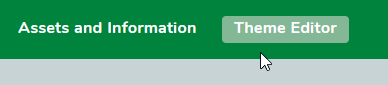
- Click Theme Editor.
- You may use one of the preset Themes in the first tab by clicking Preview, then click Apply to save changes.
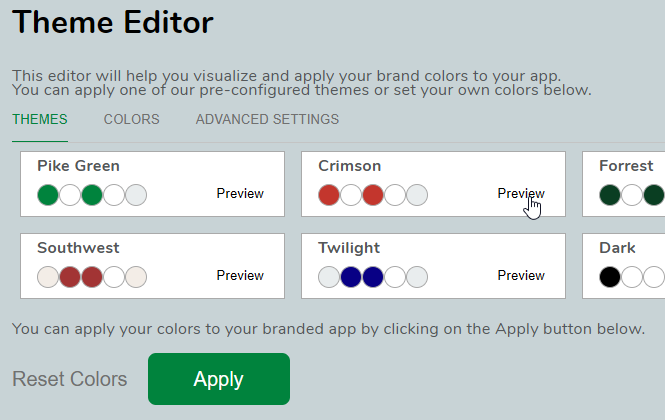
- For more options, click the Colors tab.
- This will give you 5 colors to change:
- Primary Color
- Background Color
- On Interactive Primary
- On Primary
- Interactive Primary
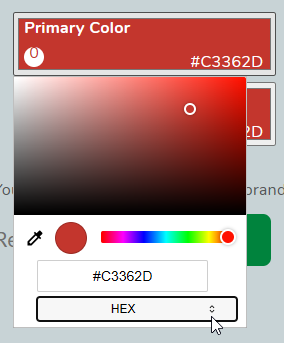
- Click the color you wish to change and use the color picker displayed.
- This will give you 5 colors to change:
- For the most control over the colors shown in the app, click the Advanced Settings tab.
- Primary Color
- Secondary Color
- Background Color
- Disabled Background
- On Interactive Primary
- Surface
- On Primary
- Primary On Background
- Primary On Surface
- On Secondary
- Secondary On Background
- Secondary On Surface
- On Disabled Background
- Success
- Critical
- Warning Text
- Warning Icon
- Interactive Primary
- Interactive Secondary
- Divider
- Banner
- Review the changes in the preview on the right of the page.
- Click Apply to save changes.