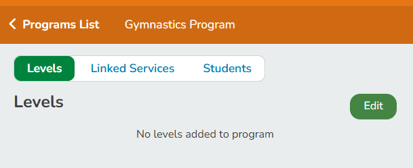
Once your Skill Program is created, you can define the specific Levels students and the skills evaluated for each level. Students are automatically added to a Level based on the classes they attend.
Who can use this feature?
- User Roles: ✅Primary Owner, ✅Owner, ✅Manager, ❌Staff, ❌Limited Staff
Creating Levels
-
At the top of any Pike13 page click Settings, then click Skill Tracking.
-
Select the program you wish to modify, then click Edit.
-
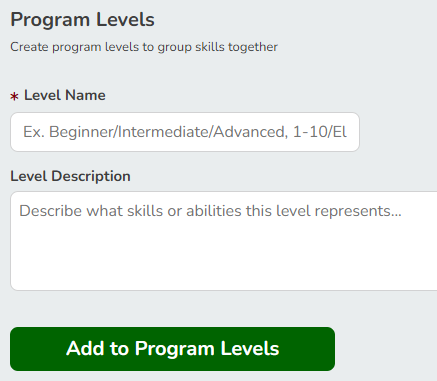
Enter the following details:
-
Level Name (required)
-
Level Description
-
-
Click Add to Program Levels.
Creating Skills
-
At the top of any Pike13 page click Settings, then click Skill Tracking.
-
Select the program you wish to modify, then click Edit.
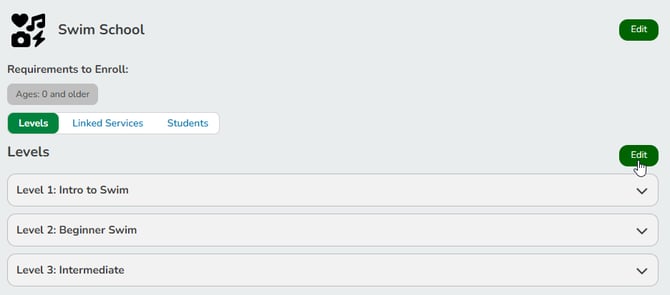
- Find the level of interest and click + Add a Skill.
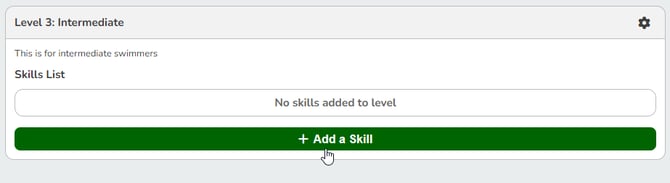
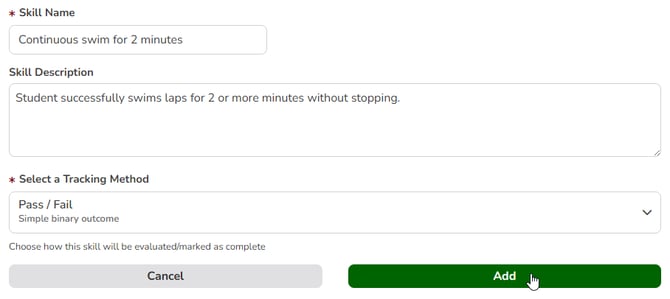
- Enter the following details:
- Skill Name
- Skill Description
- Select a Tracking Method:
- Scale Rating: set a minimum and maximum score
- Pass/Fail: binary pass or fail
- Tiered Evaluation: try again, pass, expert
- Percentage: set a percentage required to pass
- Add these optional fields:
- Reference video (optional): Paste a YouTube link to show what the skill looks like. Only YouTube links are supported, and the link saves automatically.
- Reference photo (optional): Upload a JPEG, PNG, or HEIC image, up to 5 MB. Uploading a new photo replaces the old one.
- Public note templates (optional): Save ready-to-use wording that instructors can pick when they add a public note for this skill.
Videos and photos appear wherever the skill shows up, including when instructors rate it and on the client’s skill details.
- Click Add when finished.