Once your Skill Program is created, you can define the specific Levels students and the skills evaluated for each level. Students are automatically added to a Level based on the classes they attend.
Who can use this feature?
- User Roles: ✅Primary Owner, ✅Owner, ✅Manager, ❌Staff, ❌Limited Staff
Creating Levels
-
At the top of any Pike13 page click Settings, then click Skill Tracking.
-
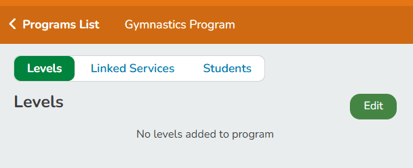
Select the program you wish to modify, then click Edit.
-
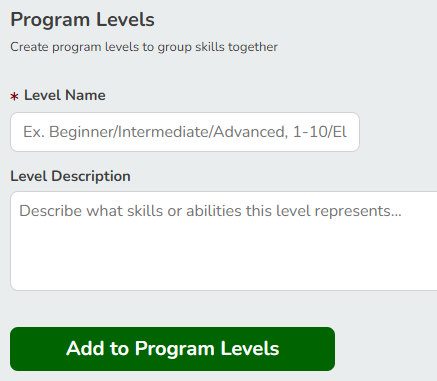
Enter the following details:
-
Level Name (required)
-
Level Description
-
-
Click Add to Program Levels.
Creating Skills
-
At the top of any Pike13 page click Settings, then click Skill Tracking.
-
Select the program you wish to modify, then click Edit.
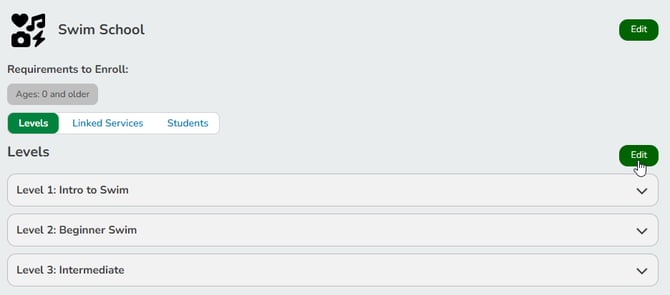
- Find the level of interest and click + Add a Skill.
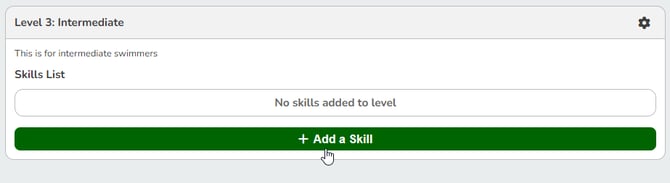
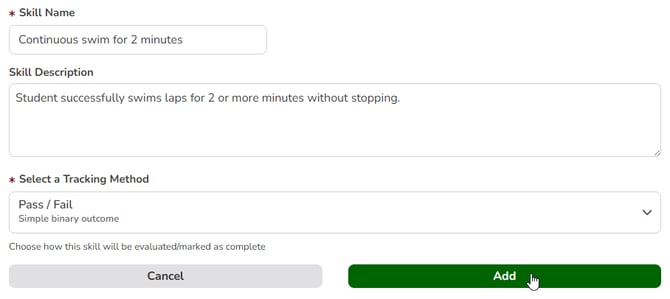
- Enter the following details:
- Skill Name
- Skill Description
- Select a Tracking Method:
- Scale Rating: set a minimum and maximum score
- Pass/Fail: binary pass or fail
- Tiered Evaluation: try again, pass, expert
- Percentage: set a percentage required to pass
- Click Add when finished.