
If your business is required to collect sales tax, you can configure these rates in Pike13. You can set a default rate for all products, specify rates by location, and choose whether your listed prices already include tax.
In This Article
Who can use this feature?
- Pike13 Plans: ✅Premium, ✅Advanced, ✅Essential
- User Roles: ✅Primary Owner, ✅Owner, ✅Manager, ❌Staff, ❌Limited Staff
Adding Sales Tax
-
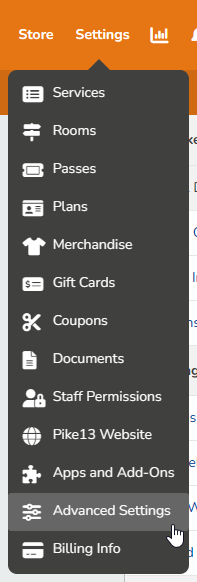
At the top of any Pike13 page, click Settings, then click Advanced Settings.
-
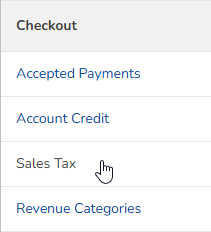
In the Checkout section click Sales Tax.
-
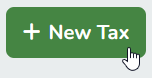
To add a default tax rate, click + New Tax.
-
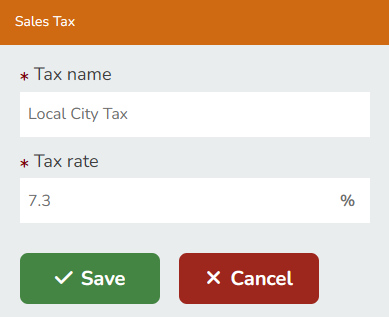
Enter the following details:
-
Tax name: displayed on invoices and in the shopping cart
-
Tax rate: the percentage needed for this type of sales tax
-
-
Click Save.
-
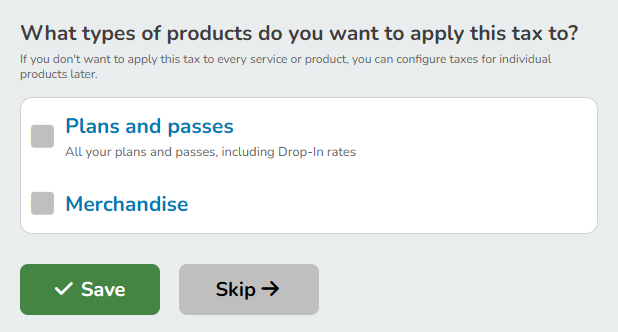
Under What types of products do you want to apply this tax to?, select all of the product types that you want to add sales tax to, then click Save.
-
If you do not want to apply this tax to every product/service type, you can click Skip and configure them individually later.
-
-
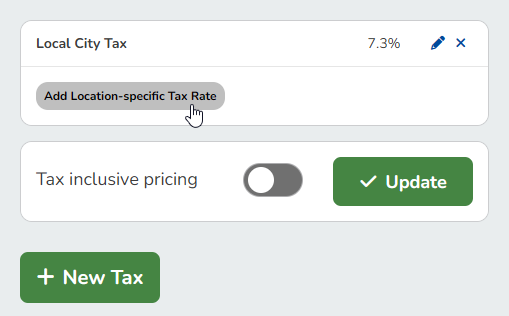
To apply different tax rates per business location, click Add Location-specific Tax Rate.
-
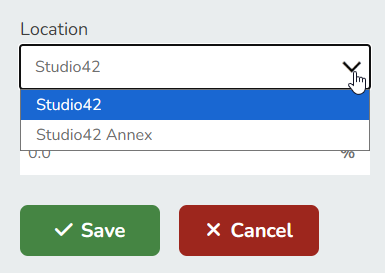
Select the location from the dropdown, and enter the local tax rate.
-
Click Save.
Tax Inclusive Pricing
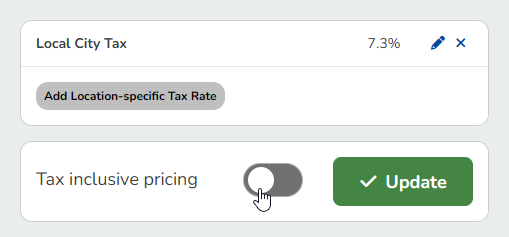
Enable tax-inclusive pricing to charge your clients the exact price listed in your store. When enabled, your client invoices will display a single, clear total that already includes the built-in tax, eliminating any confusion about extra fees.
-
At the top of any Pike13 page, click Settings, then click Advanced Settings.
-
In the Checkout section click Sales Tax.
-
Click the Tax inclusive pricing toggle to enable it (it will turn green), and then click Update.
With Tax-Inclusive Pricing (Enabled):
For a $100 pass with a 10% tax rate, the client pays exactly $100. Pike13 automatically calculates the breakdown behind the scenes (Revenue = ~$90.91, Tax = ~$9.09). The client's invoice will show a single total of $100, making it clear that tax is already included.
Without Tax-Inclusive Pricing (Disabled):
Pike13 adds the tax on top of the base price. For a $100 pass with a 10% tax rate, the pass is $100 and the additional sales tax is $10. The total paid by the client will be $110.
Removing Sales Tax From Passes/Plans
-
At the top of any Pike13 page, click Settings, then click Plans, Passes or Merchandise.
-
Select the product/service you wish to modify.
-
In the Pricing section, click Edit next to Price.
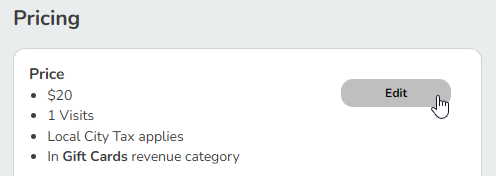
-
Under Choose applicable taxes, remove the checkbox next to the tax type.
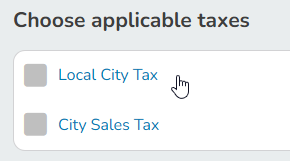
- Click Save
Invoice Settings
To add more details to your invoices like a Business Tax ID or Show Tax Per Item use the Invoice settings selections from your advance settings
- Select Advance Settings then under the Checkout section select Invoice Settings
- Adjust the desired extra information you need for your business needs here
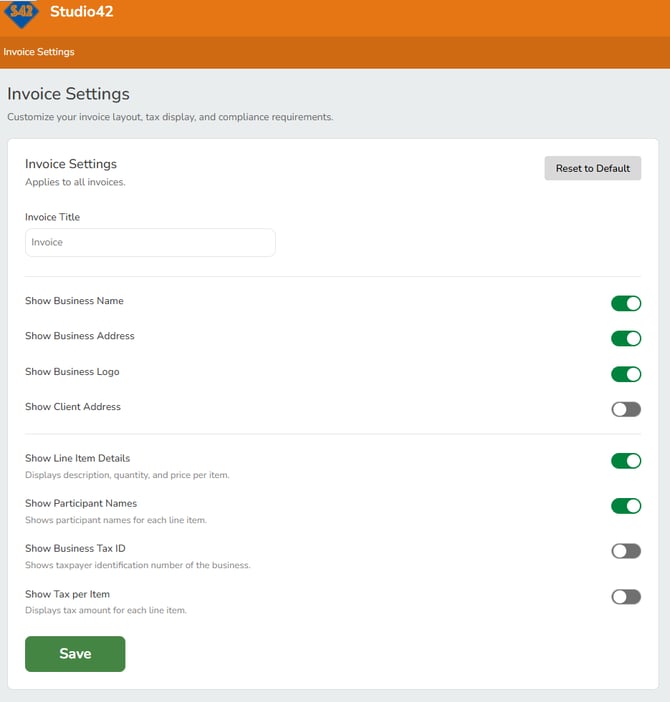
Tailor your purchase requests to meet client expectations and compliance guidelines. Always click Save and review the preview section at the bottom of the page to verify your layout changes.
Cancellation Fees
-
At the top of any Pike13 page, click Settings, then click Services.
-
Select the service you wish to modify.
-
Click the Cancellation tab.
-
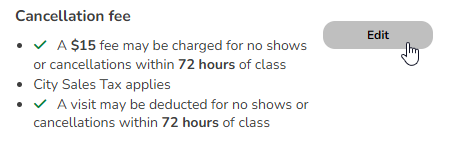
Click Edit next to the Cancellation fee.
-
Under Choose applicable taxes, click on the checkbox to add or remove sales taxes from the cancellation fee.
-
Click Save.